QuickBooks Error 0x800701B1 can interrupt your work when Windows cannot access a storage device or file path. You may see the message, “A device which does not exist was specified,” while transferring files or working with external storage.
For example, you might try to copy a QuickBooks backup to a USB drive, but Windows stops the transfer and displays this error. It may also be worth checking the storage path if QuickBooks cannot access a company file.
The error does not automatically mean your company file is damaged. Start by checking whether Windows can access the drive. If your accounting data is on a device that keeps disconnecting, protect the data before trying repairs.
What Does QuickBooks Error 0x800701B1 Mean?
Error 0x800701B1 is a Windows device-access error. The message means Windows could not access the device it expected to find.
A Microsoft Q&A discussion about this error includes reports involving external hard drives and file transfers. These reports show possible situations in which the error can occur, but they do not establish one cause for every computer.
If you encounter the error while using QuickBooks Desktop, check the storage device and file path before assuming the accounting software or company file is damaged.
A QuickBooks company file usually ends in .QBW, while a backup file ends in .QBB. A company file contains your working accounting data. A backup lets you restore that data if needed.
Knowing which file you were using when the error appeared will help you choose the right fix.
What Causes QuickBooks Error 0x800701B1?
The error may involve a storage connection, an unavailable file path, or another device-access problem. The table below lists possible causes and what to check first.
| Possible cause | Signs to look for | What to check |
| Loose USB connection | The external drive disconnects or disappears | Reconnect the drive and try another USB port or compatible cable |
| External drive problem | Windows cannot open the drive or read its files | Check whether Windows detects the drive and whether it remains connected |
| Changed drive letter | QuickBooks cannot find a file at its previous location | Confirm the current drive letter and file path |
| Network access problem | The company file is stored on another computer or server | Check the server, shared folder, network connection, and permissions |
| File access restrictions | Windows can see the folder but cannot open the file | Check folder permissions and whether the file is in use |
| Possible company file damage | Windows can access the file, but QuickBooks still reports a problem | Investigate the company file after ruling out storage and path issues |
These are possible causes to investigate, not confirmed diagnoses for every instance of Error 0x800701B1. The next step depends on whether the error appears during a backup, file transfer, restore, or normal company-file access.
What Should You Check Before Fixing the Error?
Before making changes, identify the failed task and protect your accounting data.
- Check the drive: Open File Explorer and see whether Windows can access the device and its folders.
- Check the file: Identify whether you were working with a .QBW company file or a .QBB backup.
- Protect accessible data: If the company file opens and its storage is stable, create a backup on a reliable drive.
- Stop if the drive appears to be failing: Repeated disconnections, unusual clicking sounds, or unreadable files may indicate a hardware problem.
- Avoid formatting the drive: Formatting can erase important files and is not a routine fix for this error.
If the drive contains your only copy of important accounting data and appears to be failing, seek professional data-recovery advice before running repair commands.
How to Fix QuickBooks Error 0x800701B1
Follow these steps in order. Start with basic Windows checks before using QuickBooks repair tools.
Check Whether Windows Can Access the Drive
First, determine whether Windows can read the storage device.
- Close QuickBooks if it is running.
- Press Windows + E to open File Explorer.
- Select This PC.
- Find the drive that contains your company file or backup.
- Open the drive and try to access the relevant folder.
If the drive is missing or Windows cannot open it, focus on the device and its connection first.
If Windows can open the folder and read other files but QuickBooks cannot open the company file, check the file path and permissions.
Do not move a company file while other users may be working in it. If you need to copy a live company file, make sure all users have closed QuickBooks and signed out first.
Check the USB Port and Cable
If the error appears while using an external hard drive or USB device, check the physical connection.
- Safely disconnect the device if Windows allows it.
- Check the cable for visible damage.
- Reconnect the device securely.
- Try another USB port.
- If possible, test with a compatible cable.
- Check the power supply if the drive needs external power.
Wait for Windows to detect the device, then try the operation again.
If the drive works in another port, the original port, cable, or connection may be involved. If the drive continues to disconnect, stop repeated attempts to access it.
You can test the drive on another computer if it is safe to do so. However, avoid repeated tests if the device appears to be failing and contains important data.
Check the Drive Letter and File Path
Windows assigns letters such as C:, D:, and E: to storage drives. If an external drive receives a different letter, QuickBooks or another application may still be looking for a file at its previous location.
To check the path:
- Open File Explorer.
- Select This PC.
- Find the drive that contains your QuickBooks file.
- Open the relevant folders.
- Confirm that the expected file is present.
Check the file extension before opening it. A .QBW file is a company file, while a .QBB file is a backup that must be restored.
If the drive is accessible but QuickBooks cannot locate the company file, follow our guide to fixing the QuickBooks Company File Not Found error.
Do not change a drive letter without a clear reason. Other applications may depend on the existing letter, and changing it can cause further access problems.
Create a Local QuickBooks Backup
If your company file opens and its storage is stable, try creating a backup on your computer’s internal drive rather than saving it directly to the external device that triggered the error.
Before starting, make sure other users are not working in the company file.
- Open QuickBooks Desktop and sign in to the company file.
- Select File → Switch to Single-user Mode.

- Select File → Back Up Company → Create Local Backup.
- Choose Local Backup, then select Next.
- Select Browse and choose a folder on a reliable local drive.
- Follow the prompts to complete the backup.
- Wait for QuickBooks to confirm that the backup finished.
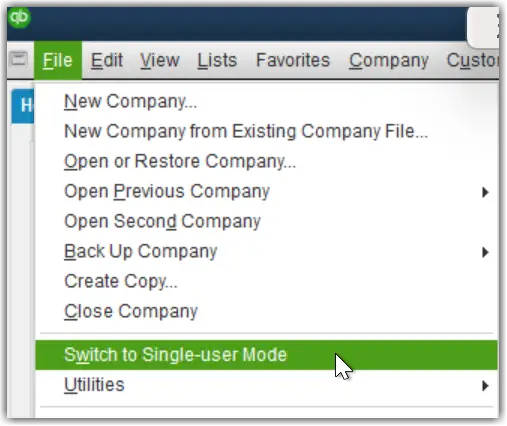
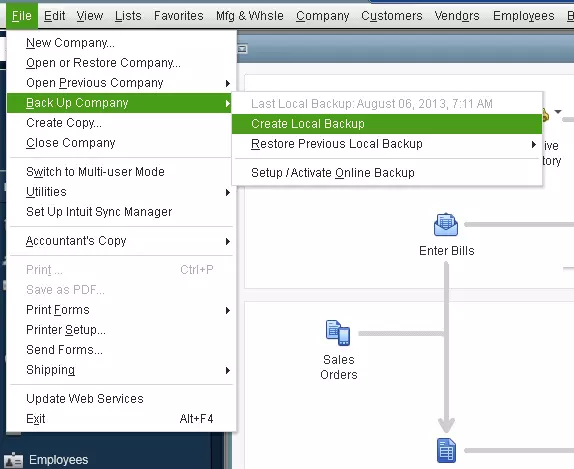
Menu wording can vary by version. Follow the instructions for your installed edition if the options differ.
These steps follow Intuit’s official QuickBooks Desktop backup instructions.
Once the backup is complete, confirm that the file exists in the selected folder. If you need a copy on an external drive, transfer the completed backup after checking that the destination is accessible.
If the local backup succeeds but copying it to the external drive fails, investigate the external device and its connection. If the backup also fails locally, further QuickBooks-specific troubleshooting may be needed.
Copy an Accessible Backup Before Restoring It
If Error 0x800701B1 appears while restoring a .QBB backup from a USB drive or external hard drive, check whether Windows can read the backup.
If the drive is stable and the file is accessible, copy the backup to a reliable local folder before restoring it.
Then follow these steps:
- Open QuickBooks Desktop.
- Select File → Open or Restore Company.
- Choose Restore a backup copy, then select Next.
- Select Local Backup, then select Next.
- Browse to the .QBB file on your computer.
- Choose where to save the restored company file.
- Select Save and follow the prompts.
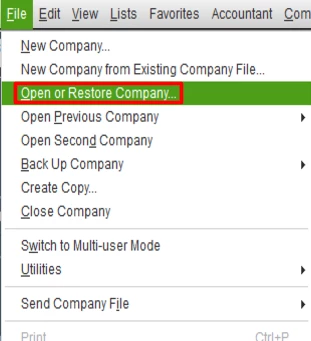
Choose a new folder or a unique file name when possible. Restoring a backup into the same folder as an existing company file can overwrite data if you select the wrong destination.
Intuit explains the process in its official guide to restoring a QuickBooks backup.
For more detailed instructions, see our guide to restoring a QuickBooks backup file.
Check the Network Drive and Shared Folder
If your company file is stored on another computer or a network server, check the network connection before running QuickBooks repair tools.
- Confirm that the computer or server holding the file is turned on.
- Open File Explorer on the computer running QuickBooks.
- Try to open the shared folder.
- Check that you are using the correct network path.
- Confirm that your Windows account has permission to access the folder.
If the shared folder does not open in Windows, the problem may involve the server, network connection, or folder permissions.
If the folder opens but QuickBooks cannot access the company file, check the hosting setup and QuickBooks database service. In a multi-user environment, avoid changing hosting settings without confirming which computer should host the company file.
For more help, read our guide to QuickBooks Desktop not connecting to the server.
Check Whether Windows Detects the Storage Device
If the drive appears in File Explorer but still causes errors, check whether Windows reports a device problem.
- Right-click the Windows Start button.
- Select Device Manager.
- Expand Disk drives.
- Look for a warning symbol beside the relevant device.
- If Windows reports a problem, check the device manufacturer’s instructions for the correct driver.
You can also open Disk Management to see whether Windows detects the drive. Right-click Start and select Disk Management.
If the drive appears as unallocated or Windows asks you to initialize or format it, do not proceed if it contains important data. These actions can affect access to existing files.
A driver update may help with some device problems, but it will not repair a physically failing drive. If the device keeps disconnecting or disappears from Windows, protect the data before attempting further repairs.
Use QuickBooks Repair Tools If the Storage Works
If Windows can access the drive and file path but QuickBooks still cannot open the company file, a QuickBooks repair tool may help.
QuickBooks File Doctor can help with certain company-file and network problems. It is not designed to fix a disconnected USB device or a failing hard drive.
Intuit’s File Doctor instructions explain how to use the tool for supported issues. You can also read our QuickBooks File Doctor guide.
If you suspect damage to the company file, use QuickBooks’ Verify Data tool first.
In QuickBooks Desktop:
- Close open windows by selecting Window → Close All.
- Select File → Utilities → Verify Data.
- Follow the prompts and review the results.
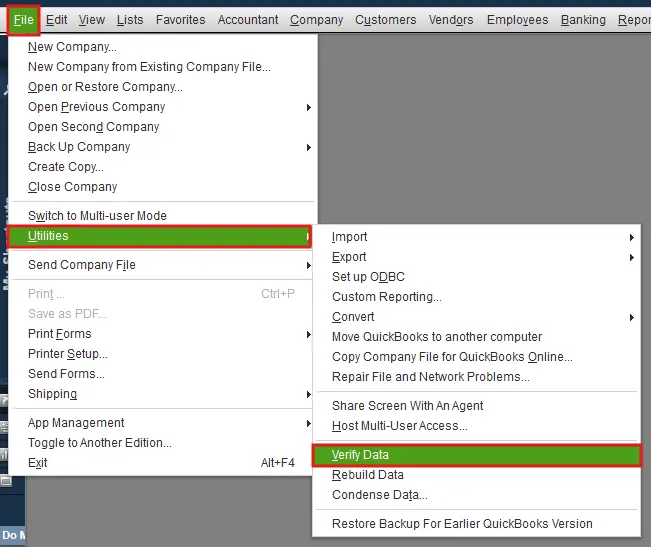
If Verify Data reports damage, create a suitable backup before using Rebuild Data. Rebuild is designed to repair detected data problems; it is not a fix for a drive that Windows cannot access.
Follow Intuit’s Verify and Rebuild Data instructions before proceeding.
What Should You Avoid When Fixing Error 0x800701B1?
Three mistakes can put your accounting data at risk.
- Formatting the drive: Formatting can erase files and may not resolve the device-access problem.
- Repeatedly accessing a failing drive: If the drive keeps disconnecting or cannot read files, stop and seek appropriate data-recovery advice.
- Rebuilding data without a backup: Rebuild Data can change the company file. Make the required backup first and follow Intuit’s instructions.
Also, do not assume the company file is damaged until you have checked whether Windows can access its storage location.
How Can You Prevent QuickBooks Desktop Error 0x800701B1?
A few regular checks can reduce the risk of storage and file-access problems.
- Save backups to a reliable location and confirm that each backup finishes.
- Keep separate backup copies in safe locations.
- Check external drives and cables if they disconnect often.
- Wait for file transfers to finish before removing a storage device.
- Check network access and folder permissions when company files are stored on a server.
- Test backups by restoring them to a safe, separate location when appropriate.
These steps cannot prevent every hardware or Windows error, but they help protect your accounting data and make recovery easier.
Conclusion
QuickBooks Error 0x800701B1 points to a Windows device-access problem, but the exact cause depends on your setup. Check whether Windows can access the drive, confirm the file path, and protect your company data before trying repairs.
If the issue occurs during a backup or restore, use a reliable local drive when the file is accessible. If Windows can access the storage but QuickBooks still reports a company file problem, consider the appropriate QuickBooks repair tools.
If the drive is failing or contains your only copy of important accounting data, seek professional help before making further changes.
Frequently Asked Questions
What does QuickBooks Error 0x800701B1 mean?
It is a Windows device-access error. Windows could not access the device it expected to find. The code alone does not identify the cause or prove that your QuickBooks company file is damaged.
Why does Error 0x800701B1 appear when backing up or restoring QuickBooks?
The error may occur when Windows cannot access the storage device or file path involved in the operation. Check whether the drive is accessible. If the backup is readable, copy it to a reliable local drive before restoring it.
Can QuickBooks File Doctor fix Error 0x800701B1?
File Doctor may help if the problem involves a supported company-file or network issue. It will not repair a physically failing drive or fix a USB device that Windows cannot detect. Check the storage device first.
Should I format my external hard drive to fix this error?
No, Formatting can erase the drive’s contents and is not a routine fix for Error 0x800701B1. If the drive contains important accounting data, protect it and seek professional advice before taking actions that could erase or damage the data.
