The QuickBooks Utility Application keeps popping up when you open QuickBooks Desktop, connect third-party software, or perform certain tasks. You may see a Windows message asking permission to make changes to your computer. In some cases, the message returns even after you click Yes.
This usually involves a program requesting Windows administrator access. However, the reason for the repeated request is not always clear. It may be connected to a background process, a third-party application, a QuickBooks update, or permissions on a shared server.
To troubleshoot the issue, first check the application name, publisher, and file path shown in the pop-up. Then follow the steps that match when the message appears. Do not disable Windows security or grant permanent administrator rights simply to stop the warning.
What Is the QuickBooks Utility Application Pop-Up?
The QuickBooks Utility Application pop-up is commonly reported as a Windows User Account Control (UAC) request associated with QuickBooks Desktop.
Windows displays UAC prompts when a program requests permission to perform an action that requires administrator-level access.
The message may say:
“Do you want to allow this app to make changes to your device?”
You may be able to approve the request, but users signed in with standard Windows accounts might need an administrator password.
Not every QuickBooks pop-up is a Windows permission request. Identifying the message helps you avoid unnecessary troubleshooting.
| What appears on your screen | What it may indicate |
| A Windows message requesting permission to make changes | A process needs elevated Windows access |
| A QuickBooks message asking to authorize another application | Third-party software is requesting company-file access |
| QuickBooks Desktop opens by itself | A startup item, scheduled task, or background process may be involved |
| A Utility Application prompt appears for non-admin server users | Windows or server permissions need investigation |
For example, if an inventory application requests access to your company file, QuickBooks may display its own authorization message. That is different from Windows asking for permission to run an executable.
The troubleshooting steps depend on which message you see.
Why Does QuickBooks Utility Application Keep Popping Up?
A repeated Utility Application prompt may indicate that the same process is starting again or requesting administrator access each time it runs.
The following situations can help narrow down the cause.
Windows Administrator Permissions
A QuickBooks-related process may request access that your current Windows account cannot provide without approval.
This is especially relevant when the prompt appears for standard Windows users but not for administrators.
Third-Party Software Connections
Certain inventory, reporting, and data synchronization applications communicate with QuickBooks Desktop to exchange company-file information.
A connection problem may occur alongside repeated Utility Application prompts.
In a QuickBooks Community discussion about a third-party SDK connection, a user reported that the prompt returned after clicking Yes. Clicking No stopped the connected application.
The user also reported that disabling UAC and authorizing the application again did not resolve the connection problem.
This was an individual user’s experience, not a confirmed explanation for every Utility Application error.
QuickBooks Updates or Background Tasks
If the prompt appears when QuickBooks opens or at a specific time, a scheduled process may be involved.
An Intuit Community response identifies automatic updates, startup settings, scheduled tasks, and background processes as possible reasons QuickBooks opens unexpectedly.
These are starting points for investigation. A recurring prompt does not automatically mean a QuickBooks update has failed.
QuickBooks Installation Problems
Installation issues are worth investigating when the pop-up occurs alongside crashes, failed updates, or errors opening QuickBooks.
A permission request alone does not prove that QuickBooks installation files are damaged.
How to Stop QuickBooks Utility Application From Popping Up
Start by identifying the program requesting permission. Then use the appropriate method below.
Step 1: Check the Application Name, Publisher, and File Path
When the pop-up appears, Windows may show details about the executable requesting administrator permission.
Follow these steps:
- Read the application name displayed in the prompt.
- Select Show more details, if the option is available.
- Check the verified publisher and program location.
- Record the executable name and file path.
- Note exactly when the pop-up appears.
If Windows provides a file path, you can locate that file in File Explorer and inspect its Properties > Digital Signatures, when available.
A familiar installation folder or publisher is useful information, but neither guarantees that a program is safe.
Use the results to decide what to check next:
- If the prompt appears whenever a specific third-party application starts syncing data, investigate that connection.
- If it appears immediately after Windows starts, check startup applications and scheduled tasks.
- If it only affects standard Windows users on a server, have the server administrator investigate the permissions.
- If the executable or publisher is unfamiliar, avoid approving the request until it has been checked.
Do not delete or rename the executable to prevent it from running. The file may support a legitimate QuickBooks function.
Step 2: Check Windows Startup Apps and Scheduled Tasks
Use this method if QuickBooks opens without your action or the Utility Application prompt appears at regular times.
First, check Windows startup applications:
- Press Ctrl + Shift + Esc to open Task Manager.
- Select Startup apps.
- Review the applications configured to launch when you sign in.
- Look for QuickBooks or related software.
- Check whether an application is starting automatically when it is not required.
You can also review scheduled tasks:
- Open Windows Search and type Task Scheduler.
- Open Task Scheduler Library.
- Review the listed tasks and their scheduled times.
- Select a relevant task and inspect its Triggers and Actions tabs.
- Compare the task’s executable path and scheduled time with the Utility Application prompt.
For example, if the prompt appears every morning shortly after Windows starts, check whether a related task runs at that time.
Do not disable an unfamiliar task without confirming its purpose. It may support backups, updates, or another business application.
If you use a company-managed computer, ask the administrator to review any task that requires elevated access.
Step 3: Check for QuickBooks Desktop Updates
If the pop-up started after a QuickBooks update or you suspect an update did not finish correctly, check your installed release.
To find your current version:
- Open QuickBooks Desktop.
- Press F2 or Ctrl + 1.
- Find the version and release number in the Product Information window.
- Compare it with the release information published by Intuit.
If an update is available for your supported version:
- Go to Help > Update QuickBooks Desktop.

- Select the Update Now tab.
- Click Get Updates.
- When the download finishes, close and reopen QuickBooks.
- Select Install Now if prompted.
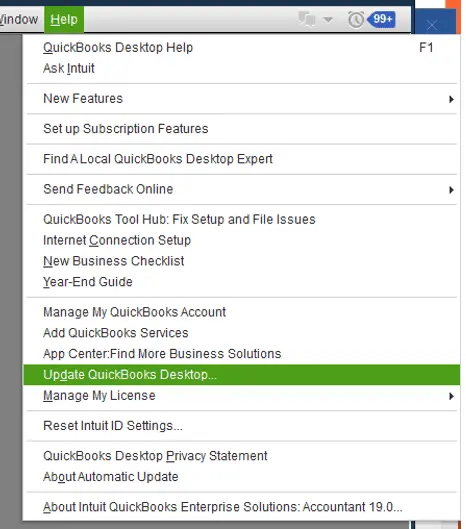
After the update, repeat the action that previously triggered the pop-up.
If QuickBooks is already current, or the permission request continues, investigate the requesting executable rather than repeatedly installing updates.
Step 4: Repair QuickBooks if Program Errors Occur
Use QuickBooks repair tools when the Utility Application prompt is accompanied by problems such as freezing, crashing, or errors opening the program.
Start with Quick Fix my Program:
- Close QuickBooks Desktop.
- Open QuickBooks Tool Hub.
- Select Program Problems.
- Click Quick Fix my Program.
- Reopen QuickBooks and check whether the original program error continues.

This tool closes certain QuickBooks background processes and performs a limited program repair.
If the problem involves installation components, Intuit also provides the QuickBooks Install Diagnostic Tool under Tool Hub > Installation Issues. 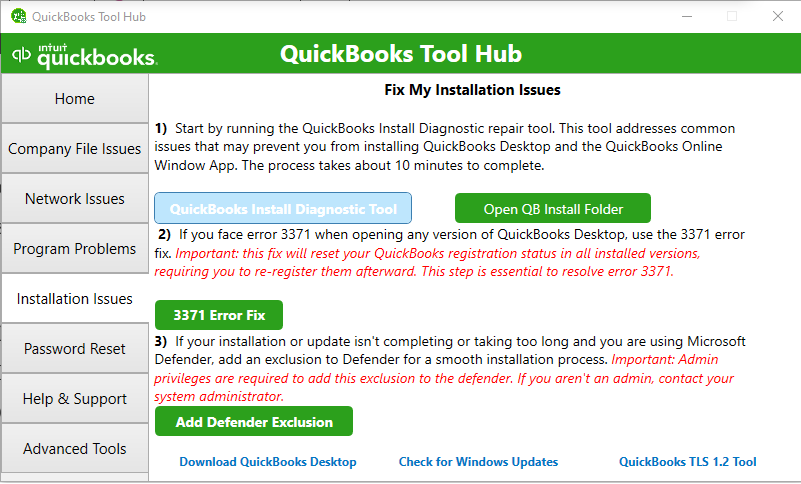
For more information, see our guides to:
- QuickBooks Tool Hub for downloading Tool Hub and using its repair utilities.
- QuickBooks Install Diagnostic Tool for troubleshooting supported installation errors.
These tools do not change Windows administrator permissions. They may help with related program problems but are not confirmed fixes for every Utility Application prompt.
How to Fix QuickBooks Utility Application Permission Problems With Third-Party Software
If the message appears when a reporting, inventory, or synchronization application connects to QuickBooks, first determine whether it is a QuickBooks authorization request or a Windows UAC request.
QuickBooks Desktop has separate permissions for applications that access company-file data.
Check the Integrated Applications Settings
If QuickBooks is asking whether an application may access the company file:
- Open QuickBooks Desktop and sign in as the company administrator.
- Select Edit > Preferences.
- Choose Integrated Applications.
- Open Company Preferences.
- Select the connected application.
- Click Properties to review its access settings.
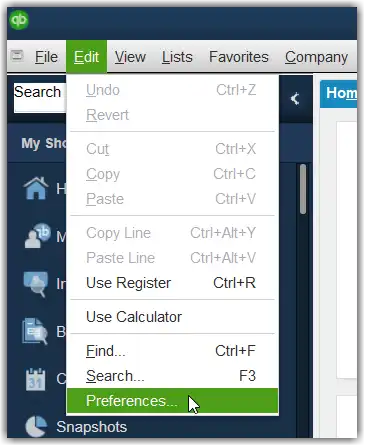
Intuit documents these permission options:
| Permission option | What it allows |
| No | Blocks the application from accessing the company file |
| Yes, but ask me every time | Requests approval each time the application connects |
| Yes, whenever my QuickBooks company file is open | Allows access while the company file is open |
| Yes, always allow access; even when my QuickBooks isn’t running | Allows unattended access, subject to the selected permissions |
If the application is set to ask every time, repeated QuickBooks authorization requests may be expected when it reconnects.
Only change these permissions after confirming that the application is trusted and requires the requested access.
Do not enable unattended access simply to remove a pop-up. Depending on the permissions granted, a connected application may be able to read or modify company-file data.
Check the Application Certificate Status
If the integration continues to fail, review its certificate information.
- Go to Edit > Preferences > Integrated Applications.
- Open Company Preferences.
- Select the application.
- Click Properties > Details.
- Review the certificate status.
Intuit documents certificate statuses including valid, expiring, expired, revoked, and no certificate.
A revoked certificate prevents the application from integrating with QuickBooks Desktop. An expiring or expired certificate should be reviewed with the application provider, but it does not automatically prove why a Windows UAC prompt appears.
See Intuit’s official guide to application permissions and certificate status.
These settings apply to QuickBooks company-file access. If the actual message is from Windows asking for administrator permission, changing Integrated Applications settings may not resolve it.
Why Does QuickBooks Utility Application Ask for Administrator Rights in Multi-User Mode?
In a shared or hosted QuickBooks Desktop environment, Windows user permissions may differ from one employee to another.
A standard Windows user may encounter a Utility Application permission request even when someone with administrator rights can open QuickBooks successfully.
For example, a user reported an issue on an AWS-hosted server where employees accessed QuickBooks through Remote Desktop. The Utility Application requested server administrator rights, preventing some standard users from continuing. The server administrator could open QuickBooks successfully.
The Intuit Community discussion describes the situation but does not establish a single confirmed cause.
If a similar issue affects your business, the server administrator should:
- Identify the executable requesting elevated access.
- Check whether the problem affects all users or only standard Windows accounts.
- Compare the results when the same QuickBooks version is opened under different authorized Windows accounts.
- Review recent updates, application changes, and relevant Windows event logs.
- Determine whether an integration or scheduled task is starting the process.
Do not grant administrator rights to every employee or change system-wide file permissions as a shortcut.
Also, remember that QuickBooks company administrator access and Windows administrator access are different. Having permission to manage a QuickBooks company file does not automatically grant Windows system privileges.
If the pop-up appears alongside a database service or multi-user connection error, the server administrator may also need to review the setup described in our QuickBooks Database Server Manager guide.
However, a Utility Application pop-up alone is not enough to conclude that Database Server Manager is responsible.
What If QuickBooks Utility Application Keeps Popping Up After Clicking Yes?
Clicking Yes approves the current Windows permission request. It does not prevent another process from requesting permission again.
If the prompt immediately returns, check whether the same executable is starting repeatedly.
Pay attention to what happens after approval.
For example, suppose an inventory application opens the Utility Application prompt whenever it attempts to retrieve QuickBooks data. Clicking Yes allows the prompt to close, but the synchronization fails and another request appears.
That pattern suggests the integration or the process it launches needs further investigation. It does not establish that the company file is damaged.
Record the following details:
- The exact application name, publisher, and executable path.
- The Windows user account affected.
- The action that triggers the request.
- Whether QuickBooks works when the third-party application is closed.
- Any recent QuickBooks, Windows, or integration updates.
- Error messages or relevant Windows event log entries.
Share these details with the appropriate support team.
If the issue only occurs during third-party synchronization, contact the application’s provider. For an installation error, use Intuit’s repair documentation. In a hosted environment, have the server administrator examine the affected process.
A repeating prompt does not have one verified universal fix. The executable and the event that starts it determine the appropriate next step.
Should You Disable Windows UAC to Stop the QuickBooks Pop-Up?
No, Disabling Windows User Account Control is not a recommended general fix for the QuickBooks Utility Application pop-up.
Some troubleshooting instructions suggest moving the Windows UAC slider to Never notify. This can suppress permission requests, but it does not necessarily fix the process that causes them.
Microsoft explicitly advises against the Never notify setting because of security concerns.
In the previously mentioned QuickBooks SDK case, the user reported that changing UAC to Never notify stopped the visible prompt, but the connected application still failed.
That is an example of why removing the warning may leave the original problem unresolved.
Instead, inspect the requesting program and determine why it needs elevated access.
For more information, see Microsoft’s User Account Control settings guide.
Conclusion
When QuickBooks Utility Application keeps popping up, identify the requesting executable before attempting repairs.
A Windows administrator prompt requires different checks from a QuickBooks third-party application authorization message. If the request occurs during synchronization, investigate the connected application. If it affects only standard users on a shared server, review Windows permissions with the administrator.
Use updates and repair tools when there are related program errors. Avoid disabling UAC, deleting utility files, or granting unnecessary administrator access.
Frequently Asked Questions
Is QuickBooks Utility Application a Virus?
Not necessarily. A legitimate QuickBooks-related process may request administrator permission through Windows UAC. However, the displayed application name alone cannot confirm whether the file is safe. Check the executable path, publisher, and available digital signature information. If the process is unfamiliar, have it checked before approving access.
Why Does QuickBooks Utility Application Keep Asking for an Administrator Password?
The process may require Windows permissions that a standard user does not have. This is different from the QuickBooks company administrator role. If the same request occurs repeatedly, a Windows or server administrator should identify the process and determine why elevated access is required.
Why Does QuickBooks Utility Application Keep Popping Up Even After Clicking Yes?
Clicking Yes approves one permission request. If the same application starts another action requiring elevated access, Windows may display the prompt again. Compare the executable path and the actions that trigger each request. If the prompt occurs during third-party synchronization, investigate the connected application.
Can I Disable QuickBooks Utility Application Permanently?
Disabling the utility is not a recommended general solution. In a 2023 Intuit Community discussion, a moderator cautioned that disabling it could affect QuickBooks functions. Another response stated that an in-product disable option was unavailable at that time. These statements do not establish the available options for every QuickBooks release.
Why Does QuickBooks Utility Application Pop Up When Using Third-Party Software?
The connected application may be starting a process that requests Windows administrator access, or QuickBooks may be requesting permission to share company-file data. These are separate permission systems. Check which message appears before changing the application’s authorization settings.
Will Turning Off QuickBooks Product Notifications Stop the Utility Application Pop-Up?
No, The option under Edit > Preferences > General > My Preferences > Turn off popup messages for products and services controls QuickBooks product and service notifications. It does not disable Windows UAC requests or fix a process that repeatedly needs administrator permission.
