QuickBooks Error H303 appears when QuickBooks Desktop cannot connect to the computer hosting your company file in multi-user mode. You may encounter this error while opening a shared company file or switching from single-user to multi-user mode.
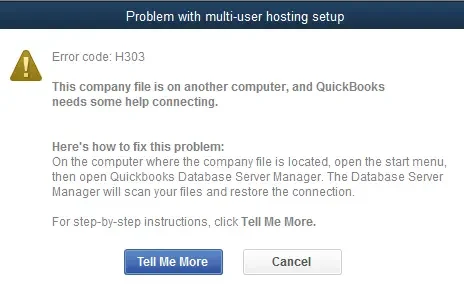
According to Intuit, H303 often occurs because one or more workstations are incorrectly set to host multi-user access. The designated server should handle hosting, while other computers connect to it.
To fix QuickBooks Error H303, open QuickBooks Desktop on each workstation, go to File > Utilities, and select Stop Hosting Multi-User Access if that option appears. Then confirm that hosting is enabled on the server.
If the error remains, check QuickBooks Database Server Manager, the server’s network connection, and the company file’s network configuration. The following steps explain how to identify the problem without changing unrelated settings.
What Does QuickBooks Error H303 Mean?
QuickBooks Error H303 is an H-series connection error that occurs when QuickBooks Desktop cannot establish the connection needed to access a company file hosted on another computer.
In a QuickBooks Desktop multi-user setup, the company file is normally stored on one designated computer, called the host or server. Other computers, known as workstations, connect to that file through the network.
For example, suppose an office uses three computers:
- OFFICE-SERVER stores the company file, ABCCompany.QBW.
- WORKSTATION-01 accesses the file to create invoices.
- WORKSTATION-02 uses the same file to record expenses.
If WORKSTATION-02 is incorrectly configured to host multi-user access, QuickBooks may display H303 when someone tries to connect to the file on OFFICE-SERVER.
The problem may also involve the connection between the workstation and server.
An H303 message does not, by itself, indicate that the company file is damaged. It means QuickBooks cannot complete the required multi-user connection.
Why Does QuickBooks Error H303 Occur?
Intuit identifies incorrect workstation hosting as a key cause to check for H303. Other server or network problems can produce similar connection failures.
The possible causes include:
- Incorrect workstation hosting: A computer that should connect to the server has multi-user hosting enabled.
- Incorrect server configuration: The designated host is not configured to provide multi-user access.
- Database Server Manager issues: The server cannot properly share the folder containing the company file.
- Stopped database services: The required QuickBooks service is unavailable on the server.
- Firewall restrictions: Windows Firewall or other security software blocks the required connection.
- Outdated Network Data (.ND) file: QuickBooks has incorrect information about the company file’s server or network location.
These causes require different repairs. For H303, the first step should be checking the hosting settings rather than immediately changing firewall rules or repairing the company file.
How to Fix QuickBooks Error H303
Begin with the workstation and server hosting settings. Intuit recommends this procedure specifically for Errors H101, H303, and H505.
After completing the hosting check, try opening the company file again. If H303 remains, use the diagnostic table in the next section to identify the appropriate server or network checks.
Solution 1: Correct Hosting Settings on Workstations and the Server
In a standard QuickBooks Desktop multi-user environment, only the designated server should host the company file.
The workstations can use multi-user mode without hosting the file themselves.
Step 1: Turn off hosting on the workstations
Follow these steps on the computer displaying H303:
- Open QuickBooks Desktop without opening the company file.
- Select File > Utilities.
- Check which hosting option appears.
- If you see Stop Hosting Multi-User Access, select it.

- Confirm the change when prompted.
- Repeat the check on the other workstations.

The wording of the hosting menu can be confusing because it shows the action available rather than the current setting.
| Option displayed | What it means | What to do on a workstation |
| Host Multi-User Access | Hosting is currently off. | Leave it unchanged. |
| Stop Hosting Multi-User Access | Hosting is currently on. | Select it to turn hosting off. |
For example, if WORKSTATION-02 displays Stop Hosting Multi-User Access, that workstation is configured to host. Turning off hosting corrects that setting.
If it already displays Host Multi-User Access, hosting is off, and you should check the next computer.
Step 2: Check hosting on the server
After checking the workstations, go to the computer that stores the company file.
If the server has the full QuickBooks Desktop application installed:
- Open QuickBooks Desktop.
- Select File > Utilities.
- If Host Multi-User Access appears, select it.
- If Stop Hosting Multi-User Access appears, do not select it. Hosting is already enabled.
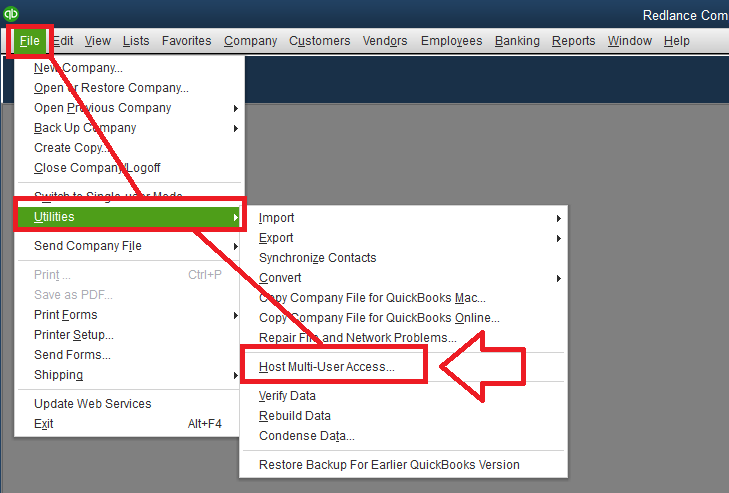
This keeps hosting on the designated server while preventing other computers from acting as hosts.
What if the server does not have the QuickBooks Desktop application?
Some servers use a server-only installation containing QuickBooks Database Server Manager rather than the full Desktop application.
In that setup, the File > Utilities menu is unavailable. Use Database Server Manager to review the hosting configuration instead.
For a separate explanation of host-specific settings, see QuickBooks Hosting Mode Is Off.
These steps follow Intuit’s official troubleshooting instructions for H303, H101, and H505.
Once the settings are correct, open the company file from the affected workstation.
If H303 disappears, there is no reason to perform the remaining repairs.
What Should You Check If QuickBooks Error H303 Still Appears?
If the hosting configuration is correct but QuickBooks still cannot open the shared company file, identify which computers are affected.
This helps determine whether the problem is limited to a workstation or involves the server.
| What you notice | What to check next |
| Only one workstation displays H303 | That computer’s network path, connection, and firewall settings |
| Every workstation displays H303 | Server configuration, Database Server Manager, and database services |
| H303 started after moving the company file | New folder location, Database Server Manager scan, and .ND file |
| H303 appeared after a server restart | Whether the required QuickBooks database services started |
| The server is reachable, but QuickBooks cannot connect | QuickBooks database ports, firewall rules, and service availability |
| Only one company file displays H303 | That file’s folder, network configuration, and permissions |
These checks are diagnostic starting points. They do not prove the cause until you test the relevant setting.
Solution 2: Scan the Company File Folder With Database Server Manager
If the hosting settings are correct, check whether QuickBooks Database Server Manager recognizes the company file folder.
Database Server Manager runs on the host computer and helps other computers access company files over the network.
For example, if the company file was recently moved from D:\Accounting to D:\CompanyFiles, the server may need to scan the new folder.
To check it:
- Close QuickBooks Desktop.
- Open QuickBooks Tool Hub on the server.
- Select Network Issues.
- Click QuickBooks Database Server Manager.
- Check whether the folder containing your company file is listed.
- If it is missing, select Browse and locate the correct folder.
- Click Start Scan.
- Wait for the scan to finish, then close the tool.
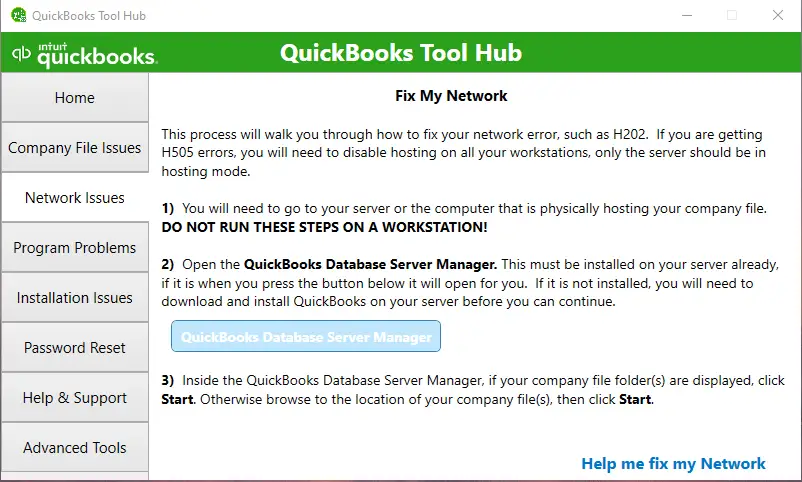
Database Server Manager can also repair certain firewall permissions during the scan.
Afterward, return to the affected workstation and try opening the company file.
A successful folder scan does not guarantee that the database service is running. If the scan completes but H303 continues on several workstations, check the server’s Windows services next.
Solution 3: Check the QuickBooks Database Services
QuickBooks Desktop uses Windows services to manage company file access in multi-user environments.
Two services to check on the server are:
- QuickBooksDBXX
- QBCFMonitorService
The XX in QuickBooksDBXX represents the version-specific service number. For example, QuickBooks Desktop 2023 uses QuickBooksDB33.
To check the services:
- Go to the server computer.
- Press Windows + R.
- Type services.msc and press Enter.
- Find the QuickBooksDBXX service for your QuickBooks version.
- Double-click it to open its properties.
- Set Startup type to Automatic if it is not already selected.
- Check Service status. If the service is stopped, select Start.
- Open the Recovery tab.
- Set First failure, Second failure, and Subsequent failures to Restart the Service, following Intuit’s guidance.
- Select Apply > OK.
Repeat the applicable checks for QBCFMonitorService.
If you need to change service settings, use an authorized Windows administrator account and coordinate with other QuickBooks users before restarting services.
Once the services are running, test multi-user access from the workstation.
What if QuickBooksDBXX stops again?
A service that repeatedly stops needs further diagnosis. Check the Windows service error and whether the database service account has the necessary permissions.
The QBDBMgrN Not Running on This Computer guide covers these service-related problems in more detail.
If the required services are running but H303 remains, the workstation may still be unable to communicate with the host over the network.
Solution 4: Test the Connection Between the Workstation and Server
A basic network test can show whether the affected workstation can reach the computer storing the company file.
First, find the host computer’s name.
On the server:
- Press Windows + R.
- Type cmd and press Enter.
- Enter the command:
hostname - Note the computer name displayed.
Suppose the server name is OFFICE-SERVER.
On the affected workstation:
- Open Command Prompt.
- Enter:
ping OFFICE-SERVER - Press Enter.
- Review the result.
If the command receives replies, the workstation can reach the server at a basic network level.
However, a successful ping does not confirm that the QuickBooks database service or its required TCP ports are accessible.
If the ping fails, check whether the workstation is connected to the correct network and can resolve the server name. Some networks block ping requests, so a failed ping does not always mean the server is offline.
You can also test whether the shared folder is accessible.
For example, enter the following path in File Explorer, using your actual server and share names:
\\OFFICE-SERVER\CompanyFiles
If Windows cannot access that folder, investigate network sharing and permissions before changing QuickBooks settings.
If the problem involves more than the H303 error, the QuickBooks Network Connection Error guide provides broader connection troubleshooting.
When the workstation can reach the server but QuickBooks still fails, review whether security software is allowing the database connection.
Solution 5: Check QuickBooks Firewall and Security Settings
Windows Firewall or third-party security software can block the connection QuickBooks Desktop needs for multi-user access.
This may happen even when the hosting configuration and database services are correct.
QuickBooks Desktop 2019 and later use assigned dynamic database ports. The exact port depends on the installed QuickBooks version.
To identify the assigned port:
- Open QuickBooks Database Server Manager on the server.
- Select the Port Monitor tab.
- Find the installed QuickBooks Desktop version.
- Note the assigned port number.
- Check whether the required QuickBooks ports and programs are permitted through the firewall.
Intuit lists TCP port 8019 along with the applicable dynamic port for QuickBooks Desktop 2019 and later. Older versions have different port requirements.
Do not use an old version’s port numbers without checking the current installation.
If a firewall exception is missing, follow Intuit’s official QuickBooks Desktop firewall configuration instructions.
If your company uses centrally managed security software, ask the network administrator to review the rules.
Avoid disabling the firewall permanently or opening broad port ranges without a clear need.
After the appropriate rules are configured, test the company file connection again.
If the network and security settings are correct, but the error began after changing the server or file location, check the Network Data file.
Solution 6: Recreate the QuickBooks Network Data (.ND) File
QuickBooks Desktop uses a Network Data file with the .ND extension to store information needed to connect to the database server.
According to Intuit’s explanation of .ND files, this file contains details such as the server address and port.
If the information is incorrect or outdated, QuickBooks may have trouble connecting to the company file.
This check is particularly relevant when H303 begins after moving the company file, changing the server, or updating the network configuration.
To recreate the .ND file:
- Ask all users to close the affected company file.
- Open File Explorer on the server.
- Locate the folder containing the .QBW company file.
- Find the associated .ND file.
- Rename the .ND file by adding .OLD to its name.
- Open QuickBooks Database Server Manager.
- Scan the company file folder again.
- Confirm that a new .ND file is created.
- Open QuickBooks on the affected workstation and test the connection.
For example, if the company file is named ABCCompany.QBW, its Network Data file may be named ABCCompany.QBW.ND.
Renaming the old file keeps a copy while allowing Database Server Manager to create a new configuration file.
Do not rename the .QBW company file or its .TLG file as part of this repair. The .TLG file serves a different purpose and should not be changed merely because H303 appears.
If the new .ND file does not resolve the error, the problem may involve another network or company-file access issue.
Solution 7: Run QuickBooks File Doctor if the Connection Still Fails
QuickBooks File Doctor can diagnose certain supported network and company-file problems.
It is worth trying after checking hosting and the relevant server settings. It should not replace those checks.
To run File Doctor:
- Open QuickBooks Tool Hub.
- Select Company File Issues.
- Click Run QuickBooks File Doctor.
- Select the affected company file.
- Choose the available network check and follow the prompts.
- Enter the QuickBooks administrator password if requested.
- Allow the scan to finish.
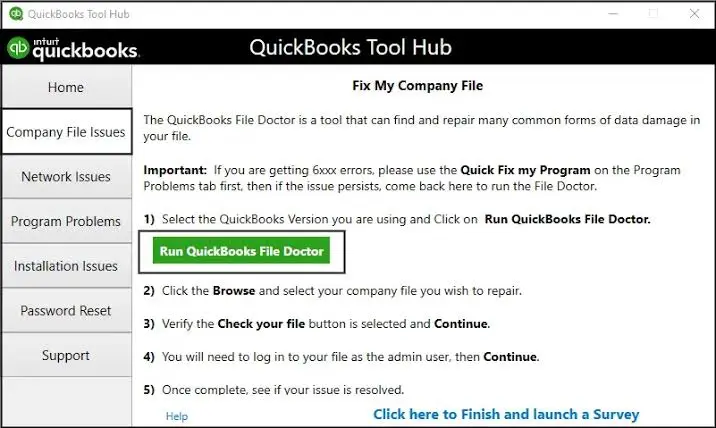
When the tool completes its check, reopen the company file from the workstation.
File Doctor does not guarantee a fix for every H303 issue. If it reports a specific network or file error, use that result to guide the next repair.
How to Confirm QuickBooks Error H303 Is Fixed
After correcting the relevant setting, verify the connection from a workstation rather than checking only the server.
- Open QuickBooks Desktop on the workstation that previously displayed H303.
- Open the company file from its shared network location.
- If necessary, select File > Switch to Multi-user Mode.
- Confirm that the company file opens without H303.
- Ask a second authorized user to open the same company file from another workstation.
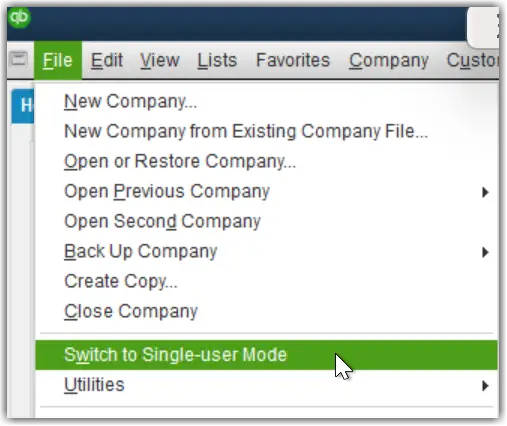
If both users can access the file in multi-user mode, the connection works for those tested computers.
If the error returns after a restart, note whether the problem affects the same workstation or every computer. That information helps narrow down whether a service, network rule, or hosting setting changed.
How to Keep the H303 Hosting Problem From Returning
Once the connection works, keep the server and workstation roles consistent.
The designated host should continue managing the company file, while workstations should connect without hosting multi-user access themselves.
If the company file is moved to another folder or server, update the shared path and scan the new location using Database Server Manager. After security updates or network changes, check the relevant services and firewall rules if connection problems appear.
There is no need to repeatedly change hosting settings when the connection is working.
Conclusion
For QuickBooks Error H303, the first repair is to turn off hosting on workstations and confirm that the correct computer is hosting the company file.
If that does not resolve the error, use the affected computers and recent network changes to decide which check comes next. Database Server Manager, Windows services, firewall permissions, and the .ND file are worth investigating when the symptoms point to them.
Once the company file opens successfully from multiple authorized workstations, avoid making additional changes unless the error returns.
Frequently Asked Questions
Why does QuickBooks Error H303 appear even when hosting is turned off?
Turning off hosting on a workstation corrects only one possible cause of error H303 in QuickBooks Desktop.
If the error remains, confirm that the designated server is hosting the company file and that QuickBooks Database Server Manager is running. Also check the network connection and firewall rules.
If the workstation already displays Host Multi-User Access, leave that setting unchanged and investigate the server.
How can I tell which computer is hosting my QuickBooks company file?
Identify the computer where the shared .QBW company file is stored. That is normally the designated host in a standard multi-user setup.
If the full QuickBooks Desktop application is installed on that computer, open File > Utilities. Seeing Stop Hosting Multi-User Access indicates that hosting is enabled.
A server-only installation uses QuickBooks Database Server Manager instead of the full Desktop interface.
Why does QuickBooks Error Code H303 appear on only one workstation?
If other computers can open the same company file, the affected workstation may have an incorrect hosting setting, network path, or firewall configuration.
Compare it with a workstation that connects successfully. Start with File > Utilities, then check access to the server’s shared folder.
This can help identify a computer-specific problem without changing the entire server configuration.
Why does QuickBooks Error H303 affect every workstation?
When every workstation displays H303, the problem may involve a shared component such as the host computer, Database Server Manager, database services, or network rules.
Check that the host is available and that the appropriate QuickBooks database services are running.
Incorrect hosting settings can also affect multiple workstations, so verify those before changing the server configuration.
Why does QuickBooks Error H303 occur after moving the company file?
Moving a company file can change its network location and leave QuickBooks with outdated server information.
Confirm the new file path, scan the folder using QuickBooks Database Server Manager, and check the associated .ND file.
Also make sure workstations are opening the intended company file rather than a copy stored at the old location.
Why does H303 appear after restarting the QuickBooks server?
If the error begins after a server restart, check whether the QuickBooks database services started correctly.
Open services.msc on the server and inspect QuickBooksDBXX and QBCFMonitorService.
If a service is stopped, start it using the appropriate administrator permissions. A service that repeatedly fails requires further investigation.
Can H303 occur when QuickBooksDBXX is already running?
Yes, A running database service does not guarantee that the workstation can communicate with it.
H303 can still occur if the firewall blocks the required connection, the server address is incorrect, or the company file’s network configuration is outdated.
Check connectivity and the server’s assigned QuickBooks port before restarting a service that is already working.
Why does H303 occur for one QuickBooks company file but not another?
If one company file opens in multi-user mode while another displays H303, compare their folder locations and network configurations.
The affected file may be stored in a folder that Database Server Manager has not scanned, or its .ND information may be incorrect.
Check the file’s shared folder permissions as well. Do not assume the file is corrupted solely because it cannot open over the network.
What is the difference between QuickBooks Error H303, H202, and H505?
H303, H202, and H505 are QuickBooks Desktop H-series errors associated with multi-user connectivity problems.
Intuit groups H303 with H101 and H505 when recommending checks for incorrect workstation hosting. H202 also involves difficulty connecting to the host, with additional server and network troubleshooting guidance.
These errors can share underlying causes, so the code alone does not prove which network component failed.
Can QuickBooks File Doctor fix Error H303?
QuickBooks File Doctor may help if H303 involves a supported network or company-file connection problem.
However, File Doctor cannot replace correcting an improperly configured workstation or server.
Check hosting first, then use File Doctor if the connection still fails and further network diagnosis is needed.
Why does QuickBooks H303 appear after a Windows 11 update?
If H303 begins after a Windows 11 update, check whether the server’s database services, firewall permissions, or network access changed.
A Windows update is not, by itself, proof of the cause. Confirm which setting or service is affected before applying a repair.
Also ensure your QuickBooks Desktop release is supported on the installed Windows version.
Can QuickBooks Error H303 occur over a VPN?
A VPN connection can affect access to the QuickBooks host if routing, name resolution, firewall rules, or connection stability prevents the required communication.
If H303 appears only when users connect through a VPN, have the network administrator check the remote connection and the QuickBooks hosting configuration.
A VPN connection being active does not guarantee that the QuickBooks database service is reachable.
The correct setup depends on the version of QuickBooks and the remote-access method being used.
Can QuickBooks Error H303 occur in a cloud-hosted environment?
H303 may occur in some remotely hosted QuickBooks Desktop environments when the application cannot establish the required connection to its database server.
The cause depends on how the hosting provider manages company files and user sessions.
If your provider controls the server, ask them to investigate the connection before changing server services or firewall settings yourself.
Can I open my QuickBooks company file locally if H303 prevents network access?
You may be able to open the company file directly on the designated host if QuickBooks Desktop is installed there and the file is otherwise accessible.
However, opening it locally does not confirm that multi-user networking is working.
Avoid copying the active company file to multiple workstations as a workaround. Separate working copies can lead to conflicting accounting records.
What should I do if QuickBooks Error H303 keeps returning?
If H303 keeps returning, check what changes before the failure.
For example, determine whether it happens after a server restart, company file move, workstation update, or network configuration change.
Then investigate the affected component. If hosting remains correct, focus on database service availability, network permissions, firewall rules, and company-file location rather than repeatedly toggling hosting.
Recurring failures that involve managed network or security settings may require help from the system administrator.


