If you see a “WDDM Service Not Running” warning on a computer where you use QuickBooks Desktop, the problem may not be with QuickBooks itself. Historical reports link this warning to older Western Digital software, particularly WD SmartWare Drive Manager.
The confusion comes from the abbreviation WDDM, which is used for two different components: a Western Digital drive-management service and Microsoft’s Windows Display Driver Model.
To fix the WDDM service not running warning, first check whether WD SmartWare is installed and whether its service has stopped. If QuickBooks also fails to open or displays a blank window, investigate that problem separately.
There is no confirmed evidence in the reviewed Intuit documentation that QuickBooks Desktop requires the Western Digital WDDMService to run.
What Does “WDDM Service Not Running” Mean in QuickBooks?
The “WDDM Service Not Running” message has been reported on computers using older Western Digital drive software. Although WDDM also refers to a Windows graphics technology, the two components are unrelated.
| Component | What it does | Where to check |
| WD SmartWare Drive Manager (WDDMService) | Provides functions associated with older Western Digital drive software | Windows Services |
| Windows Display Driver Model (WDDM) | Defines how Windows interacts with graphics drivers | Device Manager and Windows display settings |
Microsoft’s WDDM documentation identifies Windows Display Driver Model as a graphics driver architecture. It is not a standalone Windows service called WDDM that you can restart through services.msc.
The Western Digital connection is documented in older community discussions. In a Microsoft community thread from January 2011, a participant distinguished WD SmartWare Drive Manager from the Windows Display Driver Model.
An archived HP Support Community discussion also contains reports of the warning on computers using Western Digital external drives.
These reports help identify a possible source of the message, but they do not establish that the warning is a native QuickBooks error.
Why Does the WDDM Service Not Running Warning Appear?
The warning may appear when the WD SmartWare Drive Manager service fails to start or when its associated software cannot communicate with it. The reason for that failure depends on the installed software and Windows configuration.
Several conditions are worth checking.
WD SmartWare Drive Manager Has Stopped
Older Western Digital software may install a background service named WDDMService.
If the service stops unexpectedly or fails during Windows startup, its associated software may display a warning.
The service can fail for different reasons, including missing program components, startup configuration problems, or dependencies that do not load correctly. Windows Services and Event Viewer can help narrow down the cause.
Legacy Western Digital Software Is Still Installed
Some computers still have WD SmartWare installed even when the original external drive is no longer used regularly.
Western Digital’s Product Lifecycle Support Policy lists WD SmartWare and WD SmartWare Pro as having reached the end of updates and support.
Older software may encounter compatibility problems after changes to Windows. However, an unsupported application is not necessarily the cause of every service warning.
A Separate Windows or QuickBooks Problem Exists
If QuickBooks freezes, fails to open, or displays a blank window at the same time as the WDDM warning, the two problems may be unrelated.
For example, a computer could display a WD SmartWare warning during Windows startup and later fail to launch QuickBooks because of damaged QuickBooks program files.
You should identify the source of the warning before repairing or reinstalling QuickBooks.
How to Identify the WDDM Service on Your Computer
You can identify the service by checking installed Western Digital applications, reviewing Windows Services, and confirming its registered name.
These checks do not require changing Windows settings.
Step 1: Check Whether WD SmartWare Is Installed
Start by checking whether the computer has older Western Digital software.
- Press Windows + I to open Settings.
- Go to Apps > Installed apps in Windows 11. In Windows 10, select Apps > Apps & features.

- Search for WD SmartWare, WD SmartWare Drive Manager, or another older Western Digital utility.
- Record any matching application names.
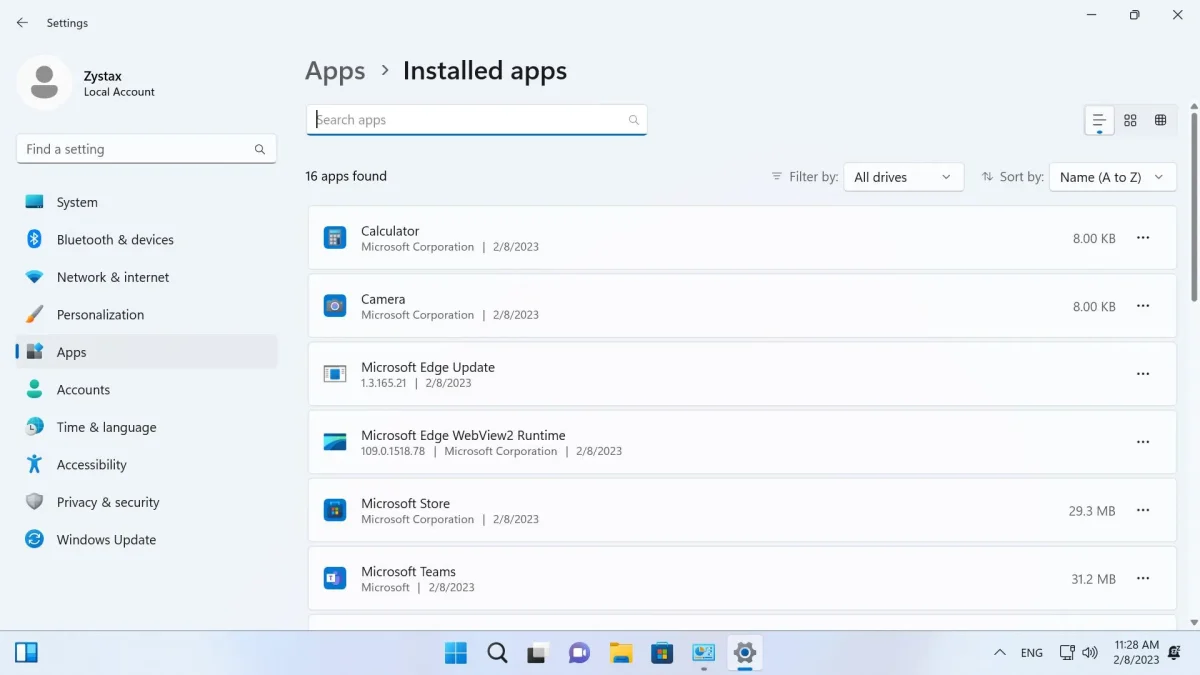
If you find WD SmartWare, continue to the service check below.
If you do not find it, the service may be absent, installed as part of another older WD package, or registered under a different name. Do not assume that the warning is graphics-related simply because WD SmartWare is not listed.
Step 2: Find WDDMService in Windows Services
The Services console shows whether a registered service is running, stopped, or disabled.
- Press Windows + R.
- Type services.msc and press Enter.
- Look for WD SmartWare Drive Manager or a service associated with Western Digital.
- Double-click the matching service.
- Review the Service name, Service status, Startup type, and Path to executable.
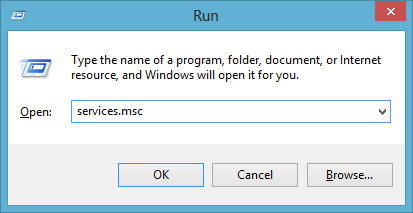
Some historical WD SmartWare Drive Manager installations registered the service name as WDDMService.
Check the executable path to confirm that the service belongs to the installed Western Digital software. Do not change its settings if you cannot identify its owner.
Step 3: Confirm the Service Using Command Prompt
You can also use the Windows Service Control command to check whether WDDMService is registered.
- Open Windows Search and open Command Prompt
- Enter:
sc.exe query WDDMService
Microsoft documents sc.exe query as a command for displaying information about registered Windows services.
The results can help you decide what to do next.
| Result | What it means | Next step |
| STATE : 4 RUNNING | The registered service is running | Check whether the original warning still appears |
| STATE : 1 STOPPED | The registered service is stopped | Check whether the service is needed before starting it |
| Error 1060 | Windows cannot find a service registered under that name | Recheck the service name and installed software |
If the command cannot find the service, do not attempt to create it or edit the Windows Registry. First determine which application is displaying the warning.
How to Fix WDDM Service Not Running in QuickBooks
If you confirmed that the warning comes from WD SmartWare Drive Manager, begin with the service itself. The appropriate repair depends on whether it is stopped, fails to start, or is no longer needed.
Method 1: Restart WD SmartWare Drive Manager
Restarting the service is a reasonable first step when it has stopped, but the installed WD application still needs it.
Before restarting the service, make sure no WD backup or drive-management task is active.
- Press Windows + R and enter services.msc.
- Locate the verified WD SmartWare Drive Manager service.
- Right-click the service and select Properties.
- Check its current status.
- If the service is stopped, select Start.
- If it is running but its associated application is unresponsive, restart the service when appropriate.
- Close Services and check whether the warning returns.
If the service starts successfully, test the WD software that previously displayed the warning.
If the warning returns after restarting Windows, continue with the next method. Repeatedly starting the service without investigating the failure may only provide temporary relief.
Method 2: Check the Service Startup Type
A service’s startup type determines how Windows starts it. An incorrect configuration may prevent an application from accessing a service when needed.
To inspect the setting:
- Open services.msc.
- Double-click WD SmartWare Drive Manager.
- Record the current Startup type.
- Check whether it is set to Automatic, Manual, or Disabled.
- Compare the setting with the application’s documented requirements or the configuration maintained by your administrator.
Do not automatically change the service to Automatic.
The correct configuration may depend on the installed WD software version. Setting a service to Automatic also will not fix a missing executable or damaged program component.
If the intended startup configuration cannot be established, leave the setting unchanged and investigate the startup error instead.
Method 3: Check Event Viewer if WDDMService Fails to Start
Event Viewer can help identify why Windows could not start a service. It is especially useful when the Services console displays an error code.
Follow these steps:
- Press Windows + R.
- Type eventvwr.msc and press Enter.
- Expand Windows Logs.
- Select System.
- Look for errors recorded around the time the service failed.
- Check entries from Service Control Manager.
- Open relevant entries and read the service name, error description, and event details.
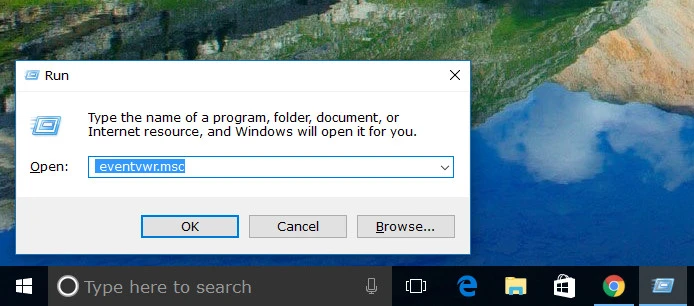
For example, Windows may report that a service could not find its executable file or failed to respond during startup.
The error message helps determine the next action.
| Error or condition | What to investigate |
| Error 1053 | The service did not respond to the start request within the expected time |
| Error 2 | The executable or another required file may be missing |
| Dependency failure | A service that the affected service requires did not start |
| Service is disabled | Confirm whether the disabled setting is intentional |
| Service starts but warning returns | Check the associated WD application and additional event entries |
Microsoft’s service startup troubleshooting documentation explains how missing executables, invalid service dependencies, and configuration problems can appear in Windows event logs.
These are general Windows service failure conditions, not confirmed causes of every WD SmartWare warning.
What if WDDMService Shows Error 1053?
Error 1053 means Windows did not receive a timely response to a service start or control request.
This exact error was reported in the January 2011 Microsoft community discussion about WDDM Service Not Running.
If you receive error 1053, record the details and inspect the related Service Control Manager events. Check whether the executable still exists and whether WD SmartWare opens normally.
Do not increase Windows service timeout values or modify registry keys without evidence that a startup timeout is the underlying problem.
Method 4: Check Whether WD SmartWare Is Still Needed
If WD SmartWare is no longer used, continuing to repair an unsupported application may be unnecessary. First, determine whether another task depends on it.
Check whether:
- An external Western Digital drive still relies on the installed software.
- WD SmartWare manages an active backup schedule.
- Files or drive functions require the application to be accessible.
- Important data has been backed up through another supported method.
- If the application is no longer needed, consider uninstalling it through Settings > Apps after confirming that removing it will not interrupt access to data or active backup tasks.
Do not delete drive contents or format an external drive to remove a service warning.
Because WD SmartWare has reached the end of support, avoid downloading old installers from unknown websites. If the software still performs an important function, consult Western Digital’s available support information or an IT administrator before replacing it.
What if WDDMService Is Missing but QuickBooks Still Won’t Open?
If WDDMService is not installed and QuickBooks Desktop fails to open, investigate QuickBooks as a separate application problem.
QuickBooks can fail to start because of program issues, background processes, or company file problems. The absence of the Western Digital service does not identify which of those conditions is responsible.
Intuit recommends Quick Fix my Program for certain QuickBooks Desktop startup failures.
Run Quick Fix my Program
- Close QuickBooks Desktop.
- Download the latest QuickBooks Tool Hub from Intuit’s official instructions.
- Install and open QuickBooks Tool Hub.
- Select Program Problems.
- Choose Quick Fix my Program.
- Allow the repair to finish.
- Reopen QuickBooks Desktop.
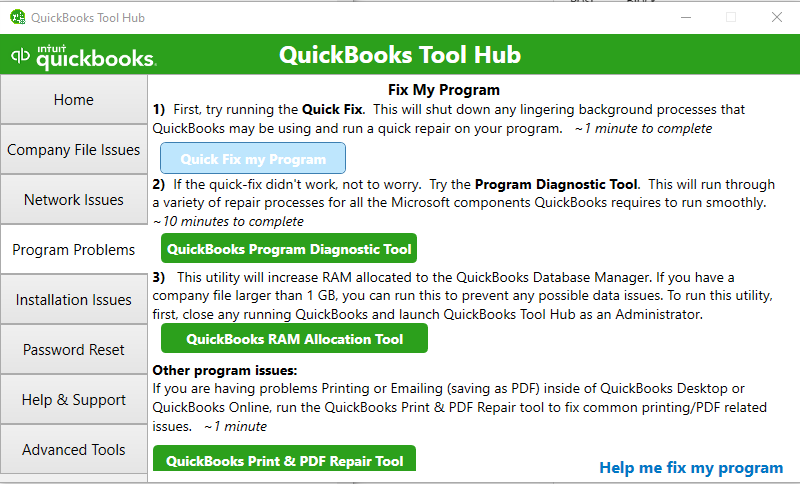
According to Intuit, Quick Fix my Program closes background processes used by QuickBooks and performs a quick repair of the application.
It does not repair WD SmartWare Drive Manager.
If QuickBooks still does not open, the next step is to determine whether the problem affects the application itself or a specific company file.
You can follow the QuickBooks Won’t Open troubleshooting guide for those checks.
For more information about the available utilities, see the QuickBooks Tool Hub guide.
Do not reinstall QuickBooks merely because the WDDM service warning appears. There is no established reason to expect a QuickBooks installation repair to restore an unrelated Western Digital service.
When Should You Check Windows Graphics Drivers?
Windows graphics drivers are worth checking when the computer has display-related symptoms, such as flickering, black windows, or errors affecting several applications.
This is a separate diagnostic path from restarting the WD SmartWare service.
If the problem began after a Windows or graphics driver update, check whether the display adapter is working correctly.
Update the Display Driver
- Right-click Start and select Device Manager.
- Expand Display adapters.
- Right-click the affected graphics adapter.
- Select Update driver.
- Choose Search automatically for drivers.
- Follow the instructions and restart Windows if required.
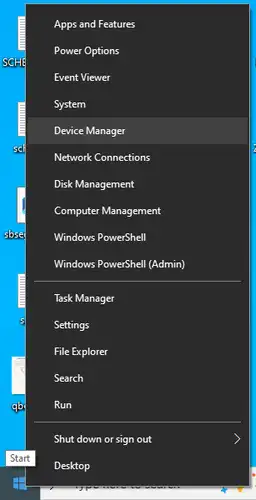
Windows Update may also provide compatible drivers. If an appropriate update is unavailable, use the graphics hardware manufacturer’s official support site.
Roll Back a Recent Driver Update
If the display problem began immediately after a driver update, Windows may allow you to restore the previous version.
- Open Device Manager.
- Expand Display adapters.
- Right-click the graphics adapter and select Properties.
- Open the Driver tab.
- Select Roll Back Driver, if available.
- Follow the prompts and restart when requested.
The rollback option may be unavailable if Windows has no earlier driver version stored. Administrator access is required.
Microsoft provides these procedures in its device driver troubleshooting guide.
Neither method is a verified repair for the Western Digital WDDMService warning.
What if QuickBooks Has Display Problems Only Through Remote Desktop?
If QuickBooks works normally on the local computer but has a black or unresponsive window during a Remote Desktop session, check the remote display configuration.
Microsoft documents a policy called Use WDDM graphics display driver for Remote Desktop Connections. This policy controls the graphics driver model used for supported Remote Desktop connections.
It is unrelated to the WD SmartWare Drive Manager service.
Changes to Remote Desktop graphics policies should be reviewed by the server administrator or hosting provider. They are not a general solution for WDDMService startup errors.
What Should You Do if the Warning Keeps Returning?
A recurring WDDM warning requires checking the component that generated it rather than repeating unrelated repairs.
If the service stops again after a successful restart, record the latest service error, executable path, and Event Viewer entry. These details can help identify whether WD SmartWare is missing files, encountering a dependency issue, or failing during startup.
If the warning comes from unsupported WD SmartWare software, decide whether the application is still needed and whether its functions can be moved to supported software.
If QuickBooks is the only application failing, follow Intuit’s QuickBooks startup troubleshooting process instead.
Avoid changing undocumented QuickBooks registry settings, disabling unrelated Windows services, or reinstalling multiple applications without a confirmed reason.
Final Steps
If the warning comes from WD SmartWare Drive Manager, check its service status and startup errors, then determine whether the older software is still needed.
If the WD service is absent but QuickBooks fails to launch, use Intuit’s application troubleshooting steps. For graphics or Remote Desktop problems, investigate the Windows display environment separately.
The correct repair depends on the source of the warning, not simply the presence of the WDDM abbreviation.
Frequently Asked Questions
What is WDDMService in Windows?
WDDMService is a service name associated with older Western Digital WD SmartWare Drive Manager installations. It is different from Microsoft’s Windows Display Driver Model, which is a graphics driver architecture.
Why can’t I find WDDM in Windows Services?
Windows Display Driver Model is not a standalone service listed in Services. If WDDMService is also missing, the older Western Digital service may not be installed, or the installed software may use a different service configuration.
How do I restart WDDMService in Windows 11?
Open services.msc, locate the verified WD SmartWare Drive Manager service, and select Start or Restart as appropriate. Do not restart it during an active WD backup or drive-management task.
What does Error 1053 mean when starting WDDMService?
Error 1053 means the service did not respond to the Windows start or control request within the expected time. Review the Service Control Manager events and check the related WD software to investigate the cause.
Is it safe to disable WD SmartWare Drive Manager?
Disabling the service may interrupt functions that depend on the installed WD software. Confirm that no backup or drive-management task requires it before making changes.
Can QuickBooks Tool Hub fix the WDDM service not running warning?
QuickBooks Tool Hub can help repair certain QuickBooks Desktop problems, but it is not a repair tool for the Western Digital WDDM Service. Use it when QuickBooks itself has a startup or application error.
Does WDDM Service Not Running mean my QuickBooks company file is damaged?
No, the WDDM warning does not establish that a QuickBooks company file is corrupt. Investigate company file damage only when QuickBooks displays separate file-related symptoms or errors.
Should I reinstall QuickBooks to fix the WDDM warning?
No, not as an initial step. First, identify the service or software responsible for the warning. Reinstalling QuickBooks is unlikely to address a separate Western Digital service failure.
Accounts Confidant is an independent accounting and bookkeeping service provider and is not affiliated with Intuit.