If QuickBooks keeps crashing, reopening it may only give you a short break. The next invoice, report, or print job can trigger the same failure.
Start by checking the pattern. Does QuickBooks close with one company file, during one task, or on one computer? That detail helps you choose the right fix before you repair or reinstall the program.
This guide covers repeated crashes during use. If QuickBooks won’t open at all, follow the launch guide. If the window stays open but freezes, use the QuickBooks not responding guide.
Why does QuickBooks keep crashing?
QuickBooks can crash again and again when the same file, program, or system issue remains unresolved. Restarting the app does not always remove that cause.
Possible causes include:
- Problems in a company file or a saved report.
- Damaged program files or installation components.
- A conflict involving a printer, PDF tool, or email program.
- A QuickBooks release that needs a fix or does not suit the system.
- Problems with the location or connection used to access a shared file.
A crash may show an error or simply close the program.
If you see the exact message, follow the related QuickBooks has stopped working guide as needed.
What should you do before trying a fix?
Protect your company data and record what happened. Then change one thing at a time so you can tell which step helped.
Before you begin:
- Note the time, task, and full error message.
- Take a screenshot if an error appears.
- Back up your Desktop company file if QuickBooks stays open long enough.
- Record your QuickBooks version and release. On Windows, press F2 or Ctrl + 1.
- Ask whether other users have the same problem.
If QuickBooks crashed while you saved a transaction, check whether it was saved before entering it again. This helps prevent duplicate entries.
If the program crashes during backup, stop before running data repairs. Keep your existing backups and contact support.
What does the crash pattern tell you?
The pattern helps narrow the search. Use the table below to choose your next test; each result is a clue, not proof of a cause.
| Crash pattern | What to check next |
|---|---|
| One company file crashes; a sample file works | The company file, its settings, and its location |
| Several files crash on one computer | The local QuickBooks installation and computer |
| Several users crash while using a shared file | Shared data, hosting, and network conditions |
| Printing or emailing triggers the crash | The form, PDF process, printer, or email setup |
| One report triggers the crash | The report settings and the data it uses |
| Crashes started after an update | The release, update date, and system changes |
How to stop QuickBooks Desktop from crashing repeatedly
Test the area linked to your crash pattern first. After each change, repeat the task that failed and check whether QuickBooks stays open.
1. Check whether the crash follows one company file
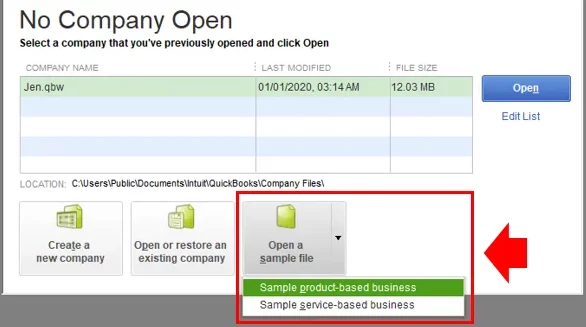
A sample company file helps you compare the program with your own data. If the sample works, focus next on your company file and its location.
- Save your work and close your company file.
- From No Company Open, select Open a sample file.

- Choose a sample company.
- Try the same type of task, such as opening a report or previewing a form.
Do not enter real business transactions in the sample file.
If both files crash, investigate the computer or program. If only your file crashes, that does not prove corruption. A file-specific setting or access issue may still be involved.
2. Check company data when the problem is file-specific
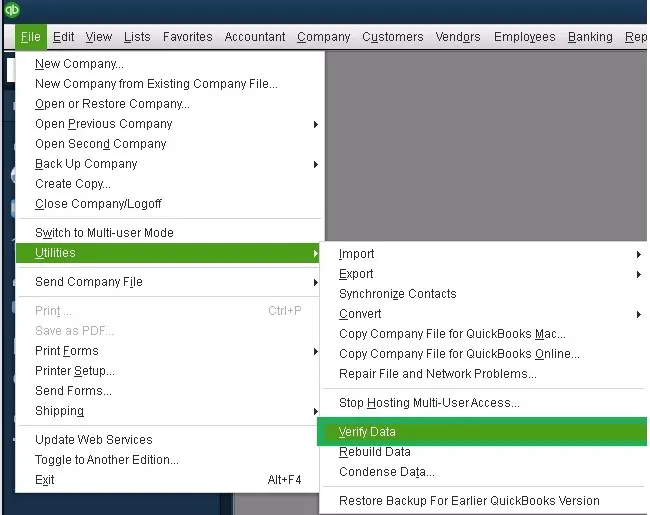
Use Verify Data to look for common data problems. Use Rebuild Data when Verify finds damage that requires it.
In QuickBooks Desktop for Windows:
- Select Window > Close All.
- Go to File > Utilities > Verify Data.
- Read the result and note any error.
- If QuickBooks reports lost data integrity, follow the rebuild instructions.
- Save a new backup before rebuilding. Keep older backups.
- Run Verify Data again after the rebuild finishes.
Follow Intuit’s Verify and Rebuild instructions. If you use Assisted Payroll, contact Intuit before rebuilding.
If Verify finds no problem, move to the next relevant test. If repair fails or the same error remains, keep the error details for support.
3. Check whether one computer or user is affected
A problem limited to one workstation points toward a local issue. A failure across several workstations needs a wider check.
Ask an authorized user to try the same task on another computer with the same QuickBooks release. Record the result.
If the task works elsewhere, ask IT to check the affected computer’s QuickBooks setup, Windows profile, and connected software.
If QuickBooks crashes after login for one user, ask the company administrator to test with another authorized QuickBooks user. Do not share passwords.
If the password is rejected, use the QuickBooks sign-in troubleshooting guide. If the app closes before a working session starts, see QuickBooks opens and closes immediately.
4. Isolate crashes during printing, emailing, or reports
When one task causes every crash, test that task in smaller parts. This helps separate a form or report issue from a wider program failure.
If QuickBooks crashes when printing:
- Try a standard form instead of a custom template.
- Print one form instead of a batch.
- Test printing from another Windows app.
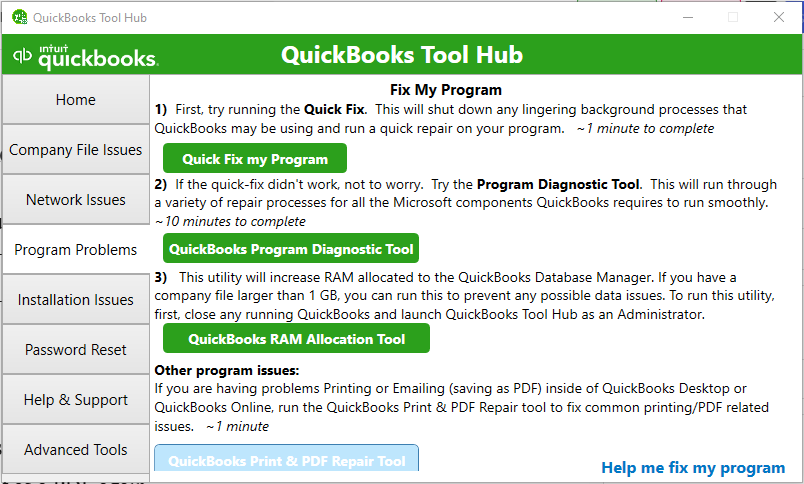
- If the issue remains in QuickBooks, use Program Problems > QuickBooks PDF & Print Repair Tool in Tool Hub.
If QuickBooks crashes when emailing:
Try saving the same form or report as a PDF first. If PDF creation also fails, investigate that step. If the PDF saves but sending fails, check the email setup and whether the email app works on its own.
If QuickBooks crashes when running a report:
Open a standard report, use a shorter date range, and close other report windows. If that works, add the original filters back one at a time.
For example, a monthly report that works while an all-years report fails gives you a clear test case. It does not, by itself, prove that the file is damaged.
5. Check Windows 11 compatibility and system load
If QuickBooks keeps crashing on Windows 11, check the requirements for your exact QuickBooks version. Meeting Windows 11’s own requirements does not confirm that your QuickBooks setup is suitable.
- Note the QuickBooks version and release from Product Information.
- Compare your setup with Intuit’s requirements for that version.
- Install the latest supported maintenance release for your version.
- Restart after updates that require it.
- Retest with unnecessary apps and report windows closed.
For reference, Intuit publishes separate system requirements for QuickBooks Desktop 2024.
If crashes began right after a change, record the date and release. Follow the QuickBooks not working after an update guide for that specific path.
6. Use program repair when multiple files crash
Program repair is worth testing when crashes affect several files on the same computer. It should not replace a file check when only one company is affected.
For QuickBooks Desktop on Windows:
- Close QuickBooks.
- Open the latest QuickBooks Tool Hub, downloaded from Intuit.
- Select Program Problems > Quick Fix my Program.
- Reopen QuickBooks and repeat the task that failed.

If the issue continues and installation problems are suspected, run Installation Issues > QuickBooks Install Diagnostic Tool. Restart afterward, then retest.
Intuit’s QuickBooks repair guide explains these tools. Consider reinstalling only after the checks point toward the installation and repair has not helped.
How do you find clues in QuickBooks logs?
QuickBooks logs can help support investigate errors, including data-check results. They do not always explain the full cause of a crash.
To open QBWin.log in QuickBooks Desktop for Windows:
- Press F2 or Ctrl + 1.
- Press F3 or Ctrl + 2.
- Select the Open File tab.
- Choose QBWin.log, then Open File.
Keep the log with the crash time, error message, and steps that triggered the failure. QuickBooks creates a new QBWin.log when it starts, so retain relevant logs promptly.
Intuit explains how to find QuickBooks logs. Share them through a trusted support channel. Do not assume every error line means your company data is damaged.
What if QuickBooks keeps crashing on Mac?
First check whether you use QuickBooks Desktop for Mac or QuickBooks Online in a browser. The Windows Tool Hub steps above do not apply to the Mac app.
For Desktop for Mac, check your version’s macOS requirements and available updates. Note whether one file or task triggers the crash.
If the issue points to company data, back up the file and use File > Utilities > Verify Data. Follow Intuit’s Mac Verify and Rebuild guide if damage is found.
If you use QuickBooks Online on a Mac, follow the browser checks below.
What if QuickBooks Online or the mobile app keeps crashing?
Use separate checks for a failing browser session and a mobile app that closes. Desktop company-file repair tools do not apply to either one.
QuickBooks Online keeps crashing during use
Check whether the browser tab crashes, the whole browser closes, or QuickBooks shows an error within the page. These are different symptoms.
Try the same task in another supported, updated browser. If it works there, investigate the first browser’s settings, extensions, and stored site data.
Intuit recommends clearing browser cache and Intuit-specific cookies for certain browser issues. Save your work before doing so, as you may need to sign in again. For detailed Chrome steps, use the QuickBooks not working in Chrome guide.
If the same task fails across browsers and devices, check for a service incident and report the exact workflow to QuickBooks support.
The QuickBooks app keeps crashing on iPhone
Start with the app and iPhone updates. If the app still closes, check that your recent work has synced before reinstalling it.
- Close and reopen QuickBooks.
- Restart your iPhone.
- Check the App Store for a QuickBooks update.
- Check for an iOS update.
- If needed, delete and download the app again after checking synced data.
Apple warns that deleting an app may remove data stored within it. Check recent entries in QuickBooks Online first. If you cannot confirm that work has synced, contact support before deleting the app.
How can you tell whether the fix worked?
Repeat the task that caused the crash under the same conditions. Opening QuickBooks once without an error is not enough.
Run the same report, preview the same form, or repeat the affected workflow. For transactions, check existing records before saving anything again.
If crashes had occurred every few minutes, work beyond that usual interval. Note which change you made and whether the failure returned.
When should you contact QuickBooks support?
Contact support when targeted fixes fail, data checks keep finding errors, or QuickBooks crashes during backup or repair. Ask IT to join the investigation if multiple users or computers are affected.
Have these details ready:
- QuickBooks product, version, and release.
- Operating system or mobile app version.
- Exact error message and crash time.
- The task that causes the crash.
- Results from sample-file or second-computer tests.
- Relevant logs and a list of fixes already tried.
Frequently asked questions
These answers cover data safety, computer resources, and when a reinstall may help.
Can repeated QuickBooks crashes damage my company file?
A crash may interrupt unsaved work, but it does not automatically mean the company file is damaged. Check the last transaction before entering it again. Keep backups and run Verify Data if you suspect a file problem. Seek help if checks find errors or backups fail.
Is repeated crashing a sign of a corrupted company file?
It can be, but crashes alone do not prove corruption. If one company file fails while a sample works, investigate the file and its location. If several files crash on one computer, check the local program and system as well.
What should I do if QuickBooks crashes every few minutes?
Stop repeating the failing task and record what happens before each crash. Protect your data, then compare a sample file or another computer. Note whether the interval is regular and whether it follows a specific action. Give those details to support if the cause remains unclear.
Can low RAM or disk space cause QuickBooks to crash?
Limited resources can contribute to poor performance and instability, but they are not proof of the cause. Compare your computer with the requirements for your QuickBooks version. Check memory use and available storage, then retest with unused apps closed before deciding to upgrade hardware.
Should I reinstall QuickBooks if it keeps crashing?
Reinstall only when the tests point toward a program issue and repair has not helped. Reinstalling replaces software files; it is not a company-data repair. Before starting, keep a current backup, your license details, and the correct installer.
Accounts Confidant is an independent accounting and bookkeeping service provider and is not affiliated with Intuit.