If your QuickBooks Desktop company file contains years of accounting records, it may take longer to open, process transactions, or run reports. The QuickBooks Condense Data Utility can help reduce the amount of information stored in the file.
You can use it to remove eligible audit trail history while keeping transactions or remove selected older transactions and summarize their accounting activity.
However, removing transactions can affect historical reports, invoice details, and reconciliation records. The changes cannot be undone within the condensed file.
This guide explains how to use the utility, what happens to your accounting data, and how to check your file before and after condensation.
What Is the QuickBooks Condense Data Utility?
The QuickBooks Condense Data Utility is a built-in feature of QuickBooks Desktop that reduces company file data by removing selected historical information.
In supported QuickBooks Desktop versions for Windows, you can find it under File > Utilities > Condense Data.
The utility offers two main methods:
- Keep all transactions: Removes eligible audit trail information through a selected date while retaining the transactions themselves.
- Remove selected transactions: Removes eligible transactions based on the options you choose. QuickBooks can replace removed activity with summary journal entries.
For example, a company that has used QuickBooks Desktop since 2015 may no longer need every closed transaction in its active file. It could condense eligible older transactions while keeping an uncondensed copy for historical reference.
The result depends on the chosen method, the amount of eligible data, and the QuickBooks edition.
Condense Data is not primarily a repair tool. If your company file contains errors or damaged records, you should investigate those issues before attempting condensation.
When Should You Condense a QuickBooks Company File?
Consider condensation when your company file contains a large amount of historical information that you no longer need for daily accounting.
It may be appropriate when:
- Your company file has grown large enough to contribute to performance problems.
- You are approaching a QuickBooks list limit.
- You need to reduce the number of targets before a supported QuickBooks Desktop-to-Online migration.
- Your accountant has reviewed the historical records and confirmed that eligible transactions can be archived or removed.
However, file size is not the only cause of slow performance.
A company file may respond slowly because of insufficient memory, network delays, or damaged data. Condensing the file will not necessarily resolve those problems.
If QuickBooks regularly becomes unresponsive while opening reports or saving transactions, identify the cause first. Our article on QuickBooks freezing covers those problems separately.
When should you avoid removing historical transactions?
Do not remove older transactions simply because they are several years old.
You may still need them for tax records, audits, customer disputes, inventory reviews, or prior-year financial reports.
For example, a contractor may need detailed job-costing records from 2020 to review the profitability of a completed project. Removing the related invoices, bills, and item details could make that analysis impossible in the condensed working file.
If historical transaction details are still important, retaining transactions while removing eligible audit trail information may be more suitable.
What Happens to Your Data When You Condense QuickBooks?
QuickBooks handles historical data differently depending on which condensation method you select.
| Feature | Keep All Transactions | Remove Selected Transactions |
| Transaction details | Retained | Eligible selected transactions removed |
| Audit trail history | Eligible historical audit information removed | Audit history associated with removed records is no longer available in the working file |
| Summary journal entries | Not needed to replace retained transactions | Created according to selected summarization options |
| Historical invoices and bills | Remain available | Eligible removed records no longer available individually |
| Financial reports | Transaction-level reports generally remain available; audit history changes | Some historical reports may be incomplete or inaccurate |
| File size | May decrease | May decrease depending on the eligible data |
| Reversible within the file | No | No |
What happens when you keep all transactions?
The Keep all transactions, but remove audit trail info to date option retains the original transactions while removing eligible audit history.
For example, suppose an invoice created in 2021 was edited several times before being paid.
After removing qualifying audit trail information, the invoice can remain in the company file, but historical information about certain edits may no longer appear in the Audit Trail report.
The Audit Trail report itself is not deleted. Intuit explains that condensation removes qualifying history related to edited, voided, and deleted transactions.
This method may produce only a small reduction if your company file contains little eligible audit history.
What happens when you remove selected transactions?
The second method removes eligible historical transactions based on the selected date range and other settings.
QuickBooks can replace the removed accounting activity with summary journal entries.
Suppose a business selects December 31, 2020, as the cutoff date.
Eligible closed transactions from 2020 and earlier may be removed, while later transactions remain available. QuickBooks may retain older records that are still open or linked to transactions outside the selected period.
The business may still see summarized account balances for earlier periods, but it may no longer be able to open individual invoices or bills that were removed.
The original uncondensed file becomes the source for that historical detail.
Important: According to Intuit’s Condense Data documentation, the condensation process cannot be undone in the working file. Returning to the original data requires an earlier uncondensed copy or backup.
What Should You Do Before Condensing a QuickBooks Company File?
Before removing company-file information, create a verified backup, check for data problems, and preserve the financial reports that may be affected.
Back up your company file
Create a separate local backup instead of relying only on an existing scheduled backup.
- Open QuickBooks Desktop and sign in to your company file.
- Go to File > Back Up Company > Create Local Backup.

- Select Local Backup and click Next.
- Choose where to save the backup.
- Select Complete verification in the backup settings.
- Select Save it now and follow the prompts.
- Confirm that QuickBooks completes the backup.
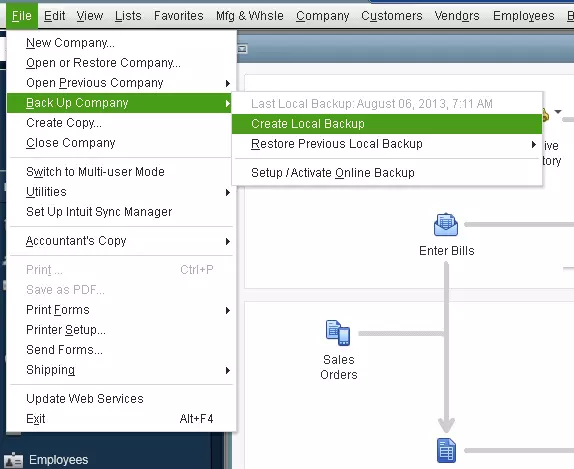
Store the backup in a secure location separate from the working company file.
For extra assurance, test the backup by restoring it to a different location without replacing the current company file.
If you use QuickBooks Desktop Payroll: A standard QuickBooks company-file backup does not include saved payroll forms. Save those forms separately before condensation. Intuit explains how to preserve the payroll tax forms folder in its QuickBooks Desktop backup guide.
If your scheduled backup has stopped creating files, resolve that issue before making permanent changes. See our guide on QuickBooks Scheduled Backup Not Working.
Run Verify Data
QuickBooks Verify Data checks your company file for common integrity problems.
To run it:
- Open the company file.
- Go to File > Utilities > Verify Data.
- Allow QuickBooks to complete the check.
- Read the result.
If QuickBooks reports no problems, continue with the remaining preparation steps.
If it reports damaged data, investigate the error before condensing. Intuit may recommend Rebuild Data or another repair procedure, depending on the issue.
If you use Assisted Payroll, follow Intuit’s additional precautions before rebuilding data.
Reconcile accounts and save historical reports
Reconcile your bank and credit card accounts through the latest applicable statement dates.
Then export the financial reports you may need after condensation.
| Report | Why you should save it |
| Balance Sheet | Compare account balances before and after condensation |
| Profit and Loss | Check historical income and expenses |
| Trial Balance | Compare individual general ledger account totals |
| Reconciliation reports | Preserve cleared transaction history |
| Sales Tax Liability | Retain historical tax calculations and details |
| Sales and Purchase Detail | Preserve invoice, bill, and item-level information |
| Profit and Loss by Class | Retain historical amounts assigned to individual classes |
Save the reports as PDFs or spreadsheets. Record their date ranges, accounting basis, and filters so you can make meaningful comparisons afterward.
Review outstanding transactions
Check whether older records are still open or linked to later activity.
Pay particular attention to unpaid invoices, unsettled bills, undeposited funds, and incomplete transaction links.
These records may prevent QuickBooks from removing certain transactions.
Do not mark unpaid invoices as paid or change legitimate accounting records simply to make them eligible for condensation.
Switch to single-user mode
Other users should close the company file before you begin.
Then open the File menu and select Switch to Single-user Mode, if necessary. 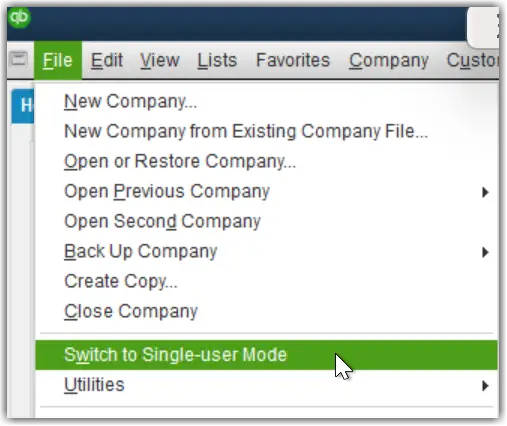
If the menu displays Switch to Multi-user Mode, you are already working in single-user mode.
Also make sure connected applications are not changing company file data during the process.
How to Use the QuickBooks Condense Data Utility
QuickBooks Desktop for Windows provides two main methods. Select the one that matches your historical record requirements.
The following steps reflect Intuit’s published instructions. Some screens and settings may vary by edition and release.
Method 1: Condense QuickBooks without deleting transactions
Choose this method when you want to preserve individual transactions but remove eligible audit trail information.
- Open QuickBooks Desktop in single-user mode.
- Select File > Utilities > Condense Data.
- Choose Keep all transactions, but remove audit trail info to date.
- Click Next.
- Allow QuickBooks to complete the process.
- Click Close.
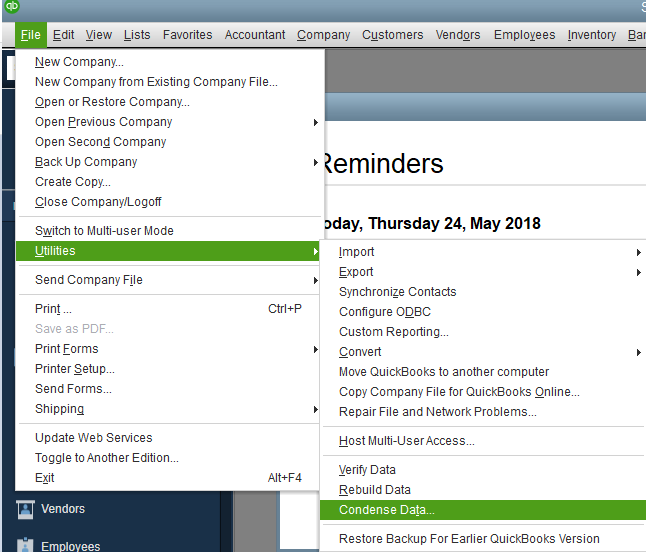
When the process finishes, open a few older transactions and review the financial reports you saved earlier.
Although transaction details remain available, the qualifying audit history removed during the process cannot be restored within that file.
Method 2: Condense QuickBooks by removing selected transactions
Use this method when you have decided that eligible historical transactions can be removed from your active working file.
- Open QuickBooks Desktop in single-user mode.
- Go to File > Utilities > Condense Data.
- Select Remove the transactions you select from your company file.
- Click Next.
- Choose the transactions or period to remove.
- Select how QuickBooks should summarize the removed transactions.
- Review the available inventory condensation options.
- Review the recommended transactions for removal.
- Select which eligible unused list entries, if any, should be removed.
- Click Begin Condense.
- Allow the process to finish, then click Close.
Before selecting Begin Condense, pay particular attention to these settings.
Cutoff date: Select the last date of the historical period you want to condense. If you track inventory, Intuit recommends using the last day of a monthly reporting period when preparing a file for migration. This helps protect historical average-cost calculations.
Transaction summaries: QuickBooks asks how removed transactions should be summarized. These settings affect the historical accounting information available in your working file. Use the available Help Me Choose guidance when you are unsure.
Inventory: Review how inventory transactions will be handled. Inventory changes can affect historical cost and quantity information.
Unused list entries: QuickBooks may offer to remove eligible unused customers, vendors, items, or other list entries. Review the choices rather than removing everything automatically.
QuickBooks may create an archive during the process, but that should not replace the independent backup you created beforehand.
Do not force-close QuickBooks while condensation is actively running.
Which Transactions Cannot Be Condensed in QuickBooks?
QuickBooks does not remove every transaction before the selected cutoff date.
Some records remain because they are open, have incomplete links, or are subject to specific payroll and accounting restrictions.
| Transaction type | Why QuickBooks may retain it |
| Invoices, payments, credit memos, and refund checks | They are not properly linked to related transactions |
| Bills, bill credits, and bill payments | Related records are not correctly linked |
| Payments in Undeposited Funds | They have not been deposited into a bank account |
| Estimates linked to invoices | Estimates are non-posting records and cannot simply be replaced by posting journal entries |
| Sales tax transactions | Certain unpaid or incorrectly recorded sales tax activity prevents removal |
| Payroll transactions | Intuit identifies restrictions involving cutoff dates before December 31, 2018, or employee W-2 forms that have not been reviewed |
| Transactions linked to non-condensable records | Removing them would break a required transaction relationship |
These restrictions are described in Intuit’s official Condense Data guide. The payroll conditions are product-specific rules, not a general recommendation to remove all payroll transactions after 2018.
Example: An invoice linked to a later payment
Suppose you entered an invoice on December 15, 2020, and received its payment on January 15, 2021.
You then choose December 31, 2020, as the condense cutoff.
QuickBooks may retain both records because the invoice is linked to a payment outside the selected period.
The invoice date alone does not make it eligible for removal.
If QuickBooks leaves older transactions in place, check whether they are open or linked to other records before assuming the utility failed.
How Does Condensing Affect QuickBooks Financial Reports?
Removing selected transactions can change historical reports because some reports depend on original invoices, payments, item details, or transaction links.
The effect varies by report type.
Accrual-based reports
Intuit explains that account-based accrual reports generally preserve their accounting amounts through the condensation process.
These include the accrual Balance Sheet, Profit and Loss, Trial Balance, and Statement of Cash Flows.
You should still compare the results against the reports saved before condensation, using the same dates and filters.
A difference in account totals requires investigation, even when QuickBooks reports that condensation finished successfully.
Cash-basis reports
Intuit warns that cash-basis reports for the condensed period will be inaccurate when the relevant transactions are removed.
Cash-basis reports depend on links between customer payments and income or payments to vendors and expenses.
When condensation removes those links, QuickBooks cannot reconstruct the original cash-basis activity from summary journal entries in the same way.
For example, if a customer paid a 2019 invoice in 2020 and those transactions were condensed, a historical cash-basis Profit and Loss report may no longer show the original income correctly.
Save historical cash-basis reports before removing transactions.
Sales, purchases, and job-costing reports
These reports rely on item details from invoices, bills, and other transactions.
If the underlying records are removed, the related item-level information disappears from the condensed file.
For example, a Sales by Item report for 2019 may no longer show the products sold during that year, even though summarized income remains in the general ledger.
The same concern applies to job-costing reports that depend on older transaction details.
Profit and Loss by Class
Summary journal entries created by condensation may not retain the original class assignments.
As a result, historical amounts can appear in the Unclassified column.
This matters for businesses that use classes to compare departments, locations, or other parts of their operations.
Sales Tax Liability reports
Historical Sales Tax Liability reports can become inaccurate when the original taxable and nontaxable invoice details are removed.
A summarized income entry does not necessarily tell QuickBooks how much of the original revenue was taxable.
Keep copies of the relevant tax reports before condensation, especially for periods that may still be reviewed or audited.
Reconciliation and receivables reports
Condensation may remove older checks and deposits that appeared in reconciliation reports.
Intuit notes that subsequent reconciliation opening balances can remain correct because condensed journal entries are treated as cleared. However, historical reconciliation detail or statement dates may change.
Accounts Receivable reports can also show unexpected summary entries or different historical details.
For example, Intuit explains that condensed journal entries may appear under No Name in an A/R Collections report, while the normal aging report can exclude them because of its customer-name filter.
These changes are why historical reports should be saved before transaction removal.
How to Verify Your Company File After Condensing
Before resuming regular accounting work, confirm that the condensed file opens correctly, passes integrity checks, and contains the information you expected to retain.
Run Verify Data again
Go to File > Utilities > Verify Data. 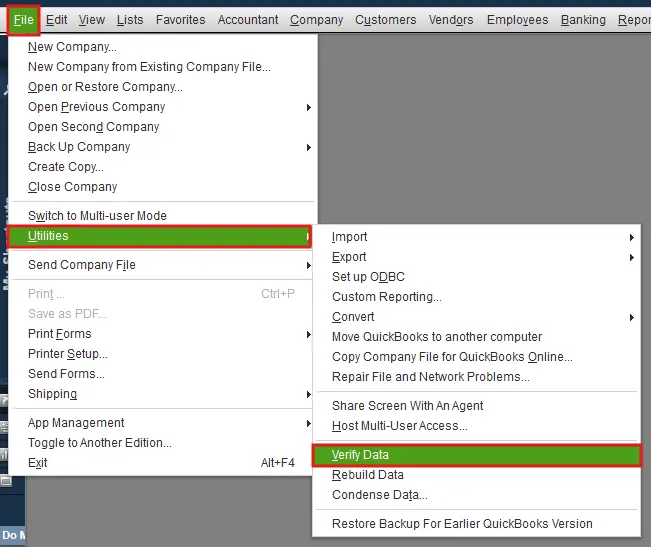
If QuickBooks reports data damage, investigate it before entering additional transactions.
Do not assume the original file and the condensed file have the same integrity status.
Compare financial statements
Open the reports saved before condensation and generate matching reports from the condensed file.
Use the same accounting basis, report dates, and filters.
For example, if you saved an accrual Balance Sheet as of December 31, 2025, compare it with a new accrual Balance Sheet for exactly the same date.
Check account totals and investigate unexpected differences.
Keep in mind that transaction-detail and cash-basis reports for condensed historical periods may change by design. They should not be used as the sole test of success.
Check recent transactions and inventory
Open several records dated after the cutoff, including recent invoices, bills, payments, and journal entries.
If your business uses inventory, compare an Inventory Valuation Summary for the same date before and after condensation, where applicable.
Investigate unexpected differences in current quantities or valuation amounts.
Compare the company file size
In Windows File Explorer, locate the original and condensed company files.
Right-click each file and choose Properties to compare their sizes.
A smaller file shows that the storage requirement changed. It does not prove that the financial records are accurate.
If the difference is small, review how much eligible historical information was available for removal.
Keep the historical archive separate
Store the original uncondensed company file and its backup in a clearly labeled, secure location.
For example, keep separate folders for the historical archive and the active working file.
This reduces the chance that employees will accidentally open different copies and enter transactions into the wrong file.
Why Is QuickBooks Condense Data Not Working?
The next step depends on whether QuickBooks reports an error, retains certain transactions, or completes condensation without significantly reducing the file size.
Condense Data reports damaged company-file information
Run File > Utilities > Verify Data and review the reported problem.
If QuickBooks detects corruption, follow the applicable Intuit repair instructions before attempting condensation again.
QuickBooks File Doctor may help with certain company-file issues, but it does not replace every data repair procedure. 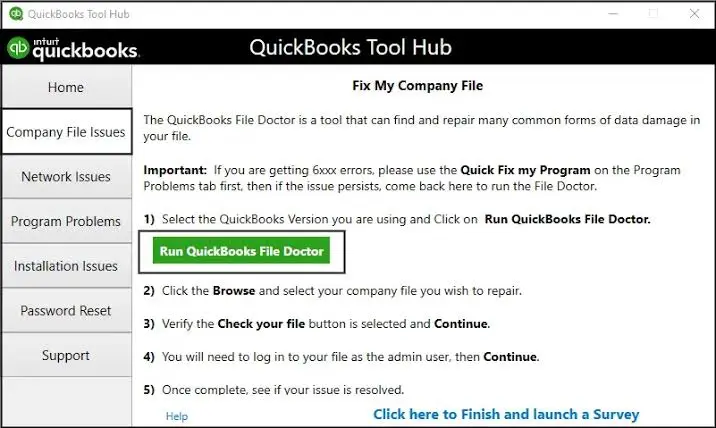
Our QuickBooks File Doctor guide explains its supported uses and how to access it through QuickBooks Tool Hub.
QuickBooks cannot remove older transactions
Check the transactions QuickBooks retained.
Look for unpaid invoices, incomplete payment links, undeposited funds, payroll restrictions, or transactions linked to later dates.
For example, an invoice dated in 2020 may remain if its linked payment falls outside the cutoff period.
Correct only genuine accounting errors. Do not change valid records solely to force them through condensation.
The company file is still large after condensation
A limited size reduction can happen when most records remain open, the file contains little eligible audit history, or the selected date range contains few transactions that can be removed.
If QuickBooks does not offer a particular condensation option, Intuit also notes that the expected reduction may not be significant enough.
Review the retained data and your selected method before considering another attempt.
Repeatedly removing more historical information is not a suitable substitute for identifying the actual performance problem.
QuickBooks stops responding during condensation
A large company file may take time to process.
Check whether QuickBooks is displaying progress or continuing to work. Avoid interrupting an active condensation operation.
If the program closes unexpectedly, preserve any resulting files and do not immediately repeat the process.
First, determine whether the condensed file opens and passes Verify Data. If it is incomplete or damaged, use the original backup to recover the company data before investigating further.
The exact recovery procedure depends on the error and whether the condensation operation completed.
QuickBooks is slow even after the file has been condensed
The slowdown may come from the computer, network, or QuickBooks installation rather than the file’s historical data.
For companies using a shared company file, network access or server configuration may contribute to slow performance.
Our QuickBooks Database Server Manager guide covers server setup and multi-user connectivity issues separately.
Can You Condense a QuickBooks Desktop File Before Migrating to QuickBooks Online?
Yes, Intuit provides a specific condensation procedure for preparing QuickBooks Desktop company files for supported QuickBooks Online imports.
In this situation, the total target count is more important than the file size in MB or GB.
Intuit’s August 18, 2026 guidance states that the documented import process requires fewer than 4,000,000 targets. It also warns that files containing more than 750,000 targets may take longer to process and can encounter discrepancies, particularly with inventory.
These figures apply to the documented migration process and should be checked against the current requirements before migrating.
How to check the target count
- Open your QuickBooks Desktop company file.
- Press F2 or Ctrl + 1 on Windows.
- Find the File Information section.
- Locate Total Targets.
If your file exceeds the applicable migration limit, follow Intuit’s migration-specific condensation instructions.
For example, removing eligible old transactions can reduce the number of targets. Simply removing audit trail history may not reduce the target count enough to meet the import requirement.
If you track inventory, Intuit recommends setting the condense date to the last day of a monthly reporting period to help maintain historical average-cost accuracy.
Refer to Intuit’s guide to condensing a Desktop file for QuickBooks Online import for the migration procedure.
Is the Condense Data Utility Available in QuickBooks Desktop for Mac?
Yes, QuickBooks Desktop for Mac has a separate condensation process.
The available options depend on the version.
For example, Intuit documents several options in QuickBooks Mac Plus 2023, including:
- Removing audit trail information while keeping transaction details
- Removing all transactions while retaining lists and preferences
- Removing transactions before a selected date
- Creating a period copy for a selected date range
Older Mac versions have a different workflow.
Do not use the Windows instructions without checking your Mac release.
For the exact procedure, see Intuit’s QuickBooks Desktop for Mac Condense Data guide.
Conclusion
Before using the QuickBooks Condense Data Utility, decide whether you need to retain the original transaction details or can safely remove eligible historical records.
Save an uncondensed backup, preserve important reports and payroll forms, and check the results before resuming work. If condensation changes account totals unexpectedly or causes data errors, investigate those differences rather than continuing with the modified file.
Frequently Asked Questions
Does QuickBooks Condense Data delete transactions?
It depends on the method you choose. The keep-all-transactions method removes eligible audit trail history without deleting transactions. The selected-transaction method removes eligible historical transactions and can replace their accounting activity with summaries.
Can I undo Condense Data in QuickBooks Desktop?
No, Condensation cannot be undone within the condensed file. You can return to an earlier uncondensed backup, but transactions entered after that backup will not automatically appear in the restored copy.
Can I condense QuickBooks without losing invoice details?
Yes, in supported Desktop versions, you can choose the option to keep all transactions while removing eligible audit trail information. The invoices remain available, although certain historical edit information may be removed.
Will condensing QuickBooks improve performance?
It may help when excessive historical data contributes to slow performance. It does not guarantee faster operation and will not necessarily resolve hardware, network, or company-file corruption problems.
Why is my QuickBooks company file still large after condensation?
QuickBooks may retain open transactions, linked records, and other information that cannot be condensed. Your selected method may also remove too little eligible data to noticeably reduce the file size.
Can Condense Data fix a corrupted QuickBooks company file?
It is not a reliable substitute for file repair. Intuit acknowledges that condensation may not resolve data damage. Use Verify Data and the appropriate repair procedure when a company file is damaged.
Does condensing QuickBooks affect retained earnings?
Condensation can change how historical accounting activity is represented through summary entries. Intuit’s guidance does not establish that every retained-earnings result will be identical under every summarization choice. Compare retained earnings and other equity balances in the accrual reports before and after condensation, and investigate unexpected differences rather than adjusting them without evidence.
Can I use the Condense Data Utility in QuickBooks Enterprise?
Yes, supported QuickBooks Desktop Enterprise versions include condensation options. Available settings depend on the product release. Follow the instructions for your specific edition and preserve an original backup.
Can I recover old invoices after condensing QuickBooks?
If invoices were removed from the condensed file, you may be able to retrieve their details from the original uncondensed company file or backup. They cannot simply be restored within the condensed file using an Undo command.
Is the Condense Data Utility available in QuickBooks Online?
No, the Condense Data Utility described here is a QuickBooks Desktop feature. QuickBooks Online does not provide the same local company-file condensation process.


