The “QBCFMonitorService not running on this computer” error can appear when QuickBooks Desktop cannot access the service used to monitor shared company files. It may interrupt multi-user access or cause QuickBooks Database Server Manager to fail during a network scan.
To fix the error, open Windows Services on the computer hosting your QuickBooks company file and check QBCFMonitorService. If it is stopped, start the service and verify its startup settings. If Windows shows it as running, check Database Server Manager diagnostics and network connectivity instead.
The same error can also appear when QBCFMonitorService crashes, restarts during a folder scan, or fails after Windows reboots. The steps below help identify which problem you have and choose the appropriate fix.
What is QBCFMonitorService in QuickBooks Desktop?
QBCFMonitorService, or QuickBooks Company File Monitoring Service, is a Windows background service associated with QuickBooks Desktop’s multi-user hosting components. It helps monitor company files and supports the environment used to share them over a network.
In a standard multi-user setup, the service runs on the computer hosting the company file, alongside the QuickBooks database components.
Two services are important here:
| Service | What it does |
| QBCFMonitorService | Monitors company files as part of the QuickBooks hosting environment. |
| QuickBooksDBXX | Runs the version-specific QuickBooks database service used for multi-user access. |
The XX in QuickBooksDBXX identifies the installed QuickBooks version. For example, QuickBooks Desktop 2023 uses QuickBooksDB33.
QuickBooksDBXX is associated with QBDBMgrN.exe, while QBCFMonitorService has its own executable, QBCFMonitorService.exe.
These services are related but are not interchangeable. If QuickBooksDBXX is the component that fails, follow the separate guide on QBDBMgrN not running on this computer.
Why is QBCFMonitorService not running on this computer?
QBCFMonitorService may fail because its Windows service is stopped, its startup settings are incorrect, or a QuickBooks installation component has a problem. Permission errors and other Windows service failures can also prevent it from starting.
However, a network diagnostic may report that the service is unavailable even when Windows shows it as running.
The symptoms help narrow down the cause.
| Symptom | What to investigate |
| QBCFMonitorService shows Stopped | Service startup and configuration |
| Service starts but stops again | Windows service errors, permissions, or installation problems |
| Service works manually but fails after reboot | Startup settings and events during Windows startup |
| Service shows Running, but folder scans fail | Temporary service interruptions or failed network diagnostics |
| Service runs, but workstations receive H202 | Hosting settings, database service, firewall, or network connectivity |
| QBCFMonitorService is missing from Windows Services | QuickBooks server installation |
A firewall restriction can prevent QuickBooks from communicating with the host, but it does not necessarily cause QBCFMonitorService itself to stop.
Start by checking the actual Windows service status rather than changing firewall rules or reinstalling QuickBooks.
How to check if QBCFMonitorService is running
You can check QBCFMonitorService through the Windows Services application on the computer hosting the QuickBooks company file.
- Sign in to the host computer using a Windows account with the required permissions.
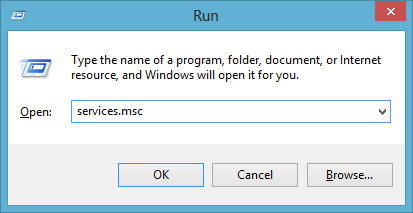
- Press Windows + R to open the Run dialog box.
- Type services.msc and press Enter.

- Find QBCFMonitorService in the list.
- Double-click it to open its properties.
- Under the General tab, check Service status and Startup type.
If the status is Running, Windows currently recognizes the service as active. If it shows Stopped, the service is not running at that moment.
Also find QuickBooksDBXX and check its status. Intuit recommends checking both services when troubleshooting QuickBooks Desktop multi-user errors.
Record any Windows error message before changing the configuration. For example, an access-denied message needs different troubleshooting from a service that starts successfully and later crashes.
How to fix QBCFMonitorService not running on this computer
If Windows confirms that QBCFMonitorService has stopped, start it and check its startup configuration. Then test whether QuickBooks Database Server Manager can scan the shared company file folder.
Before restarting services, ask connected users to close their QuickBooks company files. Restarting shared services can disconnect active sessions. Use a maintenance period if the server supports multiple employees.
1. Start or restart QBCFMonitorService
Starting the service may restore access when it has stopped unexpectedly.
On the host computer:
- Press Windows + R and enter services.msc.
- Locate QBCFMonitorService.
- Right-click it and select Start if the service is stopped.
- If it is already running but needs a restart, select Restart during the approved maintenance period.
- Wait for Windows to complete the operation.
- Confirm that the service status shows Running.
If the service starts, try the Database Server Manager folder scan described below.
If Windows displays an error, record the exact message. Do not repeatedly select Start without investigating why the service fails.
A successful restart restores the service at that moment. It does not prove that the underlying problem has been resolved.
2. Set QBCFMonitorService to start automatically
If the service does not start when Windows boots, check its startup and recovery settings.
Intuit recommends an Automatic startup type and recovery settings that restart the service after a failure.
To configure these settings:
- Open Windows Services.
- Double-click QBCFMonitorService.
- Under the General tab, set Startup type to Automatic.
- Select Start if the service is stopped.
- Open the Recovery tab.
- Set First failure to Restart the Service.
- Set Second failure to Restart the Service.
- Set Subsequent failures to Restart the Service.
- Select Apply and then OK.
Check the same settings for the QuickBooksDBXX service that matches your installed QuickBooks version.
These instructions follow Intuit’s official guidance for QuickBooks Errors H202 and H505.
Automatic recovery can bring a failed service back online, but it cannot repair damaged installation files or resolve every permission problem. If QBCFMonitorService continues to stop, investigate the failure through Windows Event Viewer.
3. Scan the company file folder using QuickBooks Database Server Manager
If QBCFMonitorService is running but QuickBooks still reports an error, scan the shared company file folder through QuickBooks Database Server Manager.
The scan identifies folders containing QuickBooks company files and can repair certain firewall permissions.
Follow these steps on the server:
- Open the Windows Start menu.
- Search for QuickBooks Database Server Manager and open it.
- Select the Scan Folders tab.
- Check whether the folder containing the .QBW company file is listed.
- If it is missing, select Browse and choose the correct folder.
- Select Start Scan.
- Wait for the scan to finish and review the results.
If you cannot find Database Server Manager directly, Intuit also provides access through QuickBooks Tool Hub under Network Issues > QuickBooks Database Server Manager. 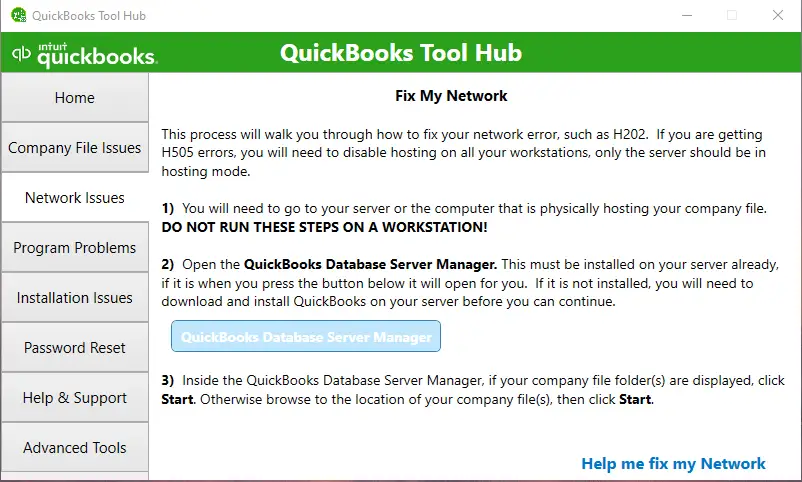
When the scan completes, try opening the company file from an affected workstation.
If the scan reports that QBCFMonitorService is not running despite showing an active status in Windows, investigate the discrepancy before attempting another repair.
For complete setup and folder-monitoring instructions, refer to the QuickBooks Database Server Manager guide.
Why does QBCFMonitorService show not running when it is already running?
QuickBooks Database Server Manager can report that QBCFMonitorService is not running even when Windows Services shows its status as Running.
This status difference does not establish the cause. The service may have stopped temporarily during diagnostics, or the network test may be failing for another reason.
A September 2024 Intuit Community discussion documents an example involving QuickBooks Premier Plus 2024.
The user reported that QBCFMonitorService appeared to be running before the folder scan. When Database Server Manager reached Network Diagnostics, the service appeared to stop and restart. The scan then failed with a message saying the service was not running.
Workstations also received Error H202, although they could ping the server and access its shared folders.
The discussion did not identify a confirmed underlying cause or permanent solution. However, it shows why checking the service once may not reveal what happens during a failed diagnostic.
Check whether the service stops during the folder scan
Open Windows Services on the server and keep QBCFMonitorService visible while repeating the failed scan.
Refresh the service status during the test and observe whether it changes from Running to Stopped.
A short interruption may be missed in the Services window. If no change is visible, check Windows Event Viewer for service events recorded at the time of the scan.
Record:
- The exact Database Server Manager error.
- The time the scan failed.
- Whether QBCFMonitorService stopped or restarted.
- Any related Windows service or application errors.
These details help distinguish a temporary service failure from a network diagnostic that fails while the service remains active.
Check whether the database service is also affected
Open Windows Services and inspect QuickBooksDBXX.
If QBCFMonitorService is running but QuickBooksDBXX is stopped, focus on the database service rather than repeatedly restarting QBCFMonitorService.
If both services are running, continue with network connectivity checks.
A running Windows service does not guarantee that workstations can reach the required QuickBooks network endpoint.
How to fix QBCFMonitorService that keeps stopping or crashing
When QBCFMonitorService starts and then stops unexpectedly, Windows Event Viewer can help identify what happened around the time of the failure.
The problem may involve a service crash, permissions, or another installed component. The exact Windows event is more useful than assuming that antivirus software or the firewall caused it.
Check QBCFMonitorService errors in Windows Event Viewer
To inspect service failures:
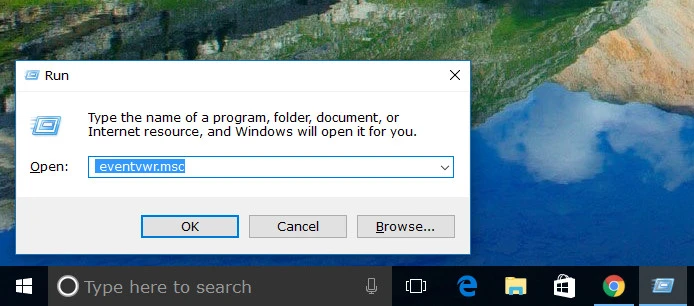
- Press Windows + R.
- Type eventvwr.msc and press Enter.
- Expand Windows Logs.
- Select System.
- Find events recorded around the time QBCFMonitorService stopped.
- Look for relevant entries from Service Control Manager.
- Open the events and read their descriptions.
- Check Windows Logs > Application for related application errors.
Record the event ID, source, time, and error description.
For example, an event reporting that a service terminated unexpectedly supports investigating a crash. An event reporting that Windows could not start a service because of a logon failure points toward account configuration.
Do not assume that every event associated with the service identifies the root cause. Some events only record the service stopping or restarting.
If no useful event appears, record the failed operation and its time for further investigation.
Review service permissions before making changes
If Windows reports access denied or a service logon failure, examine the service account configuration.
Open QBCFMonitorService properties in Windows Services and select the Log On tab.
Record the account currently configured, but do not immediately change it to Local System or another Windows account.
QuickBooks uses different services and service accounts. The version-specific database service may use an account such as QBDataServiceUserXX.
Intuit’s QuickBooksDBXX service troubleshooting documentation cautions that Local System is not suitable for every database-service setup.
That instruction concerns QuickBooksDBXX and does not establish the correct account for every QBCFMonitorService installation.
If the service account was changed recently or Windows records a logon error, have a Windows administrator review the account and its required permissions using guidance for the installed QuickBooks version.
Why does QBCFMonitorService fail after restarting Windows?
If QBCFMonitorService works when started manually but fails after a server reboot, investigate what happens during Windows startup.
The service may be configured incorrectly, encounter a startup error, or be affected by another server component.
If its Startup type is already Automatic, use Event Viewer to check the boot period.
Compare the time of the QBCFMonitorService failure with other relevant Windows service events. Look for service timeouts, logon errors, and unexpected terminations.
This distinction matters because manually starting a service after every reboot may restore access without fixing the recurring failure.
A February 2019 Intuit Community discussion describes a similar problem involving QuickBooks Enterprise 2019 on Windows Server 2016.
The user reported that QBCFMonitorService worked after being started manually but failed again following a server restart. The user also reported that delaying the Windows DNS Server service startup appeared to resolve the problem during repeated tests.
That was a user-reported workaround, not a verified general solution. The thread did not establish that DNS was the cause of other QBCFMonitorService startup failures.
Do not change DNS Server startup settings or Windows service dependencies based on that report alone. Such changes can disrupt other network functions, particularly on servers running Active Directory or other shared services.
When QBCFMonitorService fails only after reboot, a Windows server administrator should investigate the recorded startup events and service dependencies before changing the configuration.
What if QBCFMonitorService is running but QuickBooks cannot connect?
If QBCFMonitorService and QuickBooksDBXX are both running but workstations cannot access the company file, check QuickBooks network connectivity.
The problem may involve blocked ports, incorrect hosting settings, or another connection failure.
For example, a workstation may open a shared folder on the server but still receive Error H202 when attempting to switch QuickBooks to multi-user mode.
Access to a Windows shared folder does not prove that the QuickBooks database connection is available.
Check the assigned QuickBooks TCP port
QuickBooks Desktop 2019 and later use installation-assigned dynamic ports for database communication. Intuit also lists TCP port 8019 in its firewall guidance.
Find the assigned dynamic port on the host:
- Open QuickBooks Database Server Manager.
- Select the Port Monitor tab.
- Locate your QuickBooks Desktop version.
- Record the assigned Port Number.
Do not use a dynamic port copied from another QuickBooks installation.
Next, check whether the existing firewall and security rules permit the required QuickBooks traffic.
Intuit lists QBCFMonitorService.exe among the executables that may need firewall exceptions.
Its documented default location is:
C:\Program Files\Common Files\Intuit\QuickBooks\QBCFMonitorService.exe
The actual installed path should be confirmed before adding an exception.
For complete firewall configuration, follow the Windows Firewall Is Blocking QuickBooks guide.
Keep Windows Firewall enabled and use the appropriate exceptions rather than disabling protection.
Test the server connection with PowerShell
If the service is running but the network test fails, a Windows administrator can check whether an affected workstation can establish a TCP connection to the QuickBooks server.
Open PowerShell on the workstation and run:
Test-NetConnection -ComputerName SERVERNAME -Port PORTNUMBER
Replace SERVERNAME with the actual server hostname and PORTNUMBER with the dynamic port shown in Database Server Manager.
For example, suppose a server is named ACCOUNTING-SRV and its assigned QuickBooks port is 62000.
The test would be:
Test-NetConnection -ComputerName ACCOUNTING-SRV -Port 62000
This is an example only. Port 62000 is not a universal QuickBooks setting.
Look for TcpTestSucceeded in the results.
- True: The workstation established a TCP connection to that server and port.
- False: The TCP connection failed. Check the hostname, assigned port, network route, firewall rules, and whether the required service is listening.
A successful TCP test does not confirm that the company file is healthy or that QuickBooks multi-user access will work. It only verifies connectivity to the tested endpoint.
Microsoft explains these results in its Test-NetConnection documentation.
Run QuickBooks File Doctor if the connection problem continues
QuickBooks File Doctor can help diagnose supported company-file and network issues when the QuickBooks services are running, but the shared file remains inaccessible.
To run it:
- Close QuickBooks Desktop.
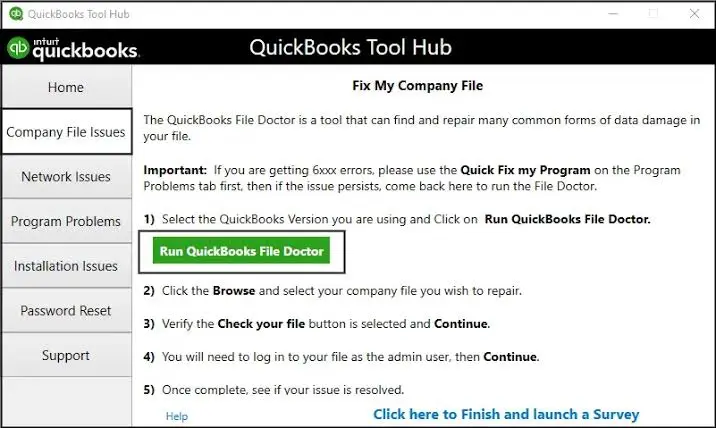
- Open QuickBooks Tool Hub.
- Select Company File Issues.
- Click Run QuickBooks File Doctor.
- Select the company file or use Browse to locate it.
- Choose Check your file and network, then Continue.
- Enter the QuickBooks administrator password when requested.
- Select Next and allow the scan to finish.
Intuit’s firewall instructions use the wording Check your file and network. Its H202 troubleshooting instructions also refer to a Check your Network option, so the label may differ in the interface.
After the scan, reopen QuickBooks and test the company file connection.
If File Doctor does not resolve the issue, follow the separate QuickBooks File Doctor guide for more information about its supported checks and limitations.
When should you repair or reinstall QuickBooks Database Server Manager?
Consider repairing or reinstalling QuickBooks Database Server Manager when the required service is missing, the installation is damaged, or supported troubleshooting has not resolved an identified installation problem.
Reinstallation should not be the first response to a service that simply shows Stopped.
Before making installation changes, confirm the QuickBooks Desktop version, the server installation type, and whether other users depend on the server.
Keep a verified backup of the company file and arrange a maintenance period.
The correct procedure depends on whether the computer has the full QuickBooks Desktop application or only Database Server Manager installed.
If the failure occurs during installation or updating and Windows displays:
“Error 1920: Service QuickBooks Database Manager (QBCFMonitorService) failed to start”
follow the separate QuickBooks Error 1920 troubleshooting guide.
Intuit documents Error 1920 as an installation or update problem that may require a different repair process from ordinary multi-user troubleshooting.
Avoid downloading replacement copies of QBCFMonitorService.exe from third-party websites or manually replacing the executable. Use official installation and repair procedures.
How to confirm that QBCFMonitorService is working again
After applying the appropriate fix, verify that QuickBooks can use the service and that the original error no longer occurs.
Check the results in this order:
- Open Windows Services on the host and confirm QBCFMonitorService is running.
- Confirm that the relevant QuickBooksDBXX service is also running.
- Run the company file folder scan in Database Server Manager.
- Check that the previous diagnostic error no longer appears.
- Open the shared company file from an affected workstation.
- Test multi-user access with another authorized workstation, if applicable.
If the original failure occurred only after restarting Windows, repeat the service checks after the next planned server reboot.
A service that works immediately after a manual restart but fails during the next boot still needs investigation.
Conclusion
The QBCFMonitorService Not Running on This Computer error requires different fixes depending on whether the service is stopped, crashing, or reporting an inconsistent status. Begin by checking the service in Windows Services, then use QuickBooks Database Server Manager to test the shared company file setup.
If the service runs but QuickBooks still cannot connect, investigate the network rather than restarting the service repeatedly. If it fails after a reboot, review Windows startup events before attempting a reinstall.
The repair is complete when the service remains stable, and the affected users can access their QuickBooks company file without the previous error.
Frequently asked questions
Is QBCFMonitorService required for QuickBooks Desktop?
QBCFMonitorService is associated with QuickBooks Desktop’s Windows multi-user hosting components. It is relevant when Database Server Manager is used to host shared company files. A single user working with a local company file generally does not need a separate database server installation.
Can I disable QBCFMonitorService?
Disabling QBCFMonitorService on a computer hosting shared QuickBooks company files is not recommended. It may interfere with the hosting environment. Before disabling the service, confirm whether the computer is acting as a QuickBooks server.
Does QBCFMonitorService need to run on every workstation?
No, In a standard multi-user setup with one host, the server runs the required hosting components. Workstations connect to the shared company file without each needing a separate Database Server Manager installation.
Is QBCFMonitorService.exe a virus?
QBCFMonitorService.exe is a legitimate QuickBooks component when installed as part of authentic Intuit software. However, the filename alone does not prove that a specific file is safe. If its location or behavior is suspicious, check its digital signature and scan it with trusted security software.
Does QBCFMonitorService work on Windows 11?
QuickBooks Desktop 2024 supports natively installed 64-bit Windows 11, according to Intuit’s system requirements. QBCFMonitorService compatibility depends on the installed QuickBooks version and supported configuration. Check your release’s requirements rather than assuming every older version is compatible.
Can QBCFMonitorService errors damage the QuickBooks company file?
A QBCFMonitorService error does not, by itself, prove that the company file is damaged. It primarily points to a service or connectivity problem. However, interrupted work and separate file issues can still pose risks. Keep verified backups and make sure users have closed the company file before restarting shared services.
Why does QBCFMonitorService keep restarting automatically?
Windows may restart QBCFMonitorService because its Recovery settings are configured to restart the service after a failure. The service may return to Running even though the underlying problem remains. Check Windows Event Viewer for errors recorded before the restart.
Accounts Confidant is an independent accounting and bookkeeping service provider and is not affiliated with Intuit.