QuickBooks Desktop supports multi-user mode, allowing several users to work with the same company file over a network. However, if QuickBooks cannot establish a connection between a workstation and the computer hosting the company file, you may encounter QuickBooks Error H505. The error commonly appears with a message indicating that the company file is on another computer and QuickBooks needs help connecting to it.
The H505 error in multi-user mode generally points to a problem with hosting, network connectivity, firewall settings, or the QuickBooks Database Server Manager. Fortunately, you can usually resolve the issue by checking which computer is hosting the company file, correcting the hosting configuration, and troubleshooting the network connection.
This guide explains what Error H505 means, why it occurs, and how to fix H505 error QuickBooks users encounter when trying to open a company file in multi-user mode.
What Does QuickBooks Error H505 Mean?
QuickBooks Error H505 is a multi-user connectivity error. It occurs when a workstation cannot communicate properly with the computer that hosts the QuickBooks company file.
In a typical QuickBooks Desktop network setup:
- The server computer stores the company file.
- The server hosts the company file for multi-user access.
- Other computers act as workstations.
- Workstations connect to the company file through the network.
- QuickBooks Database Server Manager helps manage access to the company file.
If the hosting configuration is incorrect or something blocks communication between the workstation and server, QuickBooks may display H505.
The error does not automatically mean that your company file is damaged or corrupted. In many cases, the issue is related to how QuickBooks is configured to communicate across the network.
What Causes the H505 Error in Multi-User Mode?
Several configuration and connectivity problems can trigger the error. The most common causes include:
| Possible cause | How it can trigger H505 |
| Incorrect hosting setup | More than one computer may be configured to host the company file |
| Firewall restrictions | Windows Firewall or security software may block QuickBooks communication |
| Database Server Manager issue | The server may not be properly configured to host the company file |
| Network connectivity problem | A workstation may be unable to communicate with the server |
| Damaged network configuration | QuickBooks may have trouble identifying or connecting to the company file |
| Outdated QuickBooks | Different or outdated QuickBooks releases can contribute to connectivity problems |
| Company file folder configuration | The shared folder may not be configured correctly for network access |
Before changing advanced settings, determine which computer is supposed to host the company file. This helps prevent unnecessary configuration changes on the workstations.
How to Fix H505 Error QuickBooks
You can work through the following solutions in order. Start with the hosting configuration because incorrect hosting is one of the key issues associated with H505.
Check the Hosting Settings on Every Computer
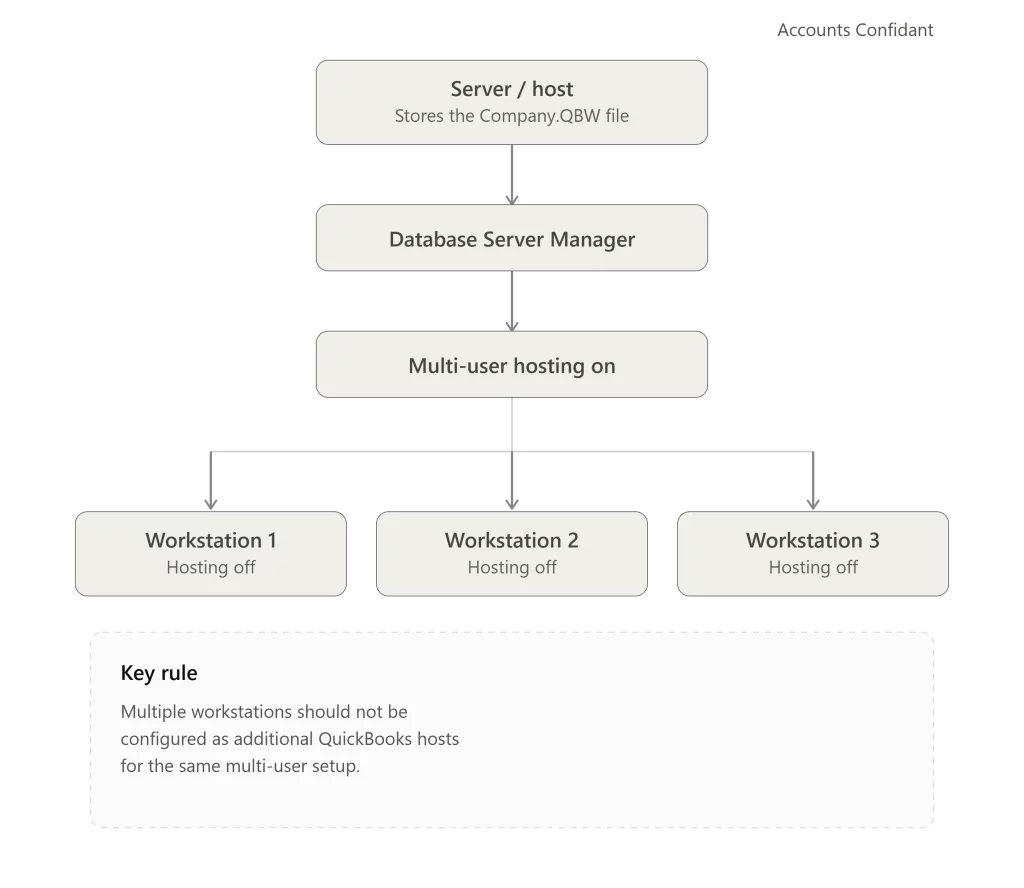
QuickBooks requires the computer hosting the company file to be configured correctly. Your workstations should not also be configured to host the company file.
To check a workstation:
- Open QuickBooks Desktop.
- Do not open the company file.
- Select File.
- Select Utilities.
- Look for the hosting option.
- If you see Stop Hosting Multi-User Access, select it.

- Repeat these steps on other workstations where H505 appears.

If you see Host Multi-User Access instead, do not select it on the workstation. This indicates that the workstation is not currently hosting the company file.
Now check the server computer:
- Open QuickBooks Desktop on the computer that stores the company file.
- Select File.
- Select Utilities.
- Choose Host Multi-User Access if it is available.
- Make sure the server is the computer configured to host the company file.
The goal is simple: the server should host the company file, while the workstations should connect to it.
Verify the QuickBooks Database Server Manager
QuickBooks Database Server Manager is an important part of a multi-user network because it helps the server make company files available to other computers.
If you have the QuickBooks Tool Hub installed, you can use it to access the Database Server Manager.
On the server:
- Close QuickBooks Desktop.
- Open QuickBooks Tool Hub.
- Select Network Issues.
- Select QuickBooks Database Server Manager.
- If your company file folder is listed, select Start Scan.
- If it is not listed, browse to the folder containing your company file.
- Select Start Scan.
- Allow the scan to complete.
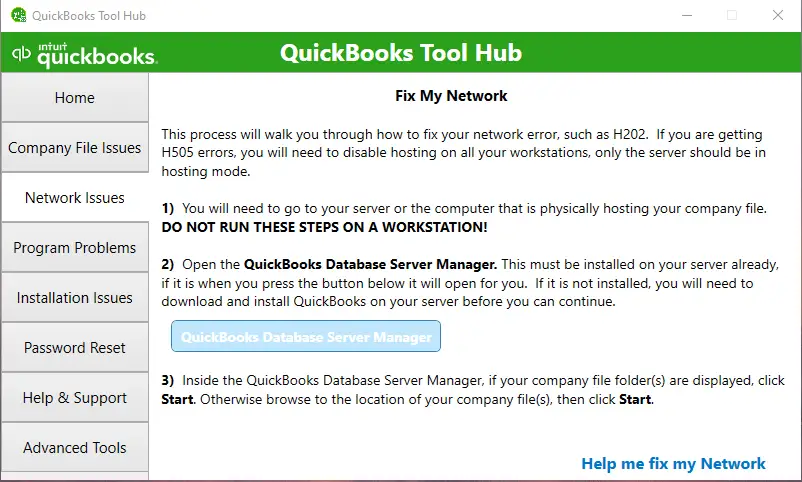
The Database Server Manager can help configure the required firewall permissions during the scan.
Afterward, open QuickBooks on a workstation and try accessing the company file in multi-user mode.
Check the Network Connection Between the Workstation and Server
A workstation must be able to communicate with the computer hosting the company file. If the computers cannot communicate correctly, QuickBooks may return H505.
You can test the basic connection using the Windows Command Prompt.
First, identify the server name:
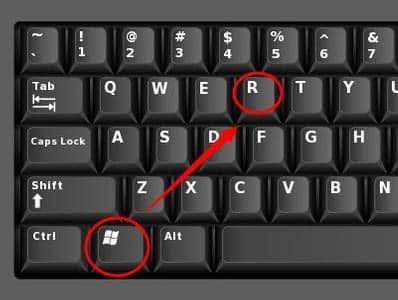
- On the server computer, press Windows + R.
- Enter cmd.
- Press Enter.
- Enter ipconfig /all.
- Note the relevant server or network information.
Then move to the workstation experiencing H505:
- Open Command Prompt.
- Enter a ping command using the server name.
- Press Enter.
- Check whether the workstation receives responses from the server.
A successful response indicates that the workstation can communicate with the server at the basic network level. If the connection fails or shows packet loss, the problem may need to be investigated at the network or Windows configuration level.
Repeat the test on other workstations if H505 occurs on multiple computers.
Check Windows Firewall Settings
A firewall can prevent QuickBooks from communicating between the server and workstations. This can result in the H505 error in multi-user mode, even when the company file itself is functioning normally.
To check the Windows Firewall configuration:
- Open the Windows Control Panel.
- Search for Windows Defender Firewall.
- Select Allow an app or feature through Windows Defender Firewall.
- Select Change settings.
- Check whether the required QuickBooks application is allowed.
- If QuickBooks is not listed, use the option to allow another app.
- Select the appropriate QuickBooks application.
- Save the changes.

If your business uses third-party firewall or security software, check its settings as well. A third-party security application can also interfere with network communication.
Avoid changing firewall settings randomly. If you are unsure which applications or ports need to be allowed for your particular QuickBooks version, use the official QuickBooks network configuration guidance or consult your IT administrator.
Run QuickBooks File Doctor
QuickBooks Tool Hub includes File Doctor, which can check company file and network-related issues.
To run File Doctor:
- Open QuickBooks Tool Hub.
- Select Company File Issues.
- Select Run QuickBooks File Doctor.
- Choose the company file from the list.
- If you cannot find it, browse to its location.
- Select the network-related checking option.
- Select Continue.
- Enter the QuickBooks administrator password when prompted.
- Allow the tool to complete its checks.
File Doctor can be useful when network or company-file-related issues are suspected. However, it should not be treated as a guaranteed solution for every H505 case.
If File Doctor itself won’t launch or doesn’t complete the network check, see QuickBooks File Doctor Not Working.
If the problem is caused by incorrect hosting or firewall configuration, those settings still need to be corrected separately.
Update QuickBooks Desktop
Using an outdated QuickBooks Desktop release can contribute to compatibility and connectivity problems. Updating QuickBooks ensures that you are working with the latest available maintenance release for your installation.
To update QuickBooks Desktop:
- Open QuickBooks.
- Go to Help.
- Select Update QuickBooks Desktop.
- Open the Update Now tab.
- Select the available update options as appropriate.
- Select Get Update.
- Restart QuickBooks after the update completes.
- Install the update if QuickBooks prompts you to do so.
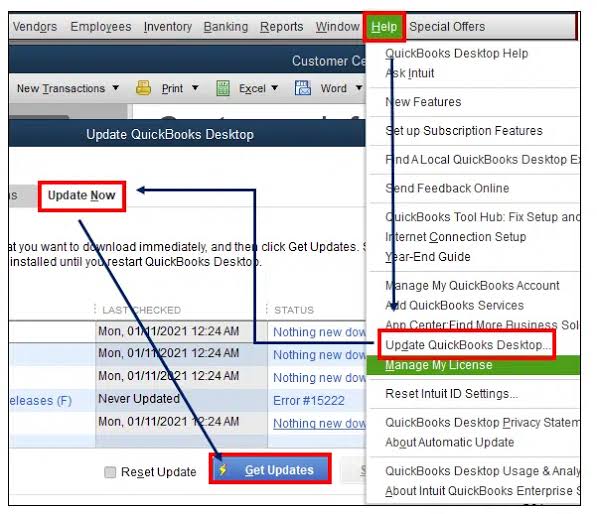
If multiple computers use QuickBooks Desktop in the same multi-user environment, make sure the installations are maintained consistently.
Check the Company File Folder
The company file needs to be stored in an accessible location on the host computer. If the folder containing the company file has sharing or permission problems, workstations may not be able to access it correctly.
Check the folder on the server and make sure:
- The company file is stored on the intended host computer.
- The folder is available to the required users on the network.
- Windows folder permissions allow appropriate access.
- The company file is not being moved between different locations unexpectedly.
- QuickBooks Database Server Manager can identify the folder.
If you make changes to the folder location, update the Database Server Manager configuration accordingly.
Restart QuickBooks and the Network Computers
Sometimes a configuration change does not take effect until QuickBooks or Windows services are restarted.
After making the necessary changes:
- Close QuickBooks on all computers.
- Restart the server computer.
- Restart the affected workstations.
- Open QuickBooks on the server.
- Verify that the server is configured for multi-user hosting.
- Open QuickBooks on a workstation.
- Try opening the company file in multi-user mode.
If H505 returns, continue checking the hosting and network configuration rather than assuming the company file is corrupted.
How to Prevent QuickBooks H505 From Returning
After restoring multi-user access, a few maintenance practices can help reduce recurring connectivity problems.
- Keep QuickBooks Desktop updated.
- Make sure only the appropriate server hosts the company file.
- Keep QuickBooks Database Server Manager configured for the company file folder.
- Avoid moving company files unnecessarily.
- Monitor firewall and antivirus changes.
- Make sure the host computer remains available when users need access.
- Check network connectivity when multiple users suddenly lose access.
- Avoid changing QuickBooks hosting settings without understanding the role of each computer.
- Keep reliable backups of your company data.
A stable host and consistent network configuration can make multi-user access much easier to maintain.
H505 vs. Other QuickBooks H-Series Errors
QuickBooks uses several H-series error codes for problems involving multi-user access and network connectivity.
| Error | General area of concern |
| H101 | Hosting or network configuration |
| H202 | Workstation cannot properly communicate with the server |
| H303 | Company file connection or hosting configuration |
| H505 | Multi-user connection and hosting problem |
These errors can have overlapping causes, including network communication, firewall restrictions, and incorrect hosting.
However, the troubleshooting process should be based on the exact error and the configuration of your QuickBooks environment rather than assuming that every H-series error has the same cause.
When to Get Professional Help for H505
If H505 continues after checking the basic configuration, you may need additional technical assistance.
Consider getting help when:
- The error affects every workstation.
- The server cannot be reached from the workstations.
- Ping tests consistently fail.
- QuickBooks services repeatedly stop.
- Firewall rules are controlled by an IT administrator.
- The company file cannot be accessed from any workstation.
- H505 repeatedly returns after temporary fixes.
- You suspect a broader Windows or network configuration problem.
A professional can review the server, Windows services, network permissions, firewall configuration, and QuickBooks installation together instead of treating each symptom separately.
Conclusion
QuickBooks Error H505 can interrupt multi-user access when workstations cannot establish the required connection to the computer hosting the company file. The most important place to start is the hosting configuration. Only the designated server should host the company file, while workstations should connect to it.
If the hosting setup is correct, check the QuickBooks Database Server Manager, test the network connection, review firewall settings, and use QuickBooks Tool Hub and File Doctor when appropriate. These steps can help identify whether the issue is limited to one workstation or affects the entire network.
By systematically checking the server, workstations, network, and QuickBooks configuration, you can identify the source of H505 instead of treating the error as a company-file corruption problem.
Frequently Asked Questions
What does QuickBooks Error H505 mean?
QuickBooks Error H505 is a multi-user connectivity error that occurs when QuickBooks cannot properly communicate with the computer hosting the company file. It is commonly associated with hosting, network, firewall, or server configuration problems.
Why am I getting Error H505 in multi-user mode?
You may receive H505 when a workstation cannot connect correctly to the host computer. Incorrect hosting settings, firewall restrictions, network connectivity issues, or problems with the QuickBooks Database Server Manager can contribute to the error.
How do I fix QuickBooks Error H505?
To fix QuickBooks Error H505, first verify that only the server is hosting the company file. Then check the Database Server Manager, test network connectivity, review firewall settings, run QuickBooks Tool Hub diagnostics, and update QuickBooks Desktop.
Should hosting be turned on on every computer?
No, Hosting should generally be enabled only on the computer that hosts the QuickBooks company file. Workstations should not also be configured to host the file.
Which computer should host the QuickBooks company file?
The designated server computer that stores the company file should host it. Workstations should connect to this server rather than hosting the file themselves.
Can QuickBooks Tool Hub fix Error H505?
QuickBooks Tool Hub can help troubleshoot H505 by providing access to tools such as QuickBooks Database Server Manager and File Doctor. However, if the cause is an incorrect network or hosting configuration, you may also need to correct those settings manually.
Can QuickBooks File Doctor fix H505?
QuickBooks File Doctor can check certain network and company-file issues that may contribute to connectivity problems. It is useful as part of the troubleshooting process, but it may not resolve an H505 error caused by incorrect hosting or firewall settings.
What is the difference between H505 and H202?
Both are QuickBooks Desktop multi-user connectivity errors. H202 generally indicates that a workstation cannot connect to the computer hosting the company file, while H505 is commonly associated with hosting or host-connection configuration problems. Both can involve network and firewall issues.
Why does H505 appear on only one workstation?
If H505 affects only one workstation, the problem may be specific to that computer’s network connection, firewall, QuickBooks installation, or configuration. Check that workstation’s connection to the server and compare its settings with a workstation that works correctly.
Why am I getting H505 on every computer?
If all workstations display H505, investigate the server and shared network configuration first. Check the host computer, Database Server Manager, hosting settings, firewall configuration, and network connectivity.
Does H505 mean my company file is damaged?
No, H505 does not by itself indicate that the company file is damaged. It primarily points to a problem connecting to the computer hosting the company file.
What should I do if H505 keeps coming back?
If H505 repeatedly returns, review the complete hosting and network configuration instead of repeatedly running the same repair tool. Confirm that only the correct server is hosting the file, check Database Server Manager and firewall settings, and test workstation-to-server connectivity.
Does H505 mean my QuickBooks company file is corrupted?
No, H505 does not necessarily mean your QuickBooks company file is corrupted. The error is commonly related to multi-user connectivity and hosting. If other signs of data damage are present, use appropriate QuickBooks data diagnostic tools separately.
Is QuickBooks Error H505 a network problem?
H505 can be caused by a network problem, but networking is not the only possible cause. Incorrect hosting, firewall restrictions, Database Server Manager configuration, and other server-side settings can also prevent QuickBooks from connecting to the company file.
