A QuickBooks update stuck on the same screen can leave you unsure whether to wait or restart. Before you do either, check the message on the screen. A stalled download needs a different fix from an update that stops during installation.
If the screen says “Writing system registry values,” start with the Defender exclusion fix below. For download errors, failed installs, or repeated restart prompts, follow the section that matches your problem.
This guide covers QuickBooks Desktop for Windows. If you use QuickBooks Online and cannot load it, follow our guide to QuickBooks Online not opening.
Is Your QuickBooks Update Stuck or Just Slow?
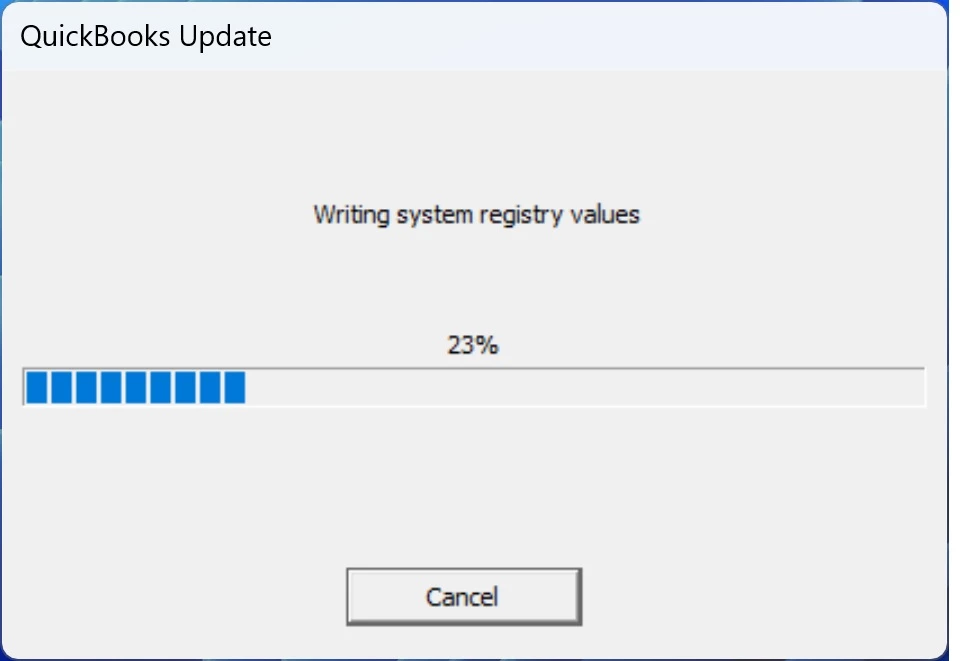
An update may still be working even when its progress bar stops moving. The percentage alone does not tell you whether the process has failed.
Before you interrupt it:
- Look for changes in the status message.
- Check for an install or permission prompt behind another window.
- Note any error code.
- If you know how to use Task Manager, check whether the installer shows activity. Activity is a clue, not proof that the update will finish.
There is no single wait time that fits every update. Avoid shutting down the computer just because the progress bar has stayed still for a few minutes.
Check Where the Update Stops
The stage where QuickBooks freezes during an update helps you choose the next step.
| What you see | Where to start |
| Download stays at 0% or stops partway | Check the connection, then try a manual update |
| “Writing system registry values” | Use the Tool Hub Defender exclusion |
| Installation or patching fails | Check permissions and use the repair tools |
| QuickBooks keeps asking for a restart | Complete a Windows restart, then check the release |
| Progress reaches 100%, but setup stays open | Check for a final prompt or installation message |
| A specific error code appears | Follow the fix for that exact code |
For example, an update at 25% with a registry message should not be treated the same as a download at 25% with a connection error.
What Should You Check Before Trying a Fix?
Save the error details and confirm your setup before making changes. This makes each repair easier to track.
- Take a screenshot – Include the full message and any error code.
- Record your QuickBooks version – If the program opens, press F2 or Ctrl + 1 to view Product Information.
- Check your backup – Make sure you have a recent company file backup before repair or reinstall work.
- Check Windows access – Some fixes need a Windows administrator account. Your QuickBooks company admin login is separate.
- Plan shared access – Ask other users to close QuickBooks before work that affects a shared setup.
If QuickBooks runs on a hosted server, contact the hosting provider before changing security settings or installing software.
Should You Cancel the Update?
Use the installer’s Cancel option when the fix calls for it, and let the cancellation finish. Do not start a second installer while the first is still running or rolling back changes.
If the screen will not respond and you cannot cancel, get help before repeatedly forcing the computer to shut down.
How Do You Fix “Writing System Registry Values”?
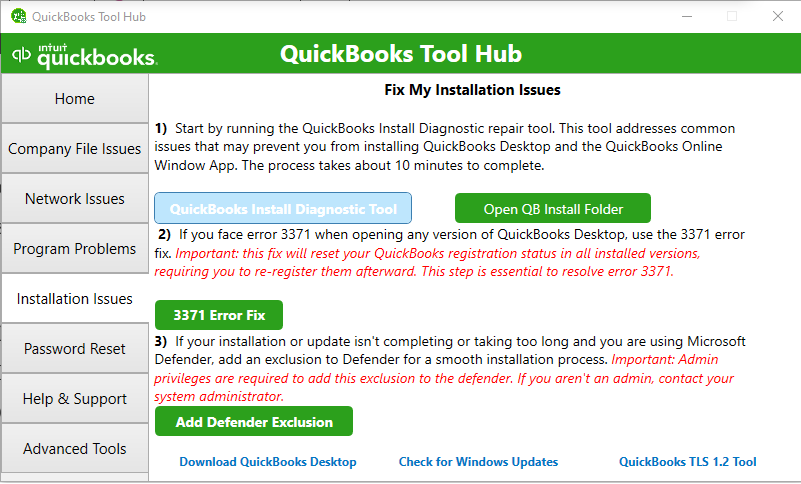
For this exact message, Intuit recommends adding a Microsoft Defender exclusion through Tool Hub. Antivirus scans can slow this stage, often around 20–30%. The message alone does not mean your registry is damaged.
Use a Windows administrator account, then:
- Select Cancel on the update.
- Close QuickBooks.
- Open QuickBooks Tool Hub.
- Select Installation Issues.
- Choose Add Defender Exclusion.
- Restart the computer.
- Open QuickBooks and try the update again.
If you need the utility, follow our QuickBooks Tool Hub download and setup guide and use the official Intuit download.
What if Add Defender Exclusion Is Greyed Out?
A greyed-out option means you lack the required Windows admin rights. Ask your computer administrator to run it.
If another antivirus product manages the device, ask your IT team to review its QuickBooks settings. A Defender exclusion may not address that product.
If the same freeze returns, Intuit’s next steps are version-specific firewall rules, followed by reinstalling with the correct full installer. Avoid broad security changes without checking which setting is causing the block.
What Should You Do When a QuickBooks Update Will Not Download?
Check the connection and any error message first. If the in-app download keeps failing, use Intuit’s manual update option.
Check Your Connection and Windows Clock
Make sure the computer has a working internet connection and the correct date, time, and time zone. Intuit includes these checks in its update error guidance.
If QuickBooks shows an error code, record it before retrying. A code gives you a more useful starting point than a general “update failed” message. Use the official QuickBooks update error guide to match the next step to the error.
Download the Update from Intuit
A manual download is an option when QuickBooks Desktop will not update from inside the program.
- Close QuickBooks.
- Open Intuit’s Downloads & Updates page.
- Choose the standard setup option.
- Select your country, product, and version year.
- Select Search, then Get the latest updates.
- Open the downloaded file and follow the prompts.
- Restart the computer when installation is complete.
Choose the update for your installed product. A maintenance update and an upgrade to a new product year are different tasks.
For more detail on both update methods, see our guide to updating QuickBooks Desktop.
If you have more than one QuickBooks edition from the same year, confirm which edition needs the patch. Do not remove an edition just to test whether the download works.
How Do You Fix an Update That Stops During Installation?
Check permissions and pending restarts, then use the repair tool that fits the problem. A completed download does not mean the installation has finished.
Before starting another attempt, make sure the earlier installer has closed. Complete any pending Windows restart and confirm that your account can install software.
Use Quick Fix My Program for Program Errors
Quick Fix my Program is a first repair option when QuickBooks has program errors during use or updating. Run it after the failed installer has closed.
- Close QuickBooks.
- Open QuickBooks Tool Hub.
- Select Program Problems.
- Choose Quick Fix my Program.

- Reopen QuickBooks and check whether the problem remains.

The tool closes QuickBooks background processes and performs a quick repair.
Use the Install Diagnostic Tool for Install Errors
The QuickBooks Install Diagnostic Tool addresses common installation issues.
- Open QuickBooks Tool Hub.
- Select Installation Issues.
- Choose QuickBooks Install Diagnostic Tool.
- Let it finish. Intuit says it may take up to 20 minutes.
- Restart the computer.
- Open QuickBooks and retry the update.
If the same error returns, save its full wording before trying another repair.
Check Security Rules When the Error Points to a Block
Ask your administrator to review QuickBooks firewall rules if the update cannot connect or the same registry-stage problem returns.
Antivirus and firewall settings serve different roles. Antivirus scans files; a firewall controls network traffic. Changing one does not always solve a problem caused by the other.
Use the rules for your QuickBooks version. Avoid opening broad port ranges or leaving protection turned off as a routine fix.
What if QuickBooks Keeps Asking You to Restart?
Complete a full Windows restart once, then check whether QuickBooks still shows the same prompt. Closing and reopening QuickBooks is not a computer restart.
After Windows starts:
- Open QuickBooks.
- Check the exact message.
- Review the installed release.
- If the same update keeps returning, use the manual update or repair steps above.
Repeated restarts without checking the result can leave you in the same loop.
If QuickBooks closes as soon as it opens, the next step is startup troubleshooting. Our guide to QuickBooks keeps crashing covers that problem.
When Should You Reinstall QuickBooks?
Consider a reinstall when the matching update fixes and repair tools have failed. Prepare first so you can restore access without losing track of your files or product details.
Have these ready:
- A recent company file backup stored in a known location.
- Your license and product details, where required.
- The correct installer for your edition and year.
- Windows administrator access.
Use the full installer for the product you own. Do not assume that a download for another edition or country will work.
Follow our QuickBooks clean install guide if a clean install is needed. Do not delete company files or rename folders at random.
Reinstalling the program and restoring a company backup are separate tasks. You should not restore an older backup simply because the software was reinstalled.
How Can You Confirm the Update Finished?
Check the installed release after QuickBooks reopens. A progress bar at 100% is not enough on its own.
Press F2 or Ctrl + 1 to open Product Information, then compare the release with Intuit’s current release for your product.
Also check that:
- The same install or restart prompt no longer appears.
- Your company file opens.
- A routine task, such as opening a report, works.
- Any security protection temporarily paused during support work is back on.
If the release has not changed, do not assume the update succeeded just because the installer closed.
How Can You Reduce Update Problems Next Time?
Plan updates when other users can stop working, and you have time to check the result.
Keep a recent backup, use official Intuit downloads, and check available disk space before a large install. Complete pending Windows restarts before starting QuickBooks updates.
For a hosted or shared setup, agree on the update window with your administrator. Record the release before and after the work so you can confirm what changed.
When Should You Get Help?
Get help if the installer cannot be cancelled, the same error returns after a matching repair, or you lack access to the required settings.
Contact your IT team or hosting provider for server and security issues. Get Intuit Help for unresolved product update errors.
Have your screenshot, QuickBooks edition, release number, and attempted fixes ready. This gives the person helping you a clear starting point and avoids repeating steps.
Conclusion
A QuickBooks update stuck on the same screen needs a fix that matches the message. Use the Defender exclusion for “Writing system registry values,” try a manual download for download issues, and use Tool Hub for install errors. Keep a recent backup before repairs. Once the update ends, check the release number and open your company file to confirm it worked.
Frequently Asked Questions
Why is my QuickBooks update stuck at 20% or 30%?
Check the status message beside the percentage. If it says “Writing system registry values,” follow the Defender exclusion steps above. If it shows a download or another install message, use that message to choose the fix. The percentage alone does not identify the cause.
Does “Writing system registry values” mean my registry is corrupt?
No, it describes the step the installer is working on. Do not edit registry entries or use a registry cleaner based only on this message. Start with the supported fix for that screen.
How long should I wait for a QuickBooks update?
There is no single time limit for all updates. Check for changing messages, installer activity, or hidden prompts. If it shows an error or stays unresponsive, record the details and follow the matching fix instead of waiting indefinitely.
Can I restart my computer during a QuickBooks update?
Avoid forcing a restart while an installation is active. If a fix requires stopping the update, use Cancel and let it finish first. If the installer will not respond, seek help before forcing a shutdown.
Why is QuickBooks stuck at 100%?
The displayed stage may be complete while setup still needs another step or user response. Check for an install prompt behind other windows. Once QuickBooks opens, confirm the installed release rather than relying on the percentage.
What should I do if the Defender exclusion does not work?
Confirm that you are dealing with the registry-writing message. Then have your administrator review the relevant security rules. If another antivirus tool is active, check its settings too. Avoid adding broad exclusions or turning off protection without a clear reason.
Will reinstalling QuickBooks delete my company data?
Reinstalling replaces the program and should not require deleting your company file. Still, create a backup and confirm its location before you begin. Keep data files separate from any program folders removed during a clean install.
Can QuickBooks File Doctor fix a stuck update?
File Doctor is not the first tool for a stalled software update. It is used for certain company file and network issues. Use our QuickBooks File Doctor guide if a separate file-opening or connection error appears.
Is a payroll update the same as a Desktop update?
No, a Desktop update changes the accounting software, while a payroll update supplies payroll-related changes, such as tax tables. If only payroll fails, follow our guide to QuickBooks Desktop payroll update problems.
Who should fix an update stuck on a hosted server?
Your hosting provider or server administrator should handle it. They can check permissions, active users, and security controls. Send them the exact message and the time the issue occurred before making changes to the hosted setup.
Do these steps work for QuickBooks Online?
No, QuickBooks Online does not use the Desktop update installer. A frozen browser page or a bank feed that will not refresh needs a different fix. First, identify which part of QuickBooks Online is stuck.
Get the Update Moving Again
Start with the message on the screen, then choose the fix for that stage. Use the Defender exclusion for the registry-writing issue, a manual download for a failed in-app update, and repair tools for install errors. Once QuickBooks opens, confirm the release number and check your company file before returning to work.

