QuickBooks Desktop may display “Error: Cannot communicate with the company file due to a firewall” when you try to open a company file stored on another computer. The file might open normally on the server but fail on a workstation. In some cases, every user on the network loses access.
This error usually occurs when a firewall interrupts communication between QuickBooks and the computer hosting the company file. Incorrect hosting settings, folder permissions, or QuickBooks Database Server Manager problems can also prevent access.
To fix the QuickBooks cannot communicate with the company file error, start with QuickBooks File Doctor. If that does not work, check your software updates, firewall rules, shared-folder permissions, database server configuration, and hosting settings.
The steps below apply to QuickBooks Desktop for Windows.
Why can’t QuickBooks communicate with the company file?
QuickBooks displays this error when it cannot establish the connection needed to access a shared company file.
In a typical multi-user setup, the QuickBooks company file (.QBW) is stored on a host computer or server. Other computers, called workstations, connect to that file over the network.
QuickBooks Database Server Manager helps handle communication between the workstations and the hosted company file.
If the required connection is blocked or incorrectly configured, QuickBooks may display a firewall communication error.
According to Intuit’s official troubleshooting guide, firewall interference is the usual cause. However, the recommended troubleshooting also covers folder permissions, database server configuration, and hosting settings.
Before changing anything, identify which computers are affected.
| What happens | What to check first |
| Every workstation displays the error | Server availability, firewall rules, and database services |
| Only one workstation cannot open the file | Workstation connection, saved file path, and permissions |
| Only one company file fails | File-specific folder permissions and Network Data file |
| Company file opens on the server but not remotely | Shared-folder access and Database Server Manager |
| File opens for one user but not another | Current access mode, active sessions, and hosting settings |
| Error started after a Windows update | Firewall rules, network configuration, and QuickBooks services |
For example, suppose three employees connect to the same company file. Two can work normally, but the third receives the communication error. That makes a workstation-specific problem worth checking before changing the entire server configuration.
If all three employees lose access simultaneously, the host computer becomes the more relevant starting point.
Before troubleshooting: Close unnecessary QuickBooks sessions and make sure a recent, usable company-file backup is available. Do not delete company-file support files, change Windows security settings, or move the live .QBW file without understanding the effect on other users.
How to fix QuickBooks cannot communicate with the company file
Intuit recommends six troubleshooting steps for this error. Follow them in order unless your initial checks have already identified a more specific problem.
After each applicable fix, try opening the company file from the affected workstation. If the error disappears, you can stop.
1. Run QuickBooks File Doctor
QuickBooks File Doctor checks certain company-file and network problems. Intuit recommends it as the first repair tool for the firewall communication error.
To run the tool:
- Close QuickBooks Desktop.
- Download and install QuickBooks Tool Hub from Intuit if it is not already installed.
- Open QuickBooks Tool Hub.
- Select Company File Issues.
- Click Run QuickBooks File Doctor.

- Select your company file from the drop-down menu. If it is missing, click Browse and locate the .QBW file.
- Select Check your file and network, then click Continue.
- Enter your QuickBooks administrator password and select Next.
- Follow the remaining prompts and allow the scan to finish.
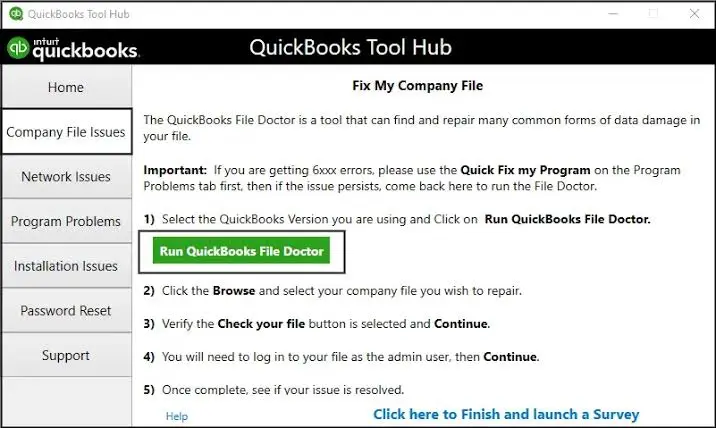
Once File Doctor completes, open QuickBooks Desktop and try accessing the company file again.
Intuit notes that File Doctor may report an unsuccessful scan even if it has resolved the problem. Check whether the file now opens rather than relying only on the scan message.
If File Doctor does not launch, freezes, or closes unexpectedly, follow our guide on QuickBooks File Doctor Not Working.
If File Doctor finishes but the firewall communication error continues, move to the next step.
2. Update your installed QuickBooks Desktop version
An outdated maintenance release may lack fixes included in later QuickBooks updates. Intuit recommends installing the latest available release of your existing Desktop version before continuing with firewall troubleshooting.
To check and install updates:
- Open QuickBooks Desktop.
- Go to Help > Update QuickBooks Desktop.
- Select the Update Now tab.
- Click Get Updates.
- Restart QuickBooks when the download finishes.
- Select Install Now if QuickBooks prompts you to install the update.
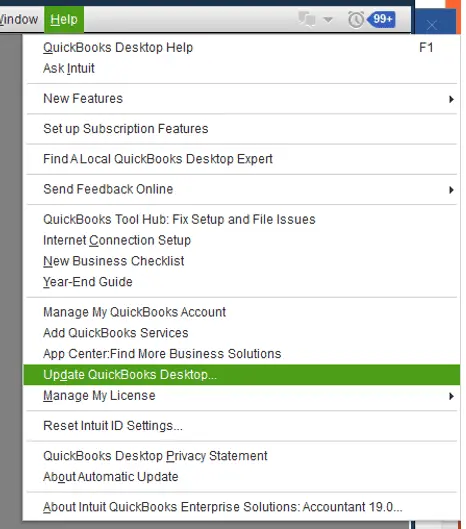
You can check your installed product and release number by pressing F2 or Ctrl + 1 inside QuickBooks.
An update installs maintenance changes for your current version. It is different from upgrading to another annual QuickBooks Desktop version.
If several computers use the same company file, coordinate updates with the person managing the installation.
After updating, try opening the file from the workstation again.
If the same error appears, check whether Windows Firewall is allowing the required QuickBooks connections.
3. Check Windows Firewall and QuickBooks network ports
Windows Firewall or another security program may block communication between the workstation and the QuickBooks database service on the host.
This can happen even when the shared company file is visible in Windows File Explorer. Being able to browse a folder does not prove that QuickBooks can establish its database connection.
Start by reviewing the existing firewall rules. There is no need to permanently disable Windows Firewall to troubleshoot this error.
Find the required QuickBooks port
QuickBooks Desktop 2019 and later use installation-assigned dynamic ports for database communication.
To find the assigned port:
- Go to the computer hosting the company file.
- Open the Windows Start menu.
- Search for QuickBooks Database Server Manager and open it.
- Select the Port Monitor tab.
- Locate your QuickBooks Desktop version.
- Note the port number displayed.
According to Intuit’s firewall configuration instructions, QuickBooks Desktop 2019 and later require TCP port 8019 and the dynamic port assigned during installation.
Do not enter XXXXX as an actual port number if you see it in Intuit’s examples. It represents the installation-specific port shown in Database Server Manager.
Review the firewall rules
On the computer where the required firewall rule applies:
- Search Windows for Windows Defender Firewall with Advanced Security.
- Open Inbound Rules.
- Check whether the required QuickBooks TCP port exceptions exist.
- If they are missing, create the applicable port rule using Intuit’s instructions.
- Review the corresponding Outbound Rules.
- Confirm that the necessary QuickBooks executable files are permitted.
If you use multiple QuickBooks Desktop versions, check the rules required for each installed version.
QuickBooks Desktop 2018 and earlier use different port requirements. Use the official instructions for the specific version rather than copying newer port numbers.
For networks managed by an IT administrator, ask them to review the required ports and application exceptions. Avoid broad firewall changes that expose unrelated services.
Once the rules are configured, reopen the company file.
If QuickBooks still cannot communicate with the server, the next check is whether Windows allows the database service to access the file’s folder.
4. Verify the company file folder permissions
QuickBooks requires appropriate Windows permissions to access a company file stored in a shared network folder.
Two types of permissions may affect access:
- Security permissions: Control which Windows users and services can read or modify files in the folder.
- Sharing permissions: Control access to the folder over the network.
A folder may be shared correctly while the QuickBooks database service account lacks the permissions it needs.
To review the settings:
- Go to the server or computer storing the company file.
- Open File Explorer.
- Locate the folder containing the .QBW file.
- Right-click the folder and select Properties.
- Open the Security tab.
- Select Advanced and check the permissions for the applicable QuickBooks database service account.
- Open the Sharing tab and review the network-sharing configuration.
The database service account is generally named QBDataServiceUserXX, where the suffix depends on your installed QuickBooks version.
For example, QuickBooks Desktop 2024 uses QBDataServiceUser34.
If the service account is missing or has incorrect permissions, follow Intuit’s folder and Windows access permission instructions.
Do not grant unrestricted access to everyone on your network merely to bypass the error. Have an authorized administrator correct the permissions for the intended QuickBooks folder and service account.
After reviewing the settings, try opening the company file again.
If the folder permissions are correct but the error remains, check whether Database Server Manager recognizes the file’s location.
5. Scan the company file folder with QuickBooks Database Server Manager
QuickBooks Database Server Manager allows workstations to communicate with company files stored on the host.
If the wrong folder is configured or the required Network Data file is missing, QuickBooks may fail to locate the hosted file correctly.
Run Database Server Manager on the computer storing the company file:
- Open QuickBooks Tool Hub.
- Select Network Issues.
- Choose QuickBooks Database Server Manager.
- Check whether the folder containing your company file is listed.
- If the folder is missing, click Browse and select its location.
- Click Start Scan.
- Wait for the scan to finish, then select Close.
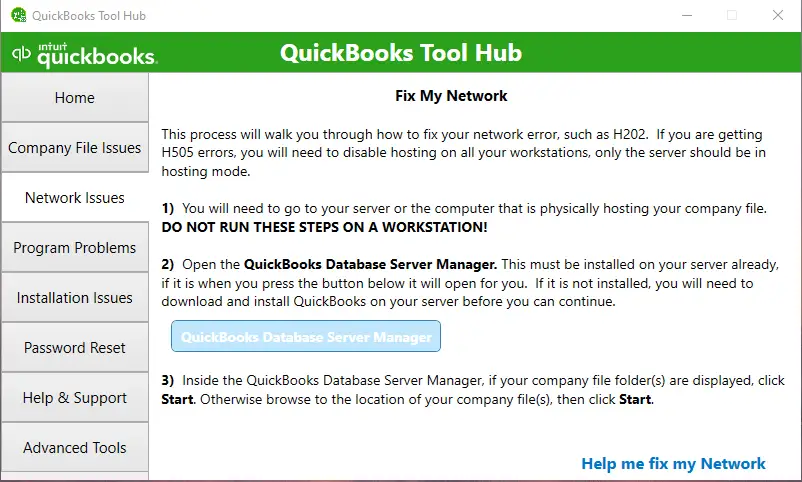
Next, open the scanned folder in File Explorer.
Look for the corresponding Network Data (.ND) file.
For example:
- Company file: ABCCompany.qbw
- Network Data file: ABCCompany.qbw.nd
The .ND file contains information QuickBooks uses to establish network communication with the company file.
If the file is missing, Intuit recommends scanning the folder again.
Check the database service if the scan does not restore access
On the host computer:
- Press Windows + R.
- Enter services.msc and press Enter.
- Locate the QuickBooksDBXX service that corresponds to your QuickBooks version.
- Check whether the service status shows Running.
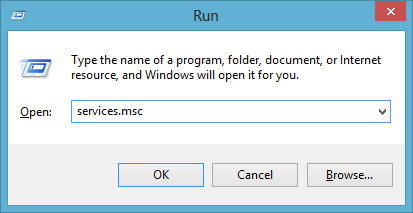
If the service is stopped, an authorized administrator can attempt to start it.
If it repeatedly stops or cannot start, investigate the service failure rather than rescanning the same folder indefinitely.
Our QuickBooks Database Server Manager guide explains installation, folder scanning, and related configuration problems in more detail.
After confirming the service and folder scan, test access from the affected workstation.
If QuickBooks still displays the communication error, incorrect hosting settings may be interfering with access.
6. Correct QuickBooks hosting settings
In a standard QuickBooks Desktop network setup, the computer storing the company file hosts it. Workstations connect to that host without enabling hosting themselves.
If another workstation is incorrectly configured to host multi-user access, QuickBooks may have trouble communicating with the designated server.
Turn off hosting on workstations
On each workstation:
- Open QuickBooks Desktop without opening the company file.
- Go to File > Utilities.
- Check which hosting option appears.
If you see Host Multi-User Access, hosting is already disabled on that workstation. Leave it unchanged. 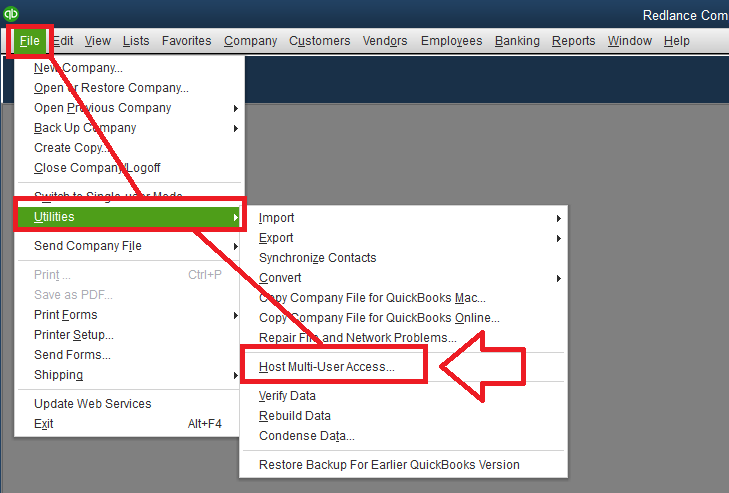
If you see Stop Hosting Multi-User Access, select it to disable hosting. 
Repeat the check on the other workstations.
Check hosting on the server
If the host computer has the full QuickBooks Desktop application installed:
- Open QuickBooks Desktop on the server.
- Go to File > Utilities.
- If Host Multi-User Access appears, select it to enable hosting.
- Confirm that the host now displays Stop Hosting Multi-User Access.
If hosting is already enabled but the error persists, Intuit’s official error guide also documents a hosting reset sequence. Coordinate this with other users before changing the host’s settings.
A dedicated server running only QuickBooks Database Server Manager may not have the full QuickBooks Desktop File menu. In that case, verify hosting through its database server configuration and services.
If the host repeatedly loses its hosting configuration, see our QuickBooks Hosting Mode Is Off troubleshooting guide.
Once the settings are correct, try opening the company file from the workstation.
What if QuickBooks still cannot communicate with the company file?
If the six fixes do not restore access, look at the specific circumstances of the failure.
For example, a communication error affecting one company file requires different checks from an error affecting every workstation.
Only one company file displays the error
If other company files open from the same server, the shared network connection is working for at least some files.
Check the affected file’s location before making changes to the entire network.
Verify that:
- The company file is stored in the expected folder.
- Its folder has the correct sharing and security permissions.
- Database Server Manager has scanned that folder.
- The corresponding .ND file exists.
- The file can be opened locally by an authorized user on the host if QuickBooks Desktop is installed there.
Suppose CompanyA.qbw and CompanyB.qbw are stored on the same server. Employees can open Company A, but Company B always displays the communication error.
If the files are in different folders, compare their permissions and Database Server Manager scan settings first.
If both are in the same folder, check the affected file’s supporting files and whether it can be opened locally.
A file that fails locally as well as over the network may need further file-level investigation. However, the communication error alone does not establish that the company data is corrupted.
Avoid moving or replacing the live company file as a first response. If the file cannot be found at its expected location, follow our guide to QuickBooks Company File Not Found.
QuickBooks opens the file on the server but not on one workstation
If the server opens the file successfully, start by confirming that the workstation is connecting to the correct location.
This is especially relevant after a server replacement, network-share change, or office move.
On a computer that can open the file:
- Open the company file in QuickBooks.
- Press F2 to view the Product Information window.
- Note the file location.
On the affected workstation, use File Explorer to check the expected shared folder and compare the path.
For example, a workstation might still be pointing to:
\\OldServer\Accounting\ABCCompany.qbw
But the live file may now be stored at:
\\NewServer\Accounting\ABCCompany.qbw
If QuickBooks is using an outdated path, open the correct shared file instead.
Do not copy the company file to individual workstations as a workaround. Separate copies can lead to users entering transactions into different files.
If the correct path is accessible but QuickBooks still cannot connect, compare the affected workstation’s firewall settings and network access with those of a working computer.
For broader server connection failures, see QuickBooks Desktop Not Connecting to Server.
QuickBooks works until another user opens the company file
If the file opens for one person but another user cannot access it at the same time, check the company file’s current access mode.
QuickBooks Desktop supports single-user and multi-user modes. In single-user mode, only one user can work in the company file at a time.
Ask the user who currently has the file open to check the File menu.
If Switch to Multi-user Mode appears, the file is currently open in single-user mode.
The user can switch modes when the current task permits it.
If Switch to Single-user Mode appears, the file is already in multi-user mode. In that case, check the hosting configuration, active sessions, and available concurrent-user licenses.
Also remember that Switch to Multi-user Mode and Host Multi-User Access are different settings. The first controls how users access the open company file. The second controls whether the computer hosts company files for other workstations.
Our guide on QuickBooks Multi-User Mode Not Working covers persistent mode-switching and concurrent-access problems.
File Doctor finishes, but the communication error returns
If access works temporarily after File Doctor or a Database Server Manager scan, investigate what changes before the error returns.
The timing can help.
| When the error returns | What to investigate |
| After restarting the server | QuickBooks database service startup |
| After a Windows update | Firewall rules and network settings |
| After moving the company file | Saved file paths and scanned folders |
| When a different workstation connects | Hosting configuration and user access |
| After a temporary network interruption | Server availability and connection stability |
For example, if a Database Server Manager scan restores access every morning but the error returns after a server restart, check whether the database service starts properly and retains the required configuration.
If the problem began after a Windows update, confirm that QuickBooks firewall rules still match the installed version and its assigned ports.
When the error persists, record the complete message, affected computers, file location, QuickBooks version, and troubleshooting results before contacting Intuit or your network administrator.
This information helps isolate the failure without repeating repairs that have already been attempted.
How can you confirm the company file communication error is fixed?
The repair is successful when the affected workstation can open the intended company file from its normal network location without displaying the communication error.
To confirm:
- Open QuickBooks Desktop on the workstation that previously failed.
- Select the correct company file from its shared network location.
- Sign in using an authorized QuickBooks account.
- Confirm that the file opens normally.
- If the business uses multi-user mode, have another licensed user test access while the file is open in multi-user mode.
- Close and reopen QuickBooks to check whether the connection remains available.
A successful File Doctor scan or Database Server Manager scan is not enough by itself. Test the original action that produced the error.
If the error returns, note when it occurs and whether other workstations are affected.
Conclusion
The QuickBooks cannot communicate with the company file error usually points to a blocked or incorrectly configured connection between QuickBooks Desktop and the host computer.
Start with File Doctor, then check the applicable firewall settings, folder permissions, Database Server Manager, and hosting configuration. If only one file or workstation is affected, focus on that specific connection instead of changing the entire network.
Do not assume the company file is damaged merely because QuickBooks cannot open it over the network.
Frequently asked questions
Is “cannot communicate with the company file” the same as QuickBooks Error H202?
No, both errors can involve communication with the computer hosting the company file, but they are different messages. H202 is associated with multi-user connection problems. Use the troubleshooting instructions for the exact error QuickBooks displays.
Why can I see my QuickBooks company file in File Explorer but cannot open it?
Windows may allow you to browse the shared folder while QuickBooks cannot establish the required database connection. Check the QuickBooks database service, firewall rules, and folder permissions. Seeing the file does not confirm that QuickBooks can communicate with the server.
Can a damaged company file cause a communication error?
A file-specific problem may prevent QuickBooks from opening a company file, but the firewall communication message does not prove data damage. Check the network connection, file location, and permissions first. If the file also fails to open locally, further company-file diagnosis may be appropriate.
Should I delete the .ND or .TLG file to fix this error?
Do not delete either file as a routine fix. The .ND file supports network communication, while the .TLG transaction log can be important for data recovery. If the .ND file is missing, start by rescanning the company file folder with Database Server Manager. Only rename or replace supporting files when a documented procedure applies to your specific problem.
Can this error occur when only one person uses QuickBooks?
Yes, A single user can encounter the error when accessing a company file stored on another computer. Even without multiple active users, QuickBooks may need a working network connection to the host.
Does this guide apply to QuickBooks Online or QuickBooks Desktop for Mac?
No, these instructions are intended for QuickBooks Desktop for Windows. QuickBooks Online does not use the same locally hosted .QBW company-file arrangement, while QuickBooks Desktop for Mac has different networking and hosting requirements.
Accounts Confidant is an independent accounting and bookkeeping service provider and is not affiliated with Intuit.