QuickBooks multi-user mode may stop working when you try to switch from single-user mode, open a shared company file from another workstation, or reconnect after a Windows update. Sometimes QuickBooks displays an error code, such as H202 or H505. Other times, it refuses to switch modes without showing an error.
The problem may involve incorrect hosting settings, a stopped database service, an inaccessible company file path, or a network connection that no longer works as expected.
To fix QuickBooks multi-user mode not working, first identify whether the issue affects one workstation or every computer. Then check the hosting configuration, company file location, and database services before changing firewall rules or repairing files.
This guide focuses on QuickBooks Desktop for Windows, with separate guidance for Mac users and businesses accessing their files remotely.
Why Is QuickBooks Multi-User Mode Not Working?
QuickBooks Desktop uses a host computer to make a company file available to other users over a network. Each workstation needs access to the correct file location, a working connection to the host, and the required permissions.
If any of these conditions fail, QuickBooks may display a multi-user mode error or prevent another user from opening the company file.
The most common causes include:
- Incorrect hosting settings on the server or workstations.
- QuickBooksDBXX or QBCFMonitorService not running correctly.
- A blocked network connection or incorrect firewall configuration.
- A changed company file path or missing folder permissions.
- QuickBooks Database Server Manager not configured for the installed version.
- Another user holding exclusive access to the company file.
- Network or server changes after a Windows update, office move, or system upgrade.
The exact symptom can help you narrow down the problem.
What Should You Check First?
Before making changes, determine which computers are affected and whether QuickBooks displays an error.
| What you notice | What to check first |
| QuickBooks cannot switch to multi-user mode | Current mode and hosting configuration |
| QuickBooks keeps opening in single-user mode | Company file opening settings |
| Only one workstation cannot connect | Its file path, network access, and user permissions |
| All workstations lose access | Host computer and database services |
| QuickBooks shows H202 or H505 | Server communication and hosting settings |
| Multi-user mode stopped after a Windows update | Service status, network settings, and firewall rules |
| Multi-user mode keeps turning off or disconnecting | Server availability and recurring service failures |
| Another user has the file open | Active sessions and single-user restrictions |
For example, if four employees use the same company file and only one computer fails, start with that workstation. If everyone loses access at once, investigate the server first.
Before modifying company files or their supporting files, confirm that a recent, usable backup is available.
How to Fix QuickBooks Multi-User Mode Not Working
Start with the following checks in order. Each one tests a different part of the multi-user connection.
If you are setting up the feature for the first time, see our QuickBooks Desktop multi-user mode guide for the complete installation and setup instructions.
Confirm the Current Multi-User Mode and Hosting Settings
First, check whether QuickBooks is actually operating in single-user mode.
- Open QuickBooks Desktop and sign in to the company file.
- Select File from the menu.
- Look for Switch to Multi-user Mode or Switch to Single-user Mode.
- If Switch to Multi-user Mode appears, select it.

- If Switch to Single-user Mode appears, the file is already open in multi-user mode.
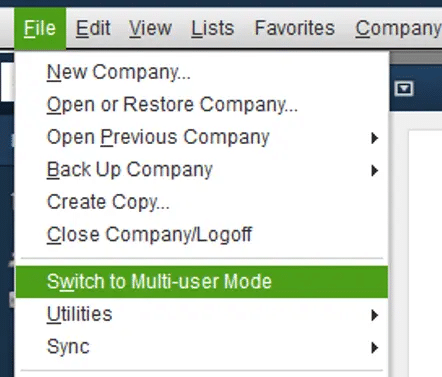
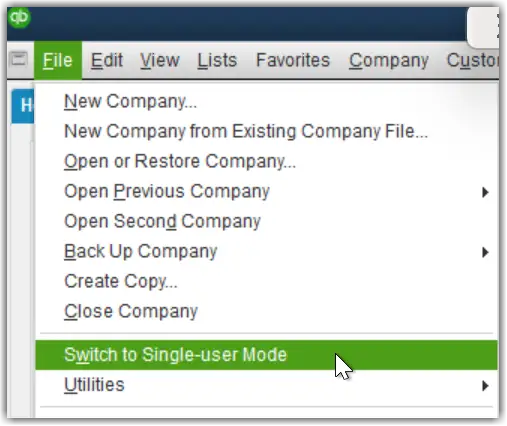
If switching fails, record the exact message before continuing.
Next, check the hosting settings on the workstations.
- Open QuickBooks Desktop on an affected workstation without opening a company file.
- Select File > Utilities.
- If Stop Hosting Multi-User Access appears, select it to disable workstation hosting.
- If Host Multi-User Access appears, leave it unchanged.
Repeat this check on the other workstations.
In a standard network setup, the computer storing the company file should host it. The workstations should connect without hosting it themselves.
If the host runs the full QuickBooks Desktop application, check File > Utilities there as well. Select Host Multi-User Access if hosting is off.
A server-only installation uses QuickBooks Database Server Manager instead, so it may not have the same File menu.
If hosting remains unavailable or incorrectly configured, see QuickBooks Hosting Mode Is Off for more detailed steps.
When the hosting settings are correct, check whether the affected computer is opening the intended company file.
Check the Company File Location and Network Access
A workstation can lose multi-user access when it points to an old network folder or a company file that has been moved.
This is worth checking if the issue began after replacing a server, renaming a computer, or changing a network drive.
On a computer that can open the file:
- Open the company file in QuickBooks Desktop.
- Press F2 to open Product Information.
- Note the company file location.
On the affected workstation:
- Open Windows File Explorer.
- Browse to the shared folder on the host computer.
- Confirm that the expected .QBW file exists.
- Compare the path with the working computer.
- Reopen the file from its correct shared location if the saved path is outdated.
For example, a workstation may still be looking for \\OldServer\Accounting\Company.QBW after the company file has been moved to a new server.
Avoid copying the live file to each workstation to bypass the connection issue. Users could end up entering transactions into different copies.
If the company file cannot be located, our QuickBooks Company File Not Found guide covers missing paths and file-location errors.
If the file is present and accessible but QuickBooks still cannot connect, check the database service on the host.
Check QuickBooks Database Server Manager
QuickBooks Database Server Manager helps workstations communicate with company files stored on the server.
If the manager has not scanned the correct folder, a workstation may be unable to establish the required connection.
To check the folder scan:
- Go to the computer hosting the company file.
- Open QuickBooks Tool Hub.
- Select Network Issues.
- Choose QuickBooks Database Server Manager.
- Check whether the correct company file folder is listed.
- If it is missing, select Browse and locate the folder.
- Select Start Scan.
- When the scan finishes, close the utility.
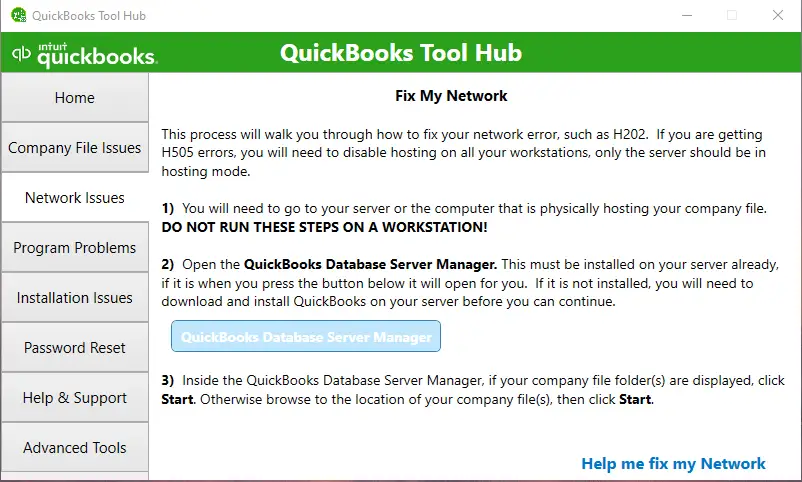
Now try opening the shared company file from the affected workstation.
If scanning restores access, no additional file changes may be necessary. However, if the problem returns after every scan, investigate why the configuration is not remaining stable.
Check for a QuickBooks Database Server Manager Version Mismatch
If multi-user mode stopped working after upgrading QuickBooks, confirm that the host has the appropriate Database Server Manager version installed.
QuickBooks uses version-specific services. For example:
- QuickBooks Desktop 2023 uses QuickBooksDB33.
- QuickBooks Desktop 2024 uses QuickBooksDB34.
To check the installed QuickBooks version, open the program on a workstation and press F2. Review the product and release information.
Compare it with the other computers accessing that company file and the Database Server Manager versions installed on the server.
A version mismatch should be investigated when the issue begins after an upgrade, but it should not be assumed to be the cause of every connection failure.
If the required manager is installed but workstations still cannot connect, inspect the Windows services it uses.
Verify QuickBooks Database Services
QuickBooks Desktop relies on Windows services to manage access to the hosted company file.
Two services to check are QuickBooksDBXX and QBCFMonitorService.
To verify their status:
- On the server, press Windows + R.
- Enter services.msc and press Enter.
- Find QuickBooksDBXX, where XX identifies the relevant QuickBooks version.
- Double-click the service.
- Set Startup type to Automatic if it is not already configured that way.
- Check whether Service status shows Running.
- If the service is stopped, select Start.
- Select Apply, then OK.
- Repeat the checks for QBCFMonitorService.
What does QBCFMonitorService do?
QBCFMonitorService is a QuickBooks Windows service involved in the multi-user environment. If it stops or cannot function correctly, communication between workstations and the host may be affected.
If a service starts successfully but stops again, that requires a separate investigation. Restarting it repeatedly may only provide temporary access.
Our QBDBMgrN Not Running on This Computer guide covers persistent database-service failures.
If both services are running, move on to the workstation’s connection with the server.
Test the Workstation’s Connection to the Server
A workstation must be able to reach the host computer before QuickBooks can open its shared company file.
A basic network test can help identify connection problems.
First, find the server name:
- On the host computer, open Command Prompt.
- Enter hostname.
- Press Enter and note the computer name.
Then test from the affected workstation:
- Open Command Prompt.
- Enter ping ServerName, replacing ServerName with the actual host name.
- Press Enter.
- Review the response.
If the workstation receives replies without packet loss, basic network communication is available. This does not guarantee that the QuickBooks database service is reachable.
If the request times out, check the network connection and server name. Keep in mind that some firewalls block ping traffic, so a failed ping alone does not prove the server is offline.
You should also try accessing the authorized shared folder in Windows File Explorer.
When one workstation can access the share but another cannot, compare their network settings and permissions.
For additional checks, see our QuickBooks Network Connection Error guide.
If the network is available but QuickBooks still reports a connection error, firewall restrictions or folder permissions may be responsible.
Review Windows Firewall and Folder Permissions
Windows Firewall, antivirus software, or incorrect folder permissions can prevent QuickBooks from communicating with its host.
For QuickBooks Desktop 2019 and later, Intuit uses installation-assigned dynamic ports alongside other required ports.
To identify the dynamic port:
- Open QuickBooks Database Server Manager on the host.
- Select the Port Monitor tab.
- Find the installed QuickBooks version.
- Note its assigned port number.
An authorized administrator can then check the relevant firewall rules for that QuickBooks version.
Use Intuit’s firewall and security settings instructions for the required ports, programs, and configuration steps.
Next, check whether the company file folder allows the appropriate Windows accounts to access it.
QuickBooks uses a version-specific service account named QBDataServiceUserXX. That account needs the permissions required to manage company files through Database Server Manager.
For example, QuickBooks Desktop 2023 uses QBDataServiceUser33.
Check both the folder’s Security settings and its network-sharing permissions.
Do not grant broad access to unrelated Windows users or permanently disable security software simply to test QuickBooks.
If the permissions and firewall rules appear correct, QuickBooks File Doctor can perform an additional network check.
Run QuickBooks File Doctor for Network Errors
QuickBooks File Doctor includes a network diagnostic option that Intuit recommends for certain multi-user connection errors, particularly H202.
To run the check:
- Open QuickBooks Tool Hub.
- Select Company File Issues.
- Choose Run QuickBooks File Doctor.
- Select the affected company file or browse to its location.
- Choose Check your Network.
- Select Continue.
- Enter the QuickBooks administrator password when prompted.
- Follow the remaining instructions.
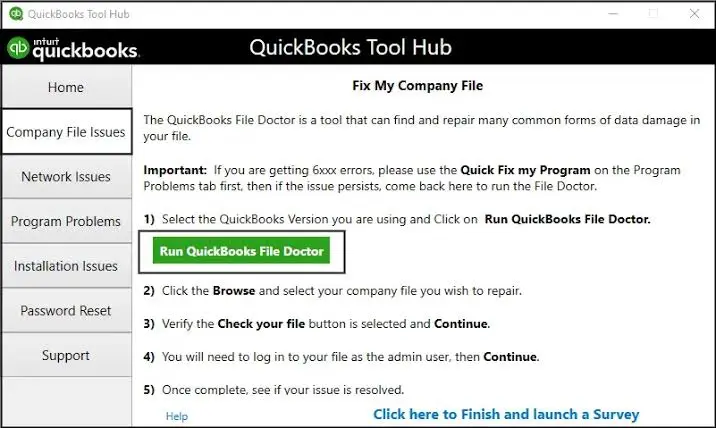
After the check finishes, reopen the company file from the affected workstation.
If File Doctor itself does not open, freezes, or repeatedly fails, follow our QuickBooks File Doctor Not Working guide.
Do not repeatedly run File Doctor without reviewing the result. If the tool completes but multi-user access still fails, the next step depends on the specific behavior QuickBooks displays.
What If QuickBooks Cannot Switch to Multi-User Mode Without an Error?
Sometimes QuickBooks does not show an H-series error. Instead, the switching option may be unavailable, the mode may not change, or the file may reopen in single-user mode.
These symptoms need different checks from a straightforward server connection error.
Why Does QuickBooks Keep Opening in Single-User Mode?
If the company file opens successfully but always starts in single-user mode, check its opening settings.
- Open QuickBooks Desktop.
- Select File > Open or Restore Company.
- Choose Open a company file, then Next.
- Select the Open file in multi-user mode checkbox if available.
- Open the file and sign in.
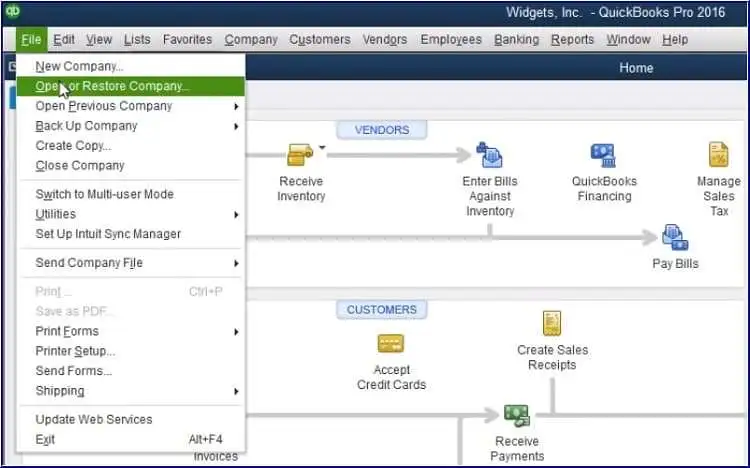
This setting may resolve the issue when QuickBooks keeps opening in single-user mode by default.
However, if QuickBooks displays a connection error during the switch, changing this checkbox will not fix the underlying network problem.
Why Does the Switch to Multi-User Mode Option Fail?
If the Switch to Multi-user Mode command fails, first check whether another operation requires single-user access.
Intuit identifies tasks such as Rebuild Data and Condense Data as operations that cannot run in multi-user mode.
Make sure the operation has finished before switching. Then close any remaining task windows and try the mode change again.
If the option appears unavailable, check whether Switch to Single-user Mode is displayed instead. That means the company file is already in multi-user mode.
Do not confuse these options with Host Multi-User Access under File > Utilities. Hosting and the company file’s current access mode are different settings.
Why Can One Computer Open the Company File While Others Cannot?
When the company file opens from one computer but fails on another, the problem may be limited to a workstation or user account.
Compare the working and affected computers before changing server-wide settings.
Check whether both workstations use the same company file location and whether the affected computer can reach the shared folder.
Then confirm that the user has a separate QuickBooks login with the necessary permissions.
You should also check the number of licensed concurrent users. Press F2 in QuickBooks Desktop and review the User Licenses information.
A company with a two-user license cannot support three simultaneous QuickBooks users merely by enabling multi-user mode.
What If QuickBooks Says Another User Has the File Open?
A file-in-use warning does not always mean the network connection has failed.
Another user may have opened the file in single-user mode or may be performing a task that limits other users’ access.
If QuickBooks identifies an active user or conflicting task, ask that person to finish and save their work.
An authorized administrator can review active sessions using QuickBooks Messenger where the feature is available.
Avoid forcing users out of the company file unless you understand which session is active and have coordinated with them.
If the warning remains after everyone has signed out, investigate the host and company file session instead of immediately changing the .ND or .TLG files.
Why Does QuickBooks Multi-User Mode Stop Working After a Windows Update?
If QuickBooks multi user mode is not working after a Windows update, determine whether the problem affects the updated computer alone or the entire network.
For example, if only one workstation received an update and all other users can still connect, start with that workstation. If the server was updated and no users can connect afterward, inspect the server first.
Check that:
- Windows has completed any pending restart.
- QuickBooks database services are running.
- The server remains reachable from the workstations.
- Firewall rules still allow the required QuickBooks communication.
- The company file folder is still accessible.
Windows updates do not always change these settings. Use the timing of the failure as a clue, not proof of the cause.
What If Multi-User Mode Is Not Working on Windows 11?
Windows 11 compatibility depends on the installed QuickBooks Desktop version.
For example, Intuit lists Windows 11 64-bit as a supported operating system for QuickBooks Desktop 2024. This does not establish compatibility for every older QuickBooks release.
If QuickBooks Desktop opens normally on Windows 11 but multi-user access fails, check hosting, database services, and network permissions before considering a program repair.
You can confirm version-specific requirements in Intuit’s QuickBooks Desktop 2024 system requirements.
A different set of checks applies when multi-user access stops after moving to a new network.
Why Does QuickBooks Multi-User Mode Stop Working After Moving Offices?
If QuickBooks multi-user mode is not working after moving to a new office, check whether the shared company file location or network configuration changed during the move.
A new router, server, computer name, or network share can affect how workstations locate the host.
For example, an employee may still have a shortcut pointing to the company file on an old server that is no longer available.
Compare the current company file path with the location saved on the affected workstation.
Also confirm that:
- The host computer is connected to the new office network.
- The shared company file folder is accessible.
- Database Server Manager has scanned the correct folder.
- The server name resolves correctly from the workstations.
- Appropriate firewall rules and sharing permissions are in place.
If the company file was transferred to a different server, make sure staff are not still working in a copy on the previous computer.
If your business also uses a VPN or a managed Windows domain, review those settings separately.
Why Is QuickBooks Multi-User Mode Not Working on a VPN?
If QuickBooks multi-user mode is not working on a VPN, first identify how the remote users access the company file.
Intuit does not recommend VPN connections for directly opening QuickBooks Desktop company files across a wide-area network.
Even when a VPN successfully connects two office networks, delays or interruptions can affect access to the live company file.
For example, a remote employee may connect to the office VPN and browse the shared folder, but QuickBooks may still fail when opening the .QBW file.
That is different from using a remote desktop connection to operate QuickBooks on a computer within the host network.
If remote access is necessary, review Intuit’s recommended network configurations.
Avoid trying to fix an unsuitable remote file-access arrangement by repeatedly changing firewall rules or copying the live file to remote computers.
Can Domain Controller Settings Affect QuickBooks Multi-User Mode?
Yes, a Windows domain environment can affect QuickBooks access if file permissions, network policies, or name resolution are configured incorrectly.
If your company uses a domain controller, have the administrator check whether authorized workstation users and the QuickBooks database service account can access the shared company file folder.
Also confirm that workstations can resolve the host computer’s name and reach the required services.
A domain environment is not inherently incompatible with QuickBooks. Intuit includes properly configured domain networks among its recommended local-network arrangements.
However, a problem on a domain-managed network may require checking Group Policy, account permissions, or centrally managed firewall settings. Those changes should be handled by someone authorized to administer the network.
Why Does QuickBooks Multi-User Mode Keep Turning Off or Disconnecting?
If QuickBooks multi-user mode works temporarily but fails every few days or weeks, look for a recurring change instead of repeating the same repair.
The timing can help identify the cause.
| When the connection fails | What to investigate |
| After restarting the server | Service startup settings |
| After several hours of inactivity | Server sleep and network adapter power settings |
| After a Database Server Manager scan | Folder configuration and recurring service problems |
| On one workstation at random times | Local network connection or security settings |
| Across all workstations together | Host availability and server-side failures |
| After a QuickBooks upgrade | Installed versions and database services |
For example, if users regain access every morning after restarting the server but lose it again later, check whether the database service stops or the host becomes unavailable.
If Database Server Manager scans temporarily restore access, verify that the same folder remains configured and that the relevant service continues running.
How Do You Set QuickBooks Services to Restart Automatically?
Intuit recommends configuring recovery actions for QuickBooksDBXX and QBCFMonitorService when troubleshooting service failures.
On the server:
- Press Windows + R.
- Enter services.msc and press Enter.
- Double-click the relevant QuickBooksDBXX service.
- Open the Recovery tab.
- Set First failure, Second failure, and Subsequent failures to Restart the Service.
- Select Apply, then OK.
- Repeat the appropriate recovery settings for QBCFMonitorService.
These settings can help Windows restart a service after a failure, but they do not correct the underlying reason it stops.
If random disconnects continue, record the failure times and check the service status and Windows event logs around those times.
What If QuickBooks Displays H202, H505, H101, or H303?
These H-series errors indicate problems involving communication between QuickBooks workstations and the computer hosting the company file.
The codes help narrow down troubleshooting:
| Error | What it generally indicates |
| H101 | A multi-user connection or hosting configuration problem |
| H202 | QuickBooks cannot establish the required connection to the host server |
| H303 | Additional hosting or network configuration is needed |
| H505 | A workstation hosting configuration or server connection problem |
For H101, H303, and H505, Intuit specifically recommends checking whether a workstation is incorrectly configured to host multi-user access.
For H202, the recommended checks focus on server communication, Database Server Manager, services, and network configuration.
An H-series error does not automatically mean the company file is damaged. Investigate the connection before attempting data repairs.
What If QuickBooks Multi-User Mode Is Not Working on Mac?
QuickBooks Desktop for Mac uses a different multi-user system from QuickBooks Desktop for Windows.
It relies on QuickBooks Server and macOS networking rather than Windows services such as QuickBooksDBXX.
If multi-user access fails on Mac, check whether:
- The computer running QuickBooks Server is powered on and awake.
- The QuickBooks Server application is running on the intended host.
- The company file folder has the required file-sharing permissions.
- The macOS firewall allows QuickBooks Server connections.
- Bonjour can discover the computers on the local network.
For example, if a Mac hosting the company file goes to sleep during the day, other users may lose access until it becomes available again.
Intuit also documents specific network ports used by QuickBooks Desktop for Mac. These differ from the Windows database-server configuration.
Follow the official QuickBooks Desktop for Mac multi-user troubleshooting instructions rather than applying Windows-only repair procedures.
How Can You Confirm That Multi-User Mode Is Working Again?
After making the relevant changes, test the shared company file from two authorized workstations.
- Open the company file on the first workstation.
- Confirm that QuickBooks is operating in multi-user mode.
- Open the same company file from a second workstation.
- Sign in with a separate QuickBooks user account.
- Confirm that both users can access the features allowed by their permissions.
You do not need to enter test transactions into the live company file simply to confirm connectivity.
If both users can access the same file without errors, the immediate multi-user connection issue has been resolved.
If the problem returns, record the exact message, QuickBooks version, affected computers, and time of failure. These details can help identify a recurring network or service issue without repeating unrelated repairs.
Conclusion
When QuickBooks multi-user mode stops working, the right fix depends on whether the problem involves switching modes, accessing the host, or maintaining a stable connection.
Start with the affected computers and company file location, then check hosting and database services. Use the error code or recurring failure pattern to decide whether further network, permission, or file-level troubleshooting is necessary.
Frequently Asked Questions
How do I fix QuickBooks multi-user mode not working?
Confirm that the correct server is hosting the company file and that workstations have hosting disabled. Check the file path, run Database Server Manager’s folder scan, and verify the database services. If QuickBooks shows an error code, troubleshoot that specific error.
Why does QuickBooks keep switching back to single-user mode?
First, check whether the company file is simply reopening in single-user mode. If so, select Open file in multi-user mode when opening it. If QuickBooks changes modes during an active session, check for an exclusive-access operation or a specific warning.
Which computer should host the QuickBooks company file?
In a standard QuickBooks Desktop network, the designated computer storing the company file should host it. Other workstations should connect to that computer without enabling their own hosting settings.
How do I check if QuickBooks Database Server Manager is running?
On the server, press Windows + R, enter services.msc, and locate the relevant QuickBooksDBXX service. Its status should show Running. You can also open QuickBooks Database Server Manager to check its status and scanned folders.
How do I repair a damaged .ND file in QuickBooks?
If troubleshooting indicates that the network data file is damaged, first make a verified backup and have users close QuickBooks. Locate the .ND file matching the company file, then rename it by adding .OLD to the end. Run Database Server Manager’s folder scan again to recreate the network information. Do not rename the .QBW file or alter the .TLG file unless the applicable Intuit procedure requires it.
How do I configure Windows Firewall for QuickBooks multi-user mode?
Check the required QuickBooks applications and version-specific TCP ports. For QuickBooks Desktop 2019 and later, find the assigned dynamic port in Database Server Manager’s Port Monitor tab. Use Intuit’s official firewall instructions to configure the appropriate inbound and outbound rules.
What folder permissions does QuickBooks need for multi-user mode?
The shared company file folder must allow access for authorized Windows users and the relevant QuickBooks database service account, such as QBDataServiceUserXX. The required permissions include access to read, create, and modify the files QuickBooks needs. Check both Windows Security and network-sharing permissions.
Why does multi-user mode keep breaking every few days or weeks?
Repeated failures may be caused by services stopping, server sleep, unstable network access, or configuration changes. Compare the time of each failure with server restarts, updates, and service events. A temporary fix does not necessarily address the recurring cause.
Can I fix QuickBooks multi-user mode without calling IT support?
Yes, you may be able to resolve the problem by correcting the current mode, checking workstation hosting, confirming the company file path, or rescanning the folder with Database Server Manager. Firewall administration, domain policies, persistent service failures, and server permission changes may require IT support.
Can QuickBooks multi-user mode work without an internet connection?
A supported local-area network can provide QuickBooks Desktop multi-user access without continuous public internet access for ordinary shared-file operations. However, QuickBooks activation, connected services, updates, and certain other features may require internet access.
Can a NAS device host QuickBooks company files using Database Server Manager?
Intuit states that QuickBooks Database Server Manager does not support Network Attached Storage devices. Use a supported hosting configuration instead of assuming that a shared NAS folder can act as a QuickBooks database server.
Do I need to reinstall QuickBooks if multi-user mode stops working?
Not usually. Reinstallation should not be the first step. Check hosting, file paths, database services, network connectivity, and permissions first. Consider a program repair or reinstallation only when troubleshooting indicates an installation problem and the procedure is appropriate for your QuickBooks version.